


30+ Best iPhone Mockup Templates Worth Trying
Looking for the right iPhone mockup template to fit your brand? Checkout our list of the best iPhone mockup templates worth trying.
Published Dec 24, 2025
Create stunning iPad mockups with Modor using simple steps and pro tips that make your designs look polished and real.
10 min
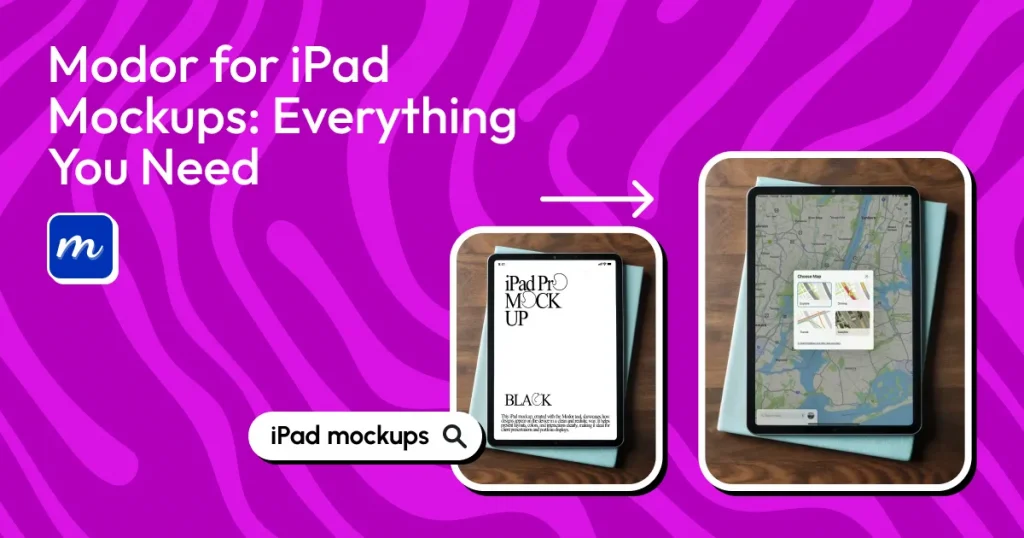
An iPad mockup is a digital template that displays a blank or customizable iPad screen. Modor is one of the best iPad mockup generators that allows users to place their design on realistic iPad templates and customize the final presentation with ease.
In this guide, we will explore how to create iPad mockups in Modor. Moreover, you will also learn different kinds of iPad mockups, simple ways to create them, and how to choose the best tool for creating iPad mockups, like Modor or Canva.
We will also see how we can improve the final look and use professional iPad mockups across portfolios, ads, and product pages. By the end, you’ll know exactly how to create clean, realistic iPad mockups without any design skills.
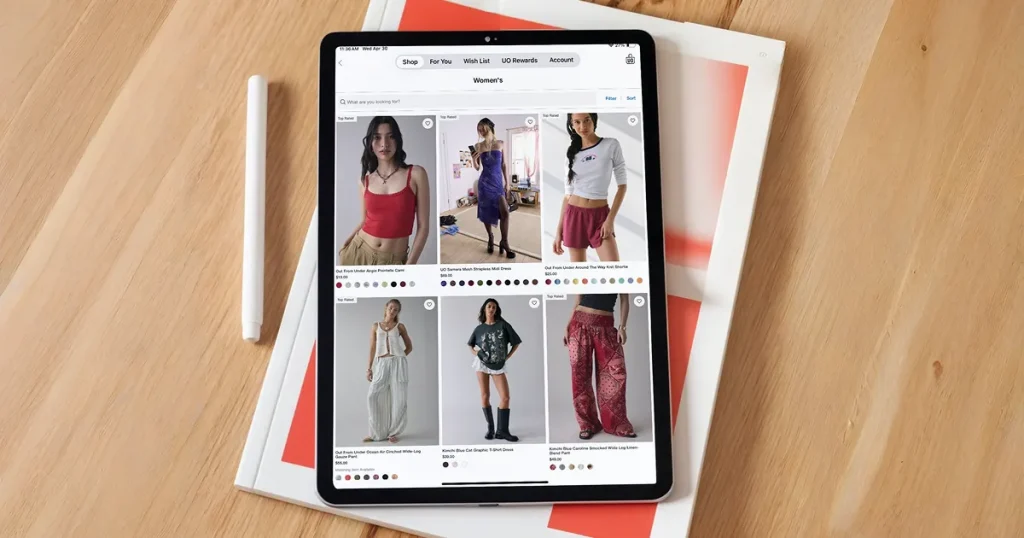
An iPad mockup is a visual frame that displays your iPad screen inside a realistic device model. This is why iPad mockups in presentations feel clearer and easier to understand. This makes iPad mockups valuable for presenting apps, layouts, learning platforms, and product features with a stronger visual impact.
Understanding different kinds of iPad mockups helps you choose the right style for your project.
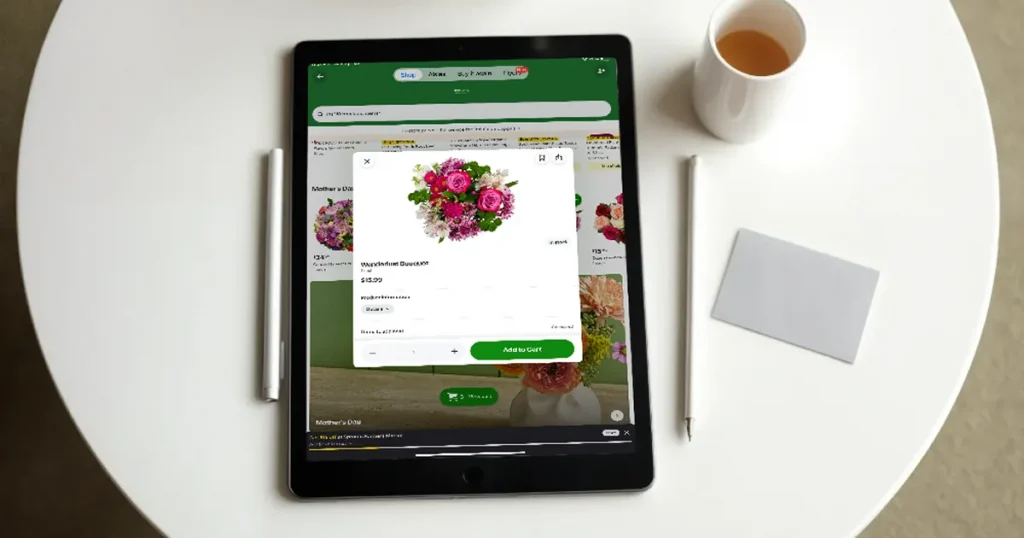
Minimal iPad mockups remove distractions, keeping all the attention on your iPad screen. Many designers use this style for case studies, app previews, and portfolio uploads where clarity matters most. Plain backgrounds and soft lighting are best for this style.
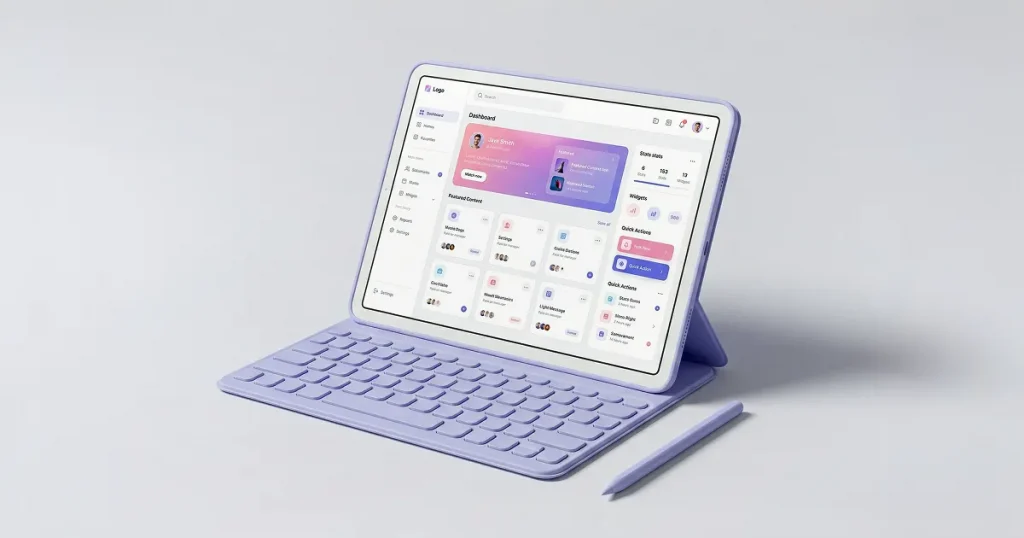
Clay iPad mockups use a single-tone device frame to create a modern, unified look. They are excellent for maintaining brand consistency, especially when presenting a series of screens. Many landing pages use clay iPad mockups to create a futuristic feel, featuring smooth colors and calm gradients.
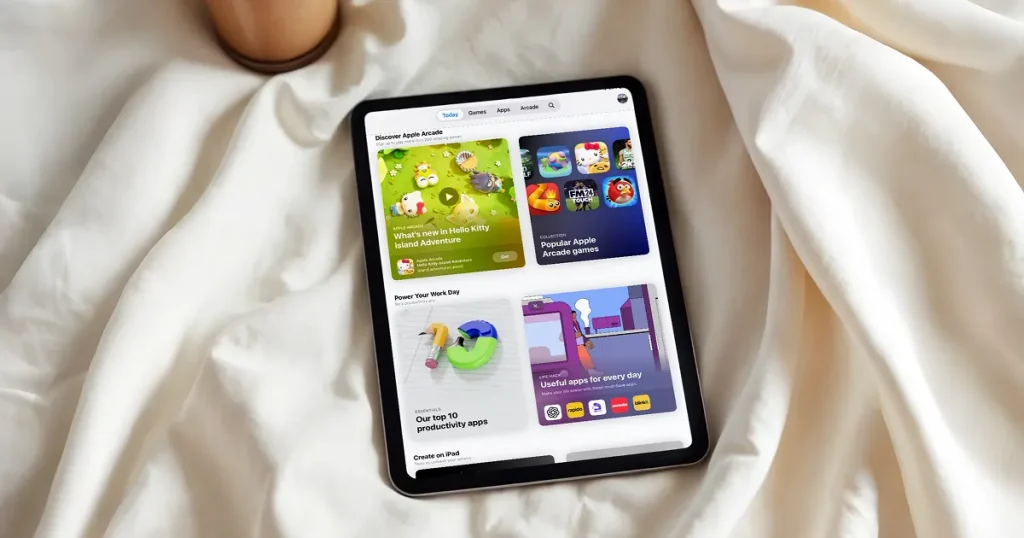
Lifestyle iPad mockups depict your iPad screen in real-world settings, such as offices, studios, or casual home environments. This format makes your mockup for iPad more relatable. Social ads often perform better with lifestyle visuals because viewers can imagine themselves using the product.
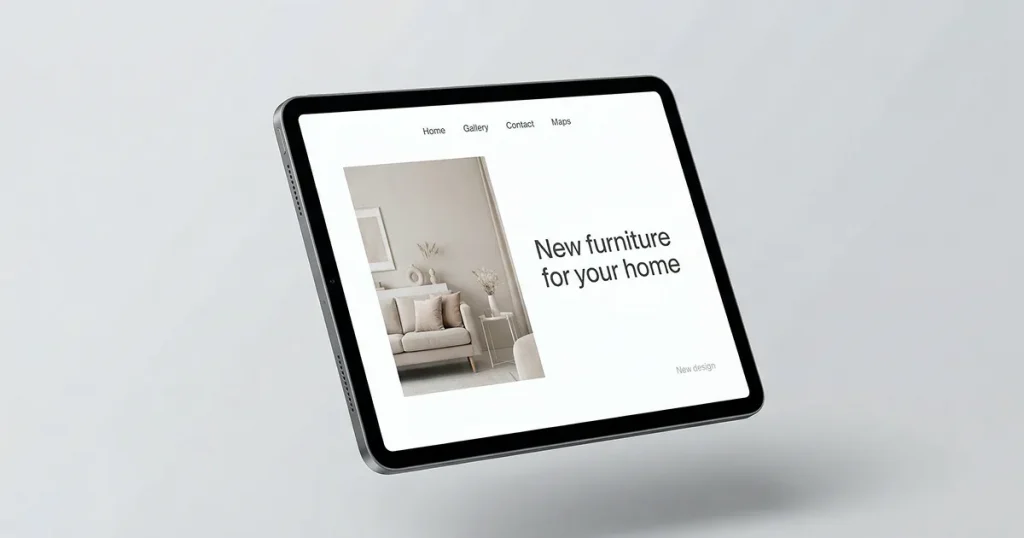
Floating iPad mockups show the device suspended or angled for a more dynamic appearance. These iPad mockups work well for product launches, website hero banners, and modern promotional layouts. They give your design a sense of movement and style.
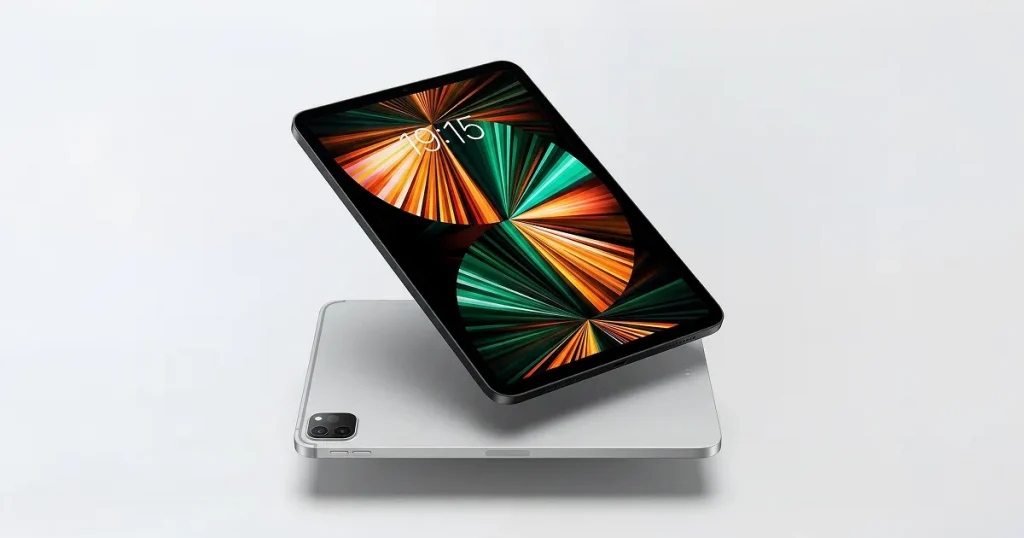
3D iPad shows a three-dimensional visual presentation of your digital work. They are often used for creative tools, data dashboards, or premium apps that benefit from a more dramatic presentation. Rich backdrops and subtle reflections make this style stand out when used thoughtfully.
Each of these iPad mockup types serves a different purpose depending on your use case.
Choosing the right tool plays a big role in how to create iPad mockup efficiently.
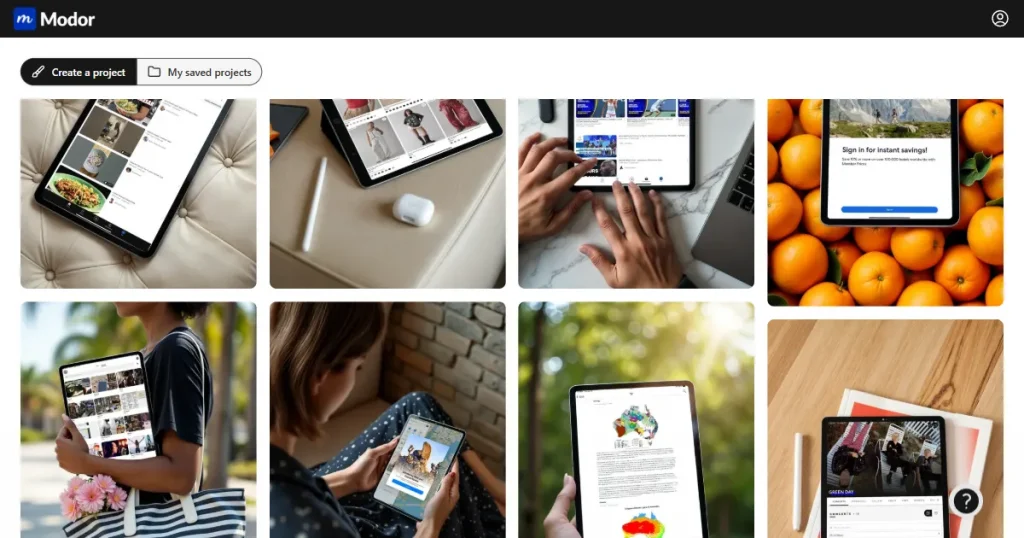
If you’re looking for how to create iPad mockup, Modor simplifies the process completely. Modor is a leading iPad mockup generator known for its robust AI engine and mockups.
The AI engine places your iPad design into the device frame with precise perspective. It also offers updated iPad models and a wide range of angles, which makes Modor the best tool for creating iPad mockups when you want realistic results quickly.
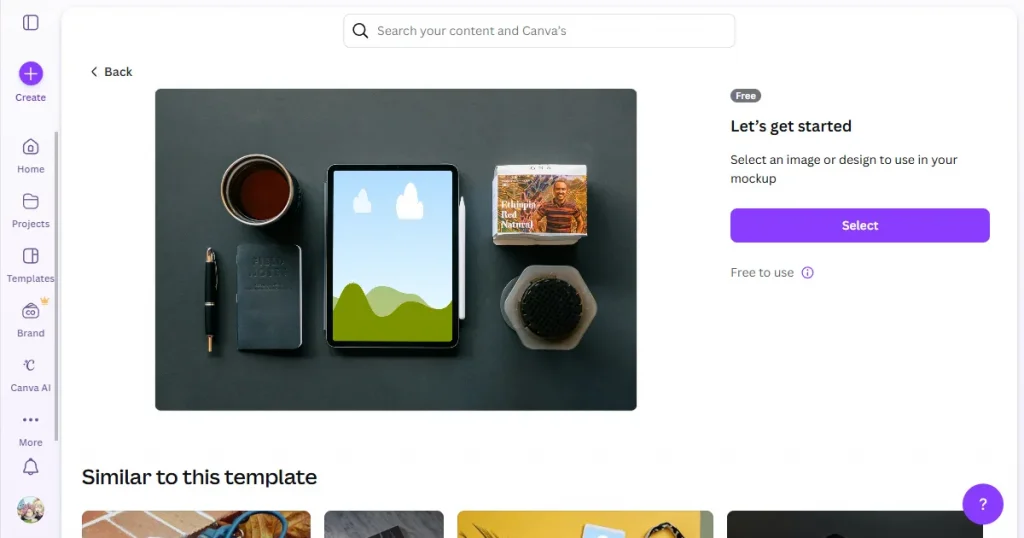
Canva is another great tool for how to create iPad mockup. Canva is simple, fast, and suitable for lightweight editing. It supports device frames and easy layering. However, it may not be the best tool for creating iPad mockups if you need high levels of realism. It works best when you need a quick mockup for iPad with additional text or background design.
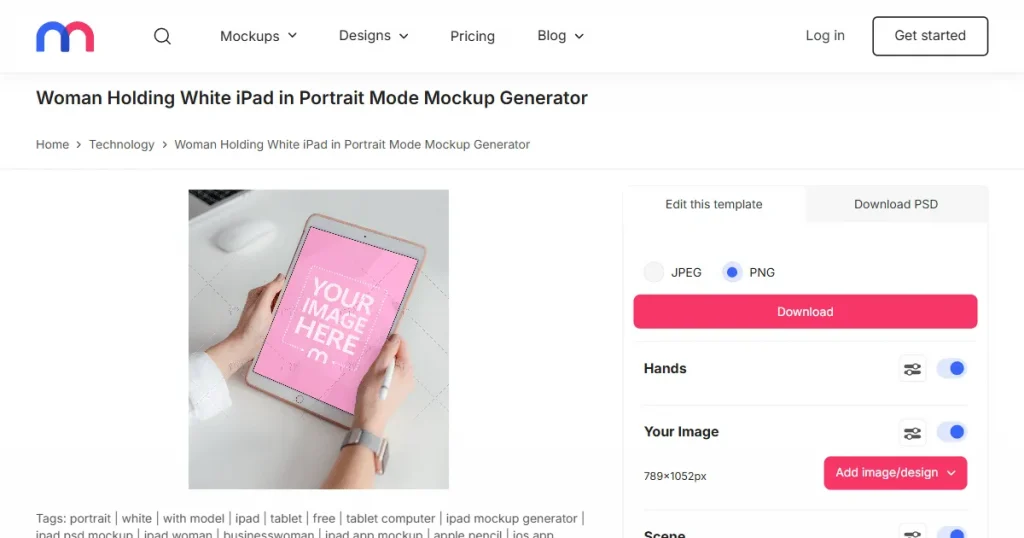
Mediamodifier provides a large selection of templates but lacks advanced alignment features. It is helpful for quick mockups without the need for perspective adjustments or complex lighting.
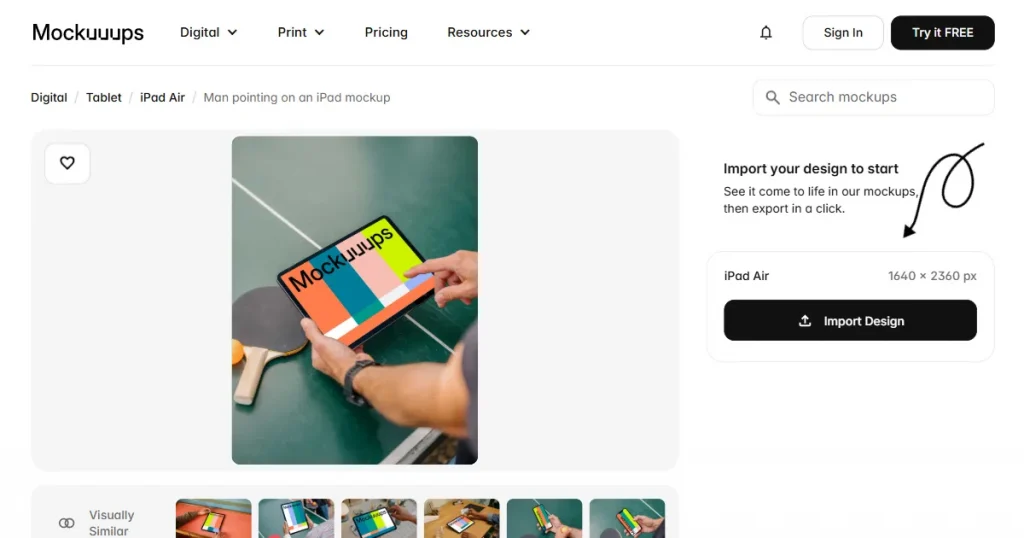
Mockuuups Studio is well known for multi-device displays that combine laptops, phones, and tablets. It works exceptionally well when you need to present both an iPad design and an iPhone interface.
Choosing the best tool for creating iPad mockups depends on speed, control, and output quality.
Each tool here plays a role, but Modor remains the strongest choice when you want premium, photo-realistic mockups in minutes.
Below are 6 easy steps on how to create iPad mockup with Modor.
Step 1: Sign up with your email address or a Google account to unlock the premium iPad mockup templates instantly. The dashboard is easy to navigate and organizes mockups for iPad templates by angle, style, and orientation, which makes it great for beginners looking for how to create iPad mockup.
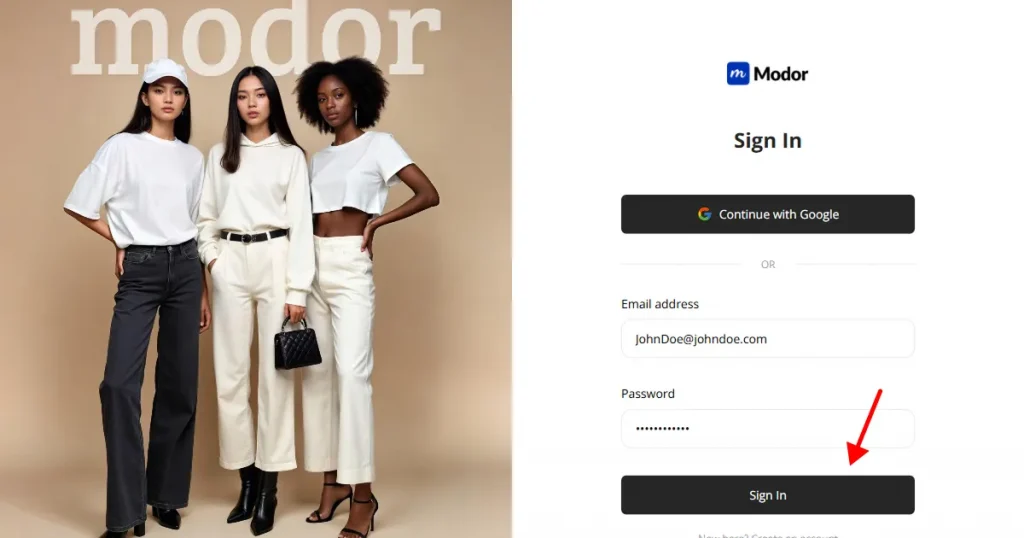
Step 2: Select the iPad category and browse clean, lifestyle, or floating templates that support your presentation style.
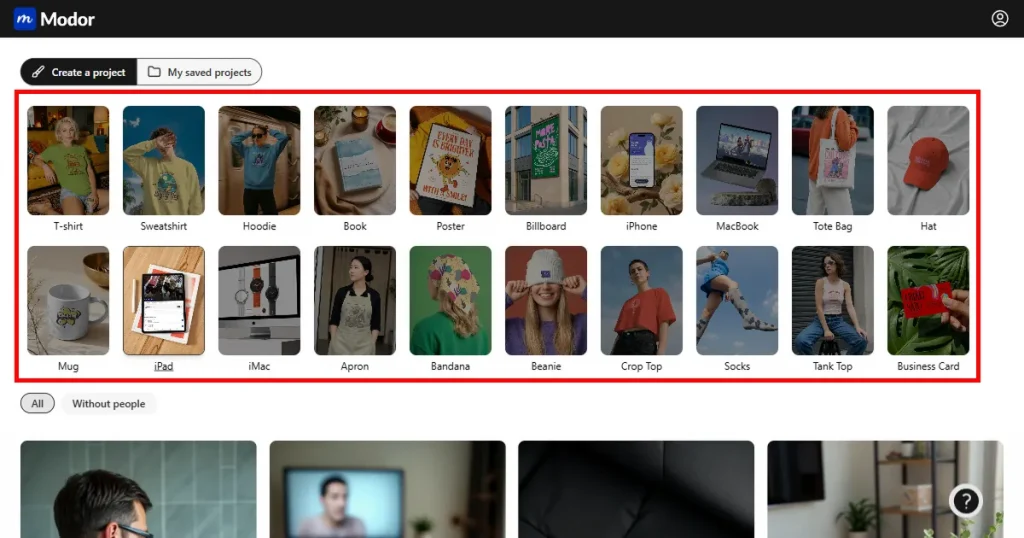
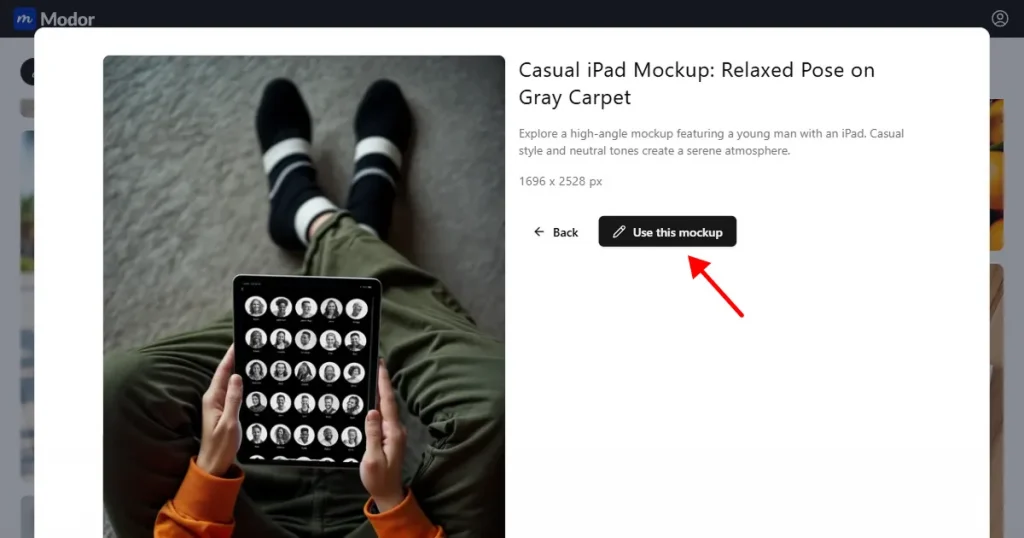
Step 3: When you find one that matches your idea, click Use this mockup to enter the editor.
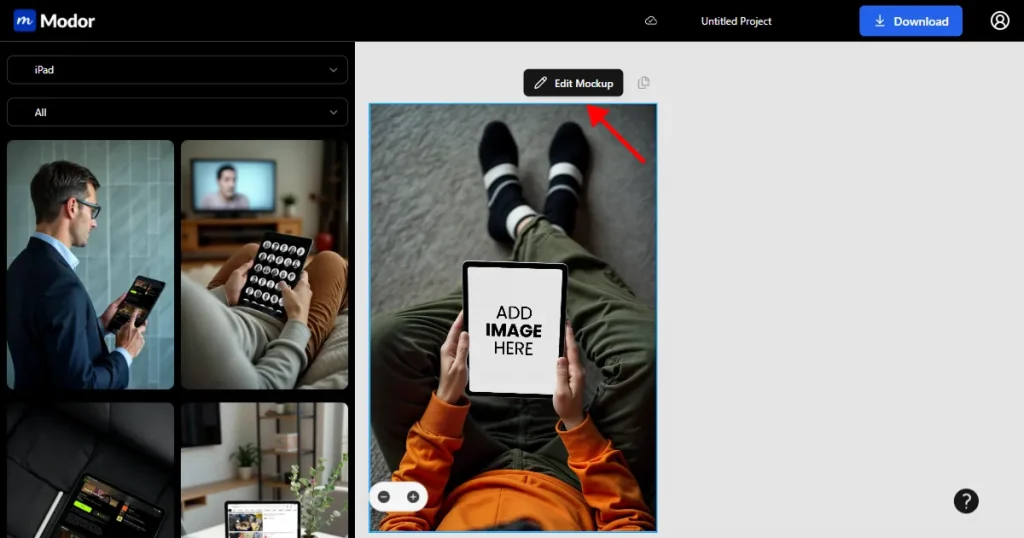
Step 4: Once inside, click Edit mockup to unlock editing and customization settings.
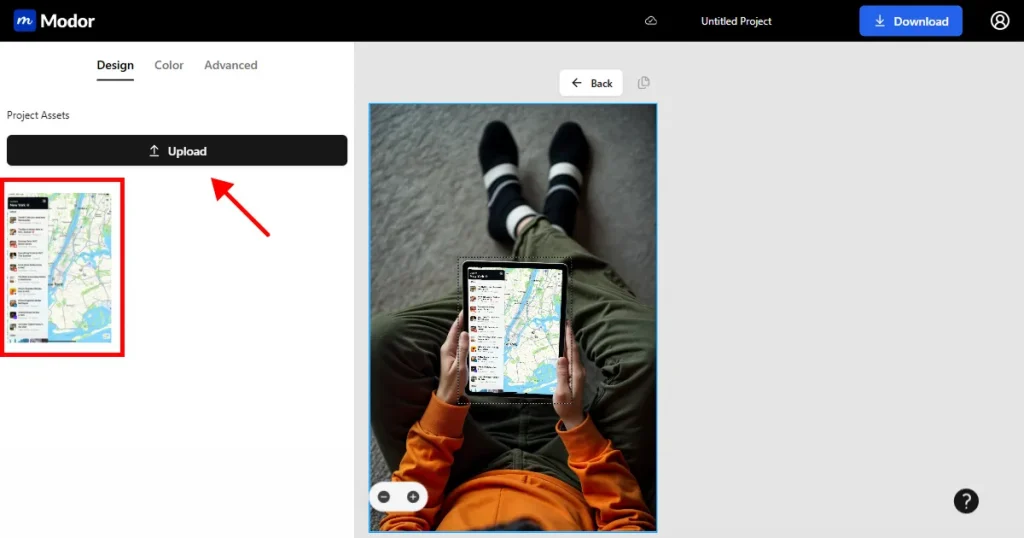
Step 5: Upload your iPad screen directly to Modor and add it to your mockup. The system corrects perspective, aligns the layout, and blends the screen with the device. This step improves accuracy and removes the manual editing usually required in traditional design tools.
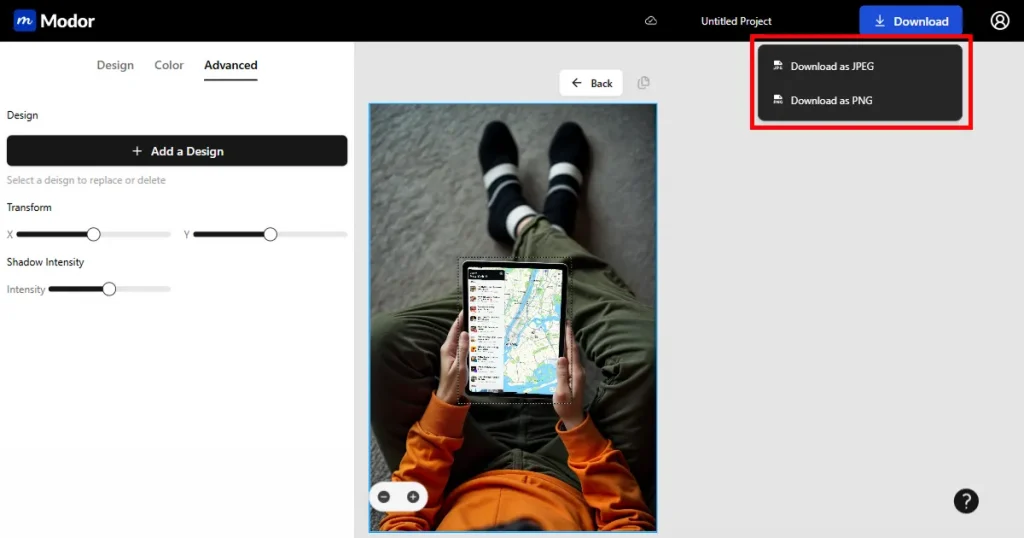
Step 6: Export your final mockup for iPad using JPG or PNG. Export your iPad mockups in high resolution for websites, portfolios, and social channels. Both JPG and PNG exports work well, depending on your needs
Below are the best use cases for iPad mockups to communicate ideas with more clarity and visual appeal.
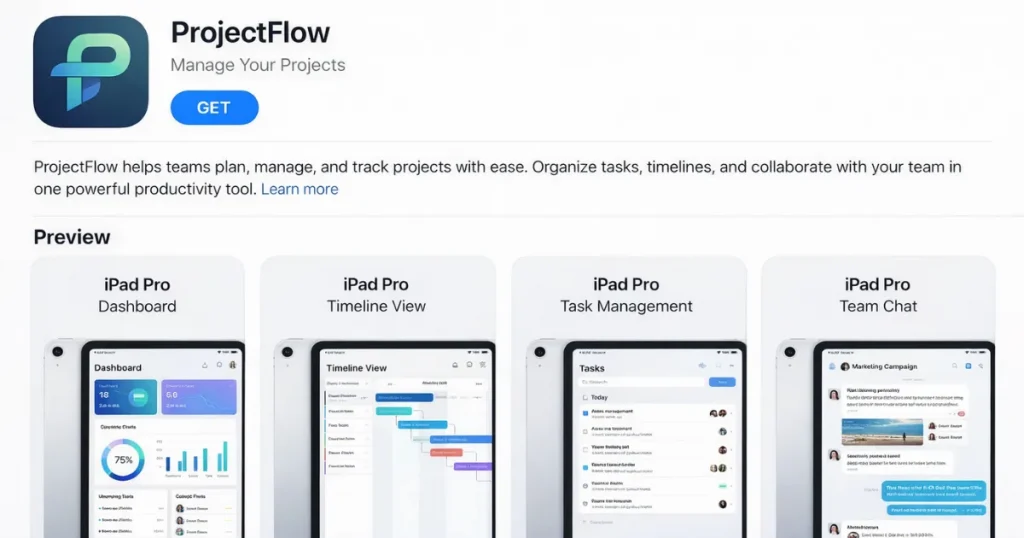
Use iPad mockups to showcase onboarding flows, screens, and full layouts, so viewers can see how the app will function on their devices. iPad mockups in presentations help communicate ideas more effectively across different formats.
You can also upload iPad screenshots directly to the App Store when your product supports iPad, which helps create a consistent and professional listing.

A mockup for iPad helps present data dashboards, metrics, and analytics in a structured context. Displaying product demos inside a device frame makes your SaaS product look reliable and easy to use.
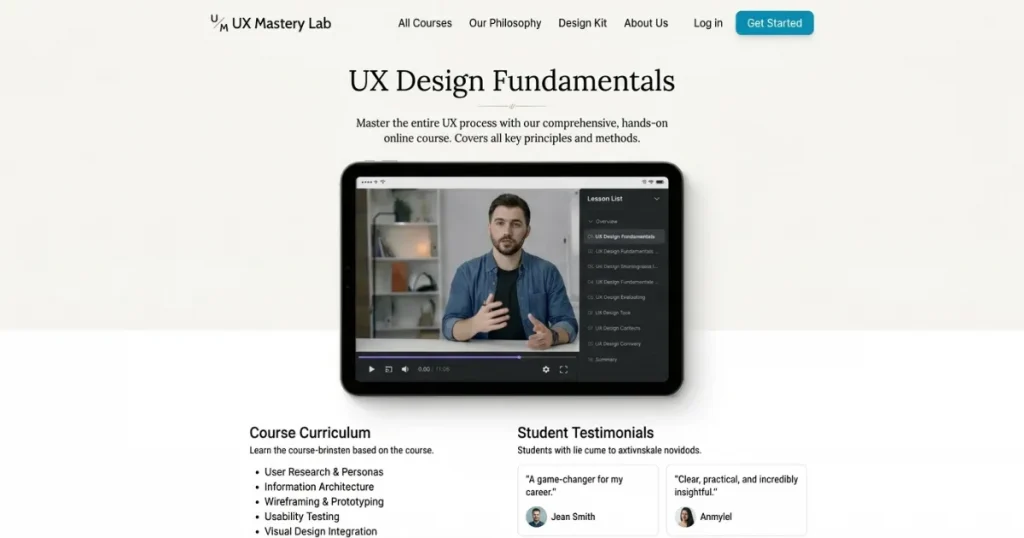
Instructors and creators can insert lessons, quizzes, and reading material inside an iPad mockup to demonstrate the real learning experience. Doing this makes the content feel more accessible and practical.
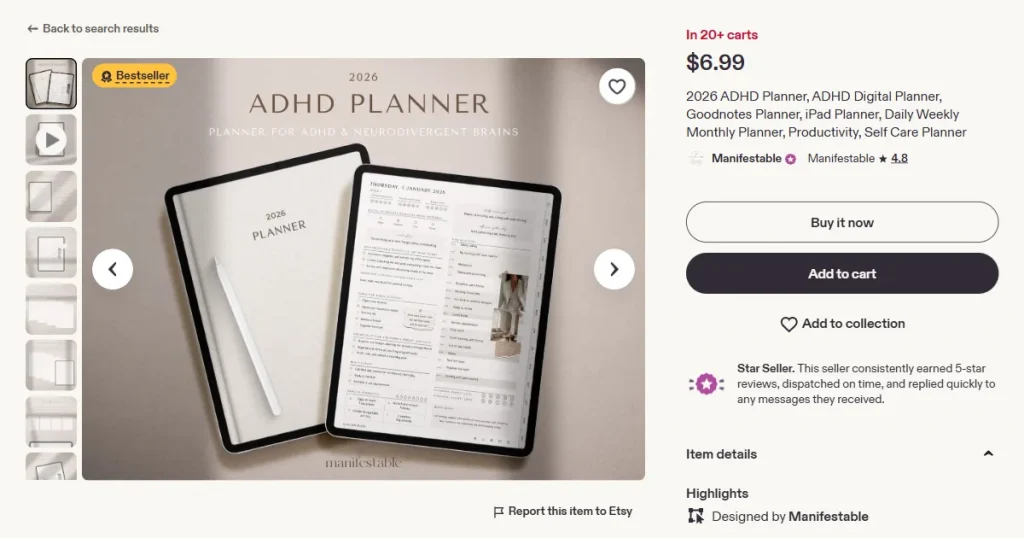
Sellers often use iPad mockups to show planners, journals, and worksheets because customers want to see how the product will look during daily use. It helps build trust and improve conversion rates.
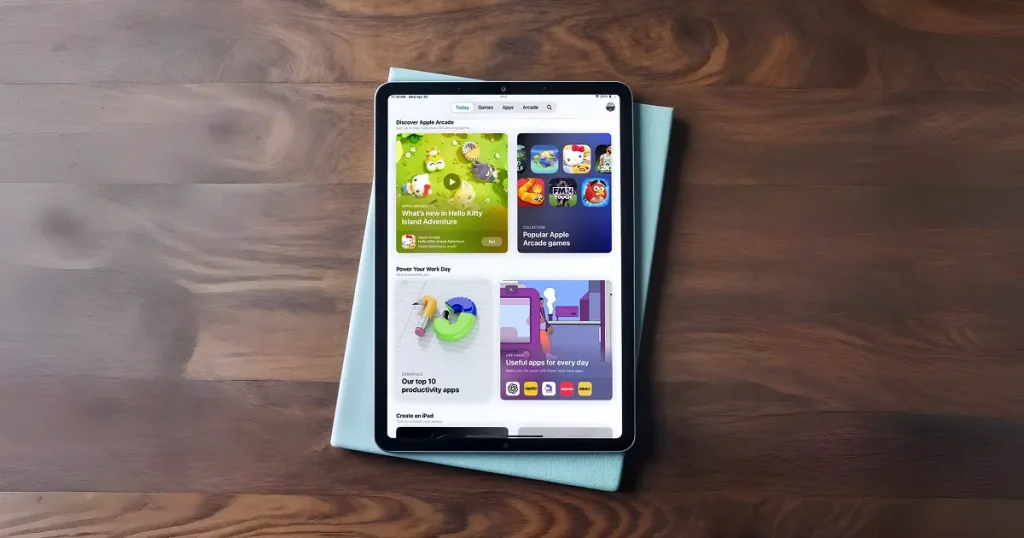
Lifestyle iPad mockups showcase your app in relatable scenes, boosting engagement. A friendly environment makes viewers feel they can start using the app right away.

Floating and 3D iPad mockups add a modern, premium feel. Use them to highlight key screens and call attention to essential product features.
Below are a few helpful techniques to improve your iPad mockups and strengthen your presentations. Implement these before start on how to create iPad mockup.
Now you have a clear idea of how to create iPad mockup using different tools and styles. Modor continues to simplify the process of creating iPad mockups with reliable AI-powered automation, realistic alignment, lighting, and device accuracy. It offers everything required on how to create iPad mockup and build professional visuals without technical hurdles.
The type of mockup you choose changes how your audience perceives your iPad design. Minimal frames bring clarity. Lifestyle scenes bring relatability. Floating and 3D models bring boldness. By experimenting with angles, lighting, and style, you can learn how to create iPad mockups that confidently express your brand story.
In a world where visual communication shapes every first impression, polished iPad mockups are no longer optional. They define how your work is understood and remembered.
If you want to know how to create iPad mockup for free on Modor. The process is simple, just start by choosing a free template and dropping your screen into it. Apply further editing, and your mockup is done. It is a simple way to get a clean mockup when you just want something quick without spending money.
The right iPad model depends on how you want people to see your design. The iPad Pro is ideal for detailed apps or work-based screens, the iPad Air is excellent for everyday layouts, and the iPad Mini works best when your design suits smaller spaces.
PNG usually delivers the best results because it keeps the mockup screen clean and sharp. JPG can still work if you want a lighter file, but it may slightly soften the edges. As long as you export at a high resolution, your mockup will look clear and sharp.
iPad mockups in presentations help show your design in a real-world setting. They make layouts easier to understand and improve how your audience connects with your product or idea.
The best tool for creating iPad mockups depends on your needs. Modor offers realistic results quickly, while Canva works well for simple designs. Choose based on how much control and detail you need.
Different kinds of iPad mockups include minimal, lifestyle, floating, clay, and 3D styles. Each one highlights your design differently, depending on whether you want clarity, realism, or a more creative presentation.


