


10 Best iPhone Mockup Tools: Free & Paid
Simplify your search for the best iPhone mockup tools with our direct comparison of the top picks, including their core features and pricing.
Published Dec 19, 2025
Learn how to create high-quality iPhone mockups using Modor with simple steps, expert tips, and the latest 2026 trends.
9 min
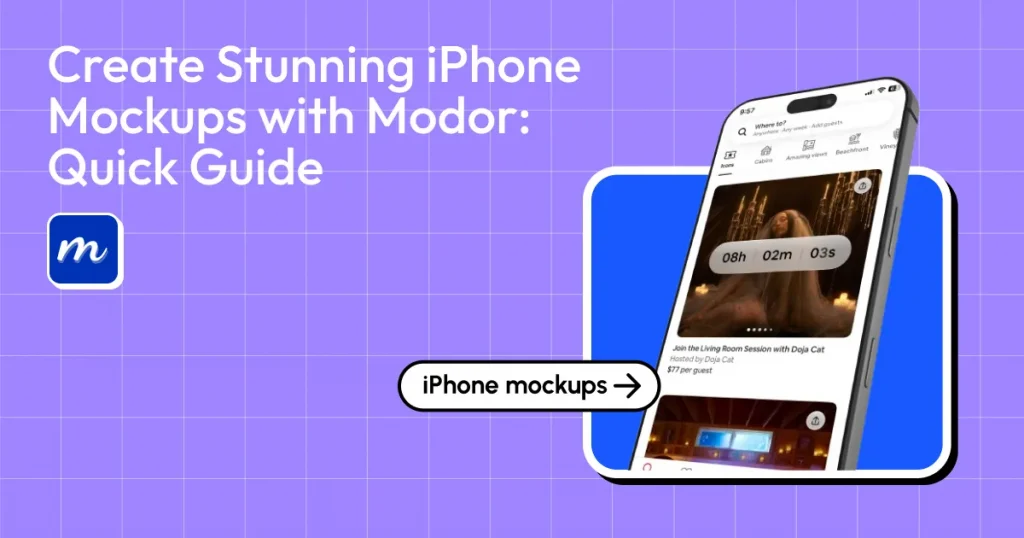
iPhone mockups are visual templates that place a mobile app screen, website, or digital design inside a realistic graphic frame of an iPhone. And if you want to learn how to create iPhone mockups, Modor is the best place to start, as it lets you place app UI screenshots and designs into the latest Apple device frames quickly without needing to learn complex design tools like Photoshop.
In the sections ahead, we’ll explore how to create iPhone mockups using Modor, from choosing the right device frame to presenting your design in a way that actually looks realistic. We will also cover practical use cases and trending iPhone mockup designs,
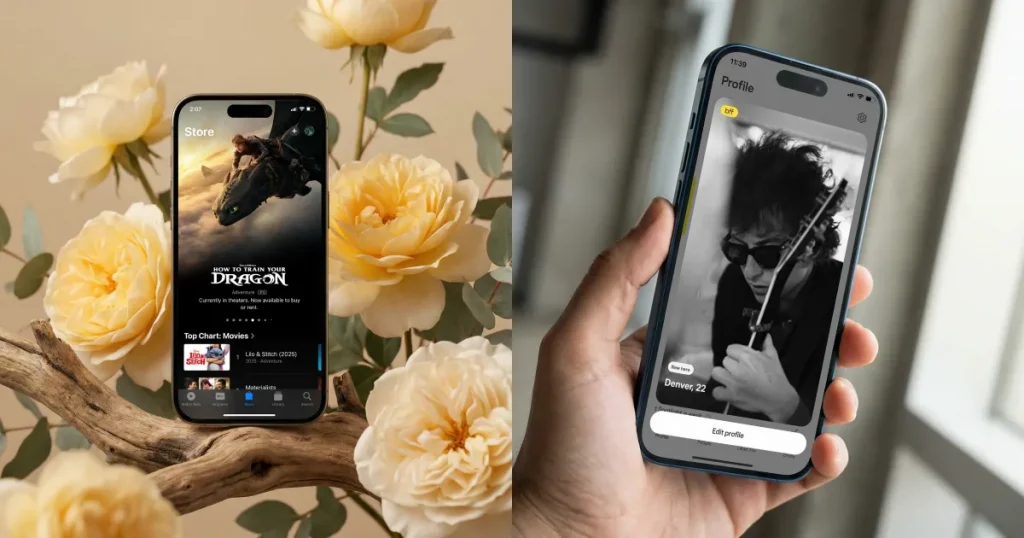
iPhone mockups are visual frames that present your UI, app screens, wallpapers, or digital products within a real-device scene. Instead of showing a plain screenshot, you place your design into iPhone mockup templates, such as someone holding their phone, working at a desk, or using the device outdoors.
Before getting into how to create iPhone mockups, let’s take a quick look at the best ways to put them to use in 2026.
When your app screens sit inside clean iPhone mockups, your store pages look far more intentional and polished. People understand the interface at a glance, improving visibility and conversions because nothing feels out of place.
iPhone mockups do well on Pinterest. Suppose you’re promoting wallpapers or a design pack. Using them inside a warm, soft mockup makes the pin stand out and invites more downloads.
Adding iPhone mockups to your portfolio immediately lifts the whole page. Even simple layouts feel more mature when framed within a device, helping clients judge your work more accurately.
Ads with lifestyle iPhone mockups blend well with Instagram feeds without screaming that they’re ads. This leads to better engagement as people feel they’re seeing something natural rather than an overly polished promo.
Using an iPhone mockup for feature reveals and app updates makes the message clearer and more trustworthy, as the viewer can see a real device rather than a random screenshot.
A mockup helps you show the actual product flow without clogging your presentation with text. This gives investors a snapshot of what you’re building and saves everyone involved time.
To create iPhone mockups that look as real as possible isn’t that simple; small details matter more than most people believe:
Before covering how to create iPhone mockups using Modor, let’s have a look at some of the best iPhone mockup generator available in the market.
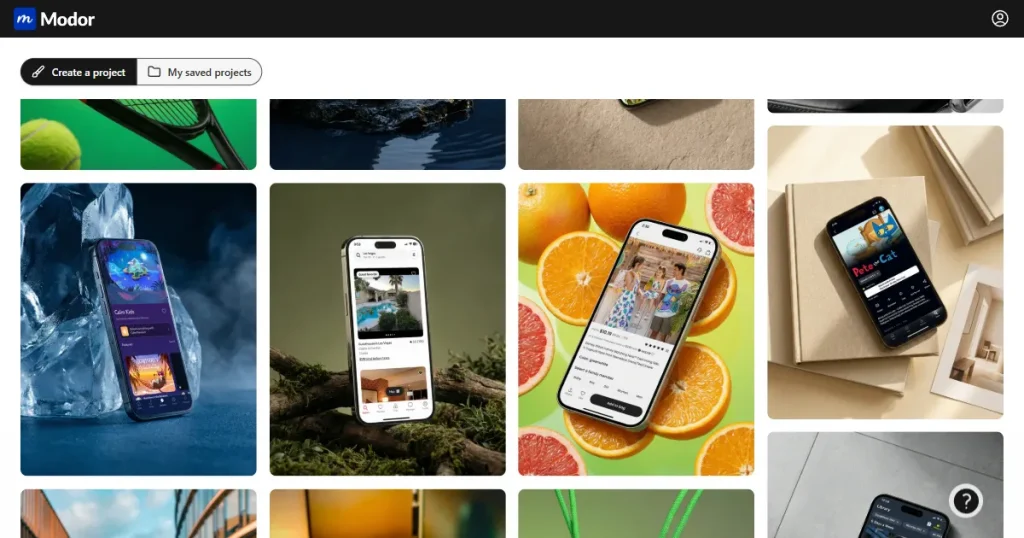
Modor makes it very simple to create high-quality iPhone mockups. Its AI automatically fits your screen, adjusts the lighting, and blends everything into the background so it looks natural.
You can choose from lifestyle scenes, pastel setups, handheld shots, desk layouts, or floating designs. It’s perfect for creators who want a quick iPhone mockup without sacrificing quality. It’s a powerful iPhone mockup generator, helping you create realistic visuals in seconds.
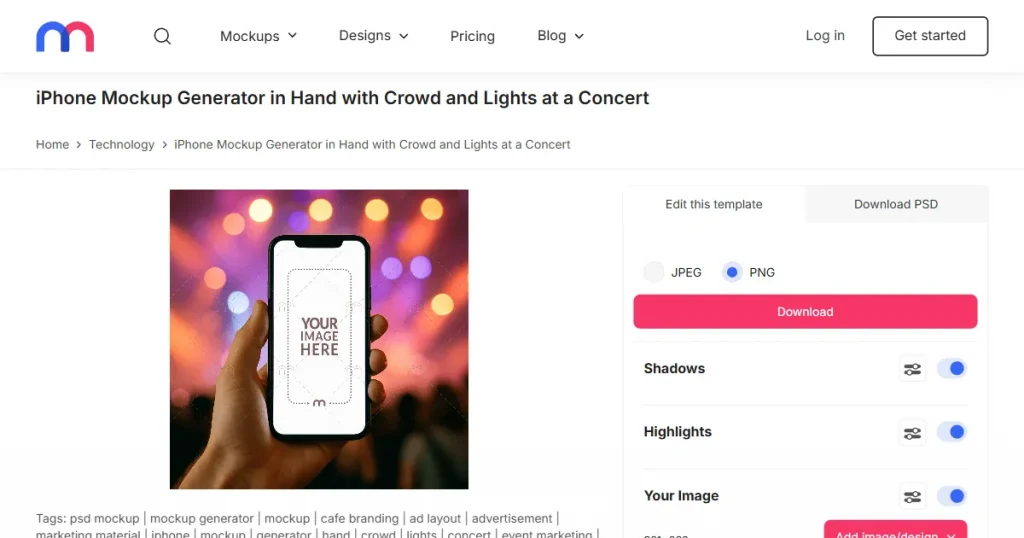
Mediamodifier features an extensive library of iPhone mockup templates built for product displays. Although the scenes are not as realistic as lifestyle mockups, they are great for quick flat lay compositions and basic presentations.
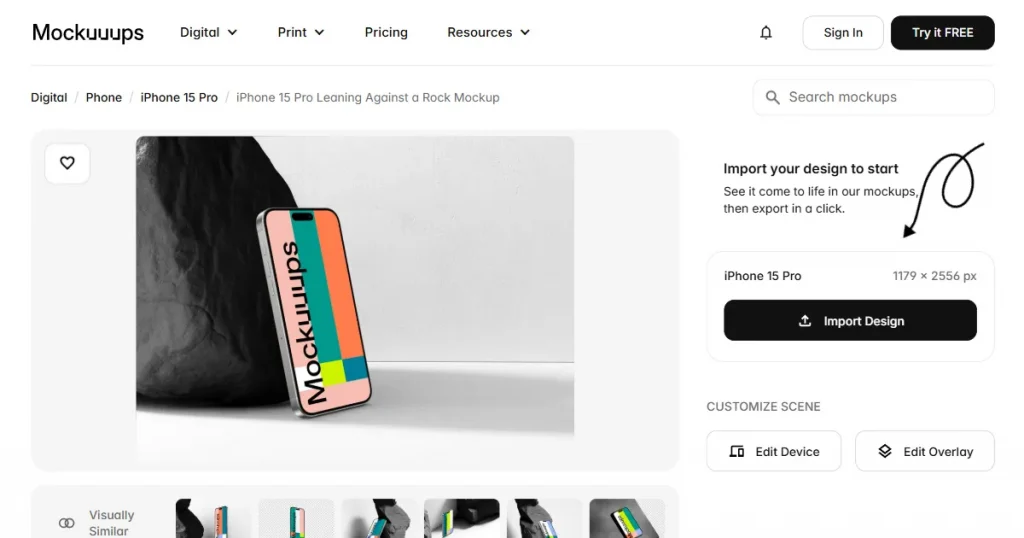
A favorite among designers, Mockuuups Studio integrates directly with Figma, enabling the creation of multiple iPhone mockups in bulk. Perfect for case studies, app flows, and large app showcase decks.
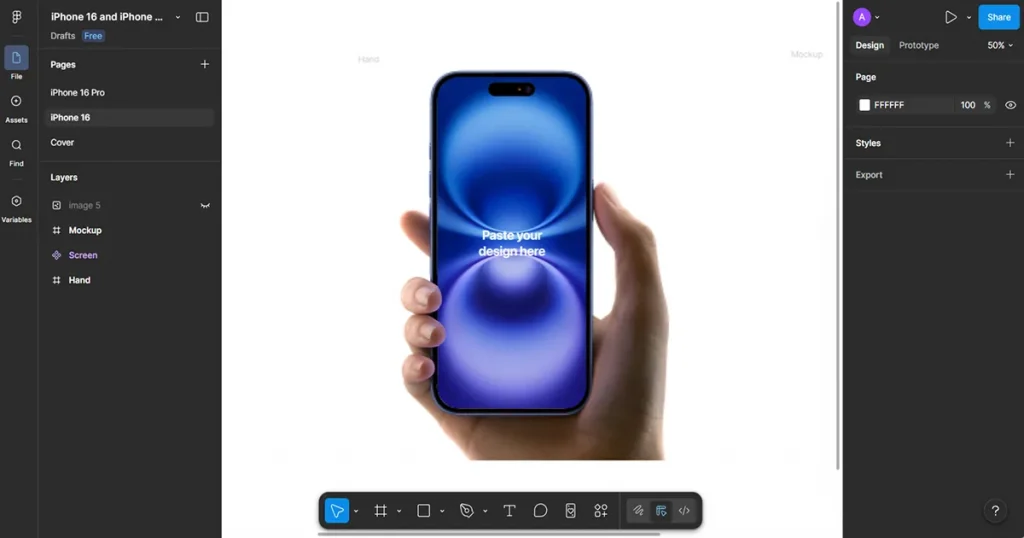
Figma offers high flexibility through plugins such as Angle, Vectary, Scenery, and Mockups. You can customize layers, adjust shadows, control perspective, and create personalized iPhone mockup templates that match your project.
Figma is widely used for Figma iPhone mockups, especially when you need full control over layout and customization.
Now, let’s have a look at the step-by-step process of how to create iPhone mockups with Modor.
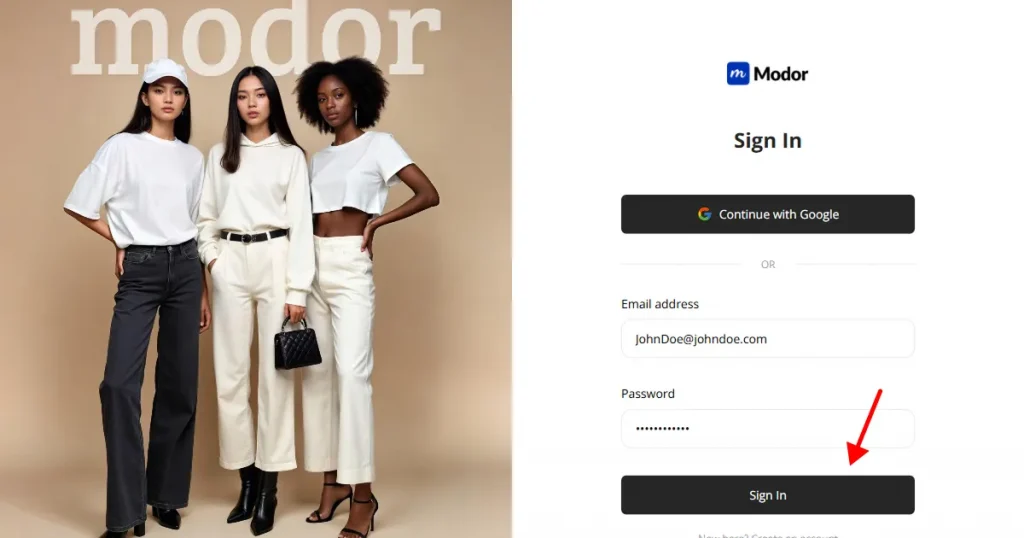
Step 1: To get started, sign up on Modor using Google or Email sign-up if you are an existing customer, then log in with your credentials.
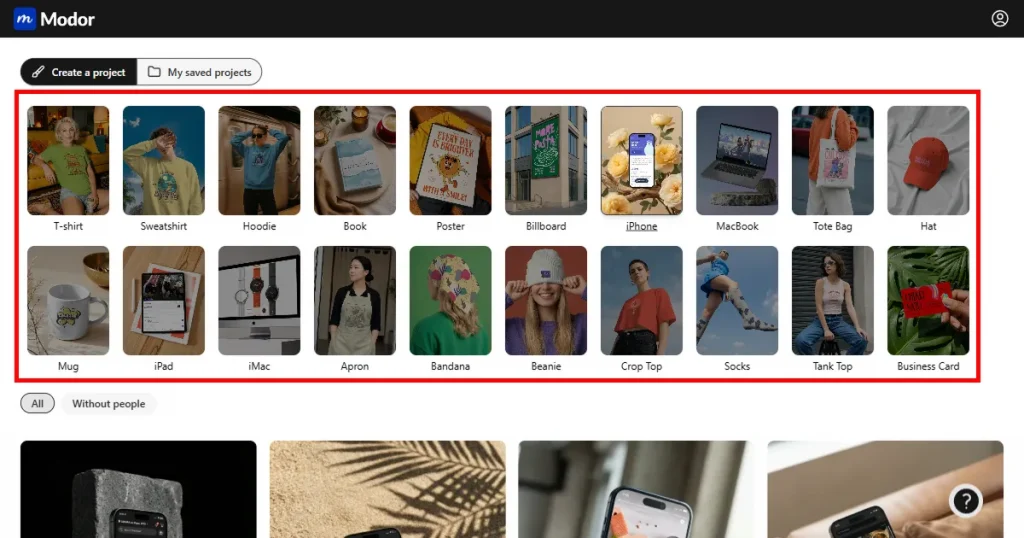
Step 2: Once inside the dashboard, select the iPhone category from the available categories. Apply filters to refine your selection.
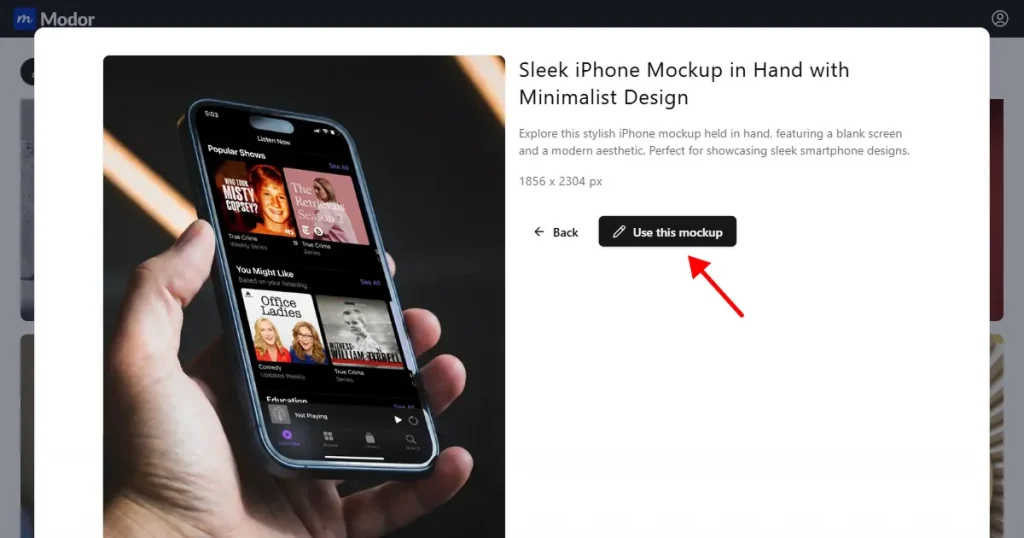
Step 3: After selecting a design, click on Use this mockup to open the editor.
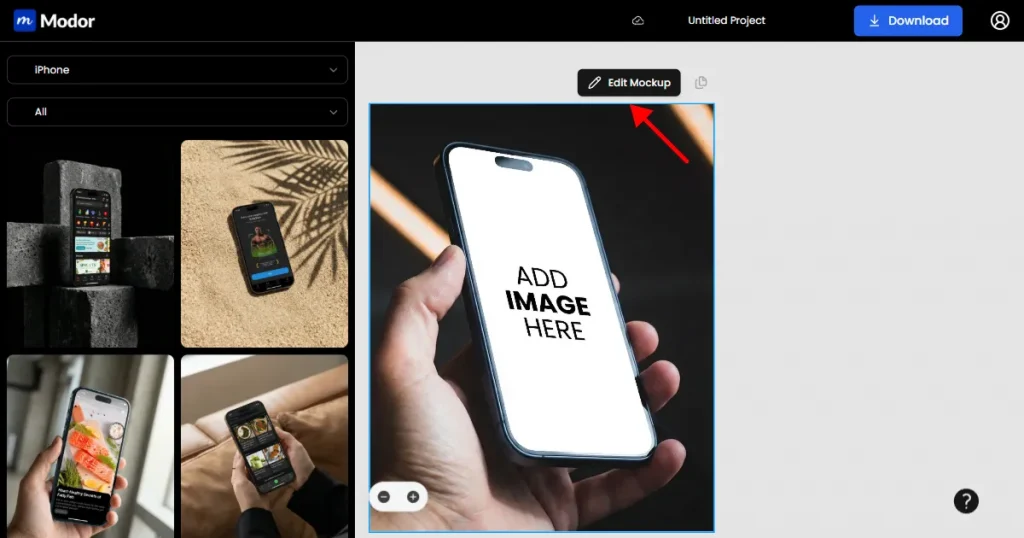
Step 4: Click Edit Mockup to unlock the customization tools.
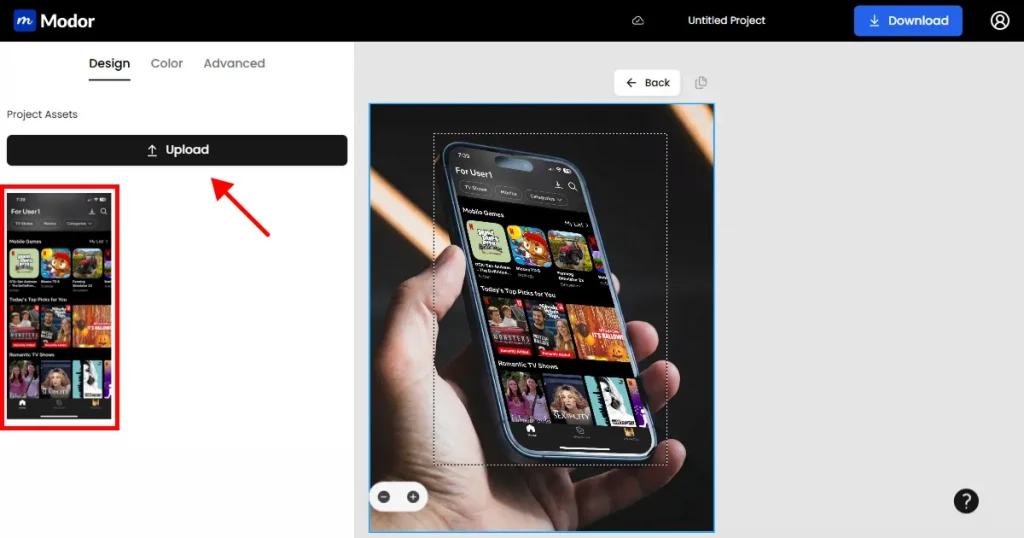
Step 5: Upload your screenshot in PNG format for sharper results, then scale and position the screen until it fits perfectly. Modor automatically syncs the lighting and blends the screen into the environment.
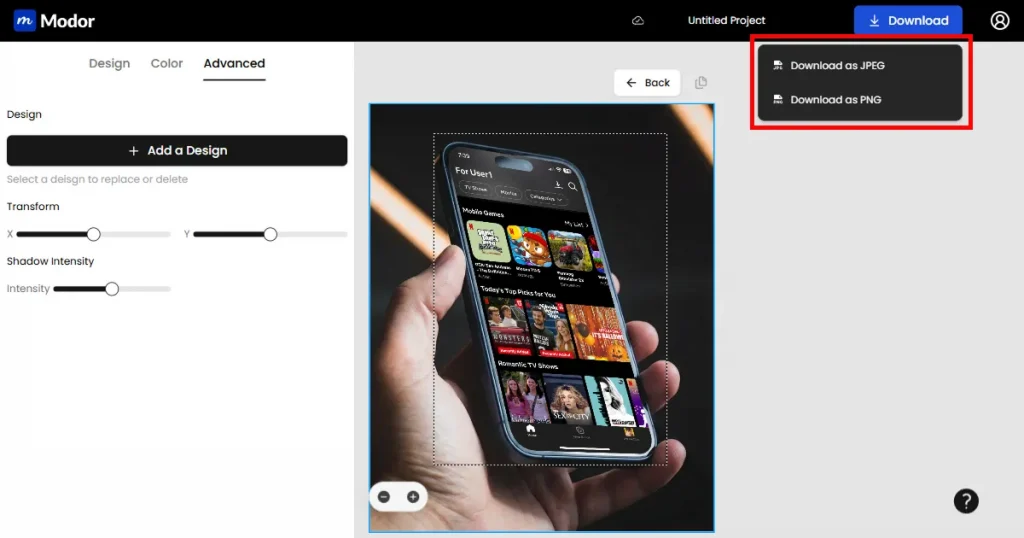
Step 6: For exports, choose PNG when preparing UI designs or portfolio work. Choose JPG for social media posts because it keeps file sizes smaller. If you want consistent branding, reuse the same scene style and generate multiple angles to create a complete mobile app showcase series.
This workflow is much faster compared to manual editing in tools like Figma iPhone mockups, especially for beginners. Avoid common mistakes, such as uploading low-resolution screenshots or stretching your UI to fill the frame. Both issues degrade the quality of your iPhone mockups and reduce their impact.
Now, that we have discussed the exact steps to create iPhone mockups, let’s have a look at a few trending iPhone mockup designs.
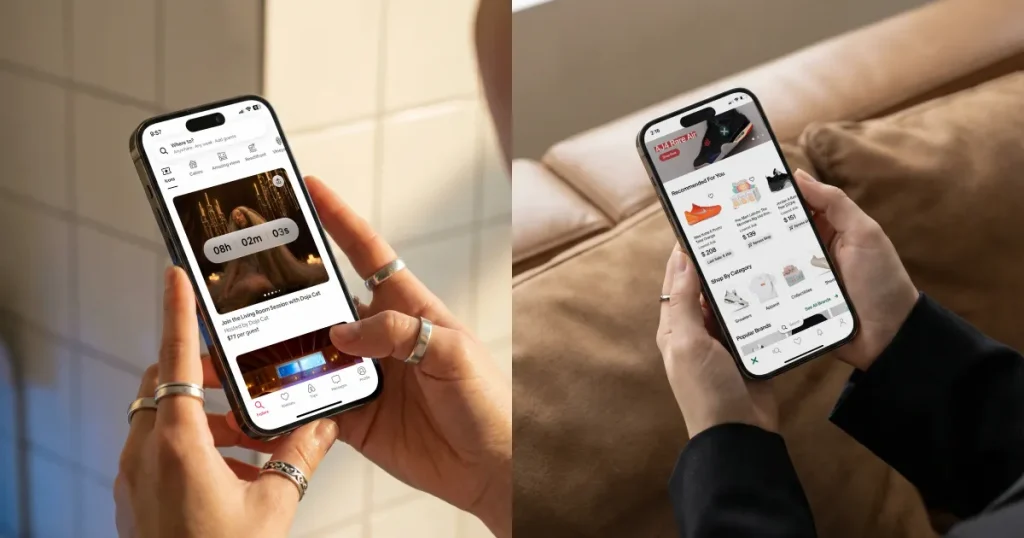
These mockups capture natural hand gestures, showing how real people hold and use their phones.
Use case: Great for mobile app showcases, social apps, and financial tools.
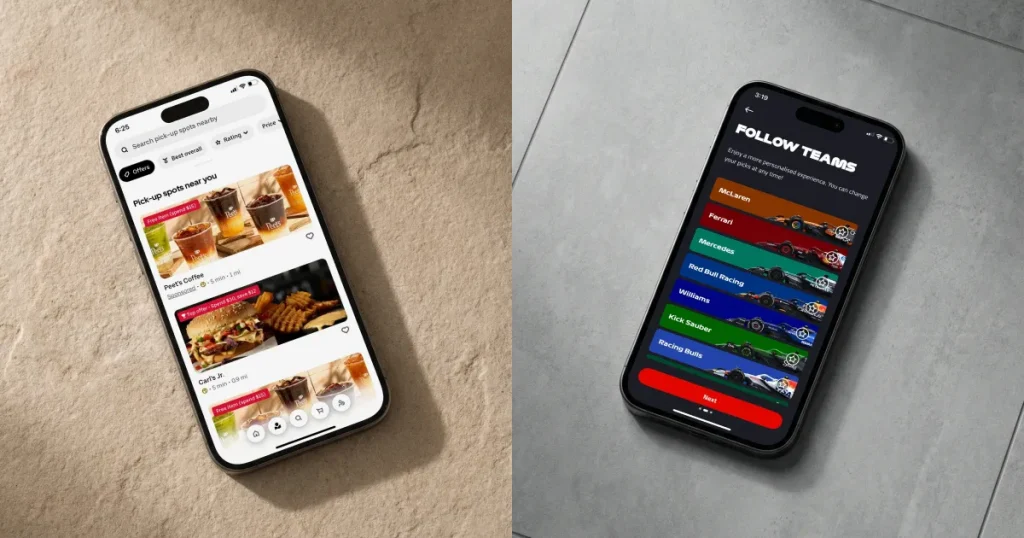
Studio backgrounds eliminate distractions and let viewers focus entirely on your design.
Use Case: These iPhone mockups are ideal for App Store graphics, productivity apps, UX case studies, and website hero images.
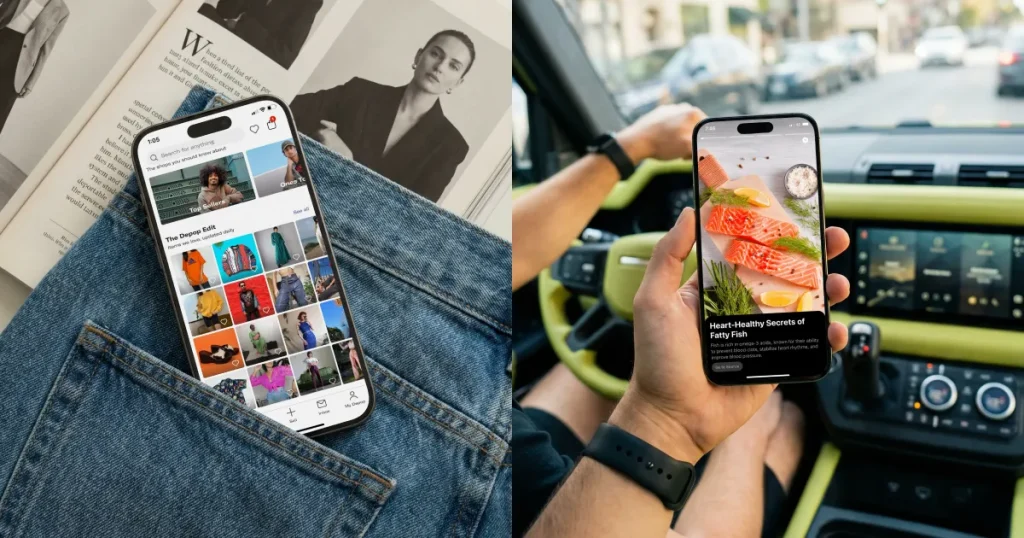
Lifestyle scenes feature the device in real-world settings, such as cafes, workspaces, or living rooms.
Use-case: perfect for travel apps, fitness brands, fashion platforms, Pinterest graphics, and social promotions.
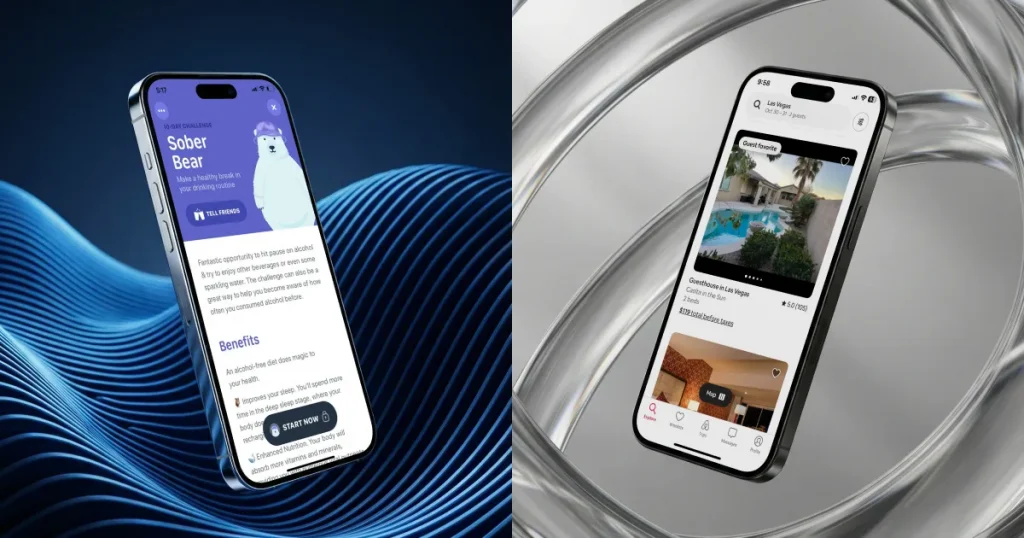
These mockups use floating devices and dynamic motion to create cinematic visuals.
Use case: They add energy to presentations, pitch decks, landing pages, and futuristic mobile app showcase demos.
Modor makes it easy for anyone to create iPhone mockups professionally without technical skills. It streamlines the entire process and lets creators stay focused on visuals that truly engage their audience. Experiment with various styles, such as lifestyle mockups, studio shots, or soft pastel backgrounds, to see how your design fits with each scene.
Good visuals play a key role, so it helps to keep a few reliable mockups ready for new launches or portfolio updates. With time, you will get a sense of what works for your brand and why.
You can create iPhone mockups by preparing your screen design and uploading it to Modor. After placing the screen correctly inside the device frame, export the final image as a PNG or JPG, depending on where you plan to use it. The tool handles alignment and lighting to give you a natural result.
Choosing the latest iPhone models, such as the iPhone 15, iPhone 16, or iPhone 17, helps keep your visuals modern and relevant. Older models should only be used when you want a retro or compatibility-inspired look.
You can create mockups for free by selecting free templates (templates with the crown symbol need an upgrade). Upload your screenshot, position it in the device frame, and export the preview. Upgrading to Pro unlocks additional features, premium scenes, and Brand asset management.
Brand consistency comes from using the same device model, matching backgrounds, and keeping your color palette unified. Try to maintain similar effects, lighting tones, and device angles across all visuals. Export everything in the same resolution so the entire collection appears cohesive.
Many Figma iPhone mockups are available for free through community files and plugins. However, some advanced templates and plugins may require a paid plan or subscription for full access.
Modor is one of the best iPhone mockup generators for creating realistic, high-quality mockups quickly. It uses AI to automatically fit your design into the iPhone frame, adjust lighting, and blend it naturally into the scene.


