
Create Stunning iPhone Mockups with Modor: Quick Guide
Create Stunning iPhone Mockups with Modor: Quick Guide
Learn how to create high-quality iPhone mockups using Modor with simple steps, expert tips, and the latest 2026 trends.

Designers, developers, and creators of this age rely heavily on visuals to tell their product story. When someone sees your app, wallpaper, or digital product inside a clean frame, their perception of quality shifts instantly. Modern audiences scroll fast, so they form opinions even faster.
We live in a smartphone-first world where visuals decide whether someone pays attention. According to studies, visual presentations can raise purchase intent by up to 80%. This has pushed creators from flat PSD layouts to realistic lifestyle iPhone mockups.
In this Blog, we are going to cover iPhone Mockups tips and use cases, plus how you can create them in seconds on Modor.
Key Takeaways
Say no to Photoshop: AI tools like Modor handle placement, lighting, and angles so your iPhone mockups look seamless without manual edits.
Always use high-resolution screens: Designs around 1200 px wide keep your mockup for iPhone clean and sharp on all devices.
Background style matters: Pastel, city, desk, or lifestyle scenes influence brand perception more than the iPhone model you pick.
Realism is the new trend: Modern iPhone mockups use soft shadows, natural folds, and subtle reflections to mimic real-world scenes.
Consistent lighting improves trust: Maintaining consistent tones and lighting across your visuals strengthens your brand identity.
What are iPhone Mockups: Best use-cases and Expert tips
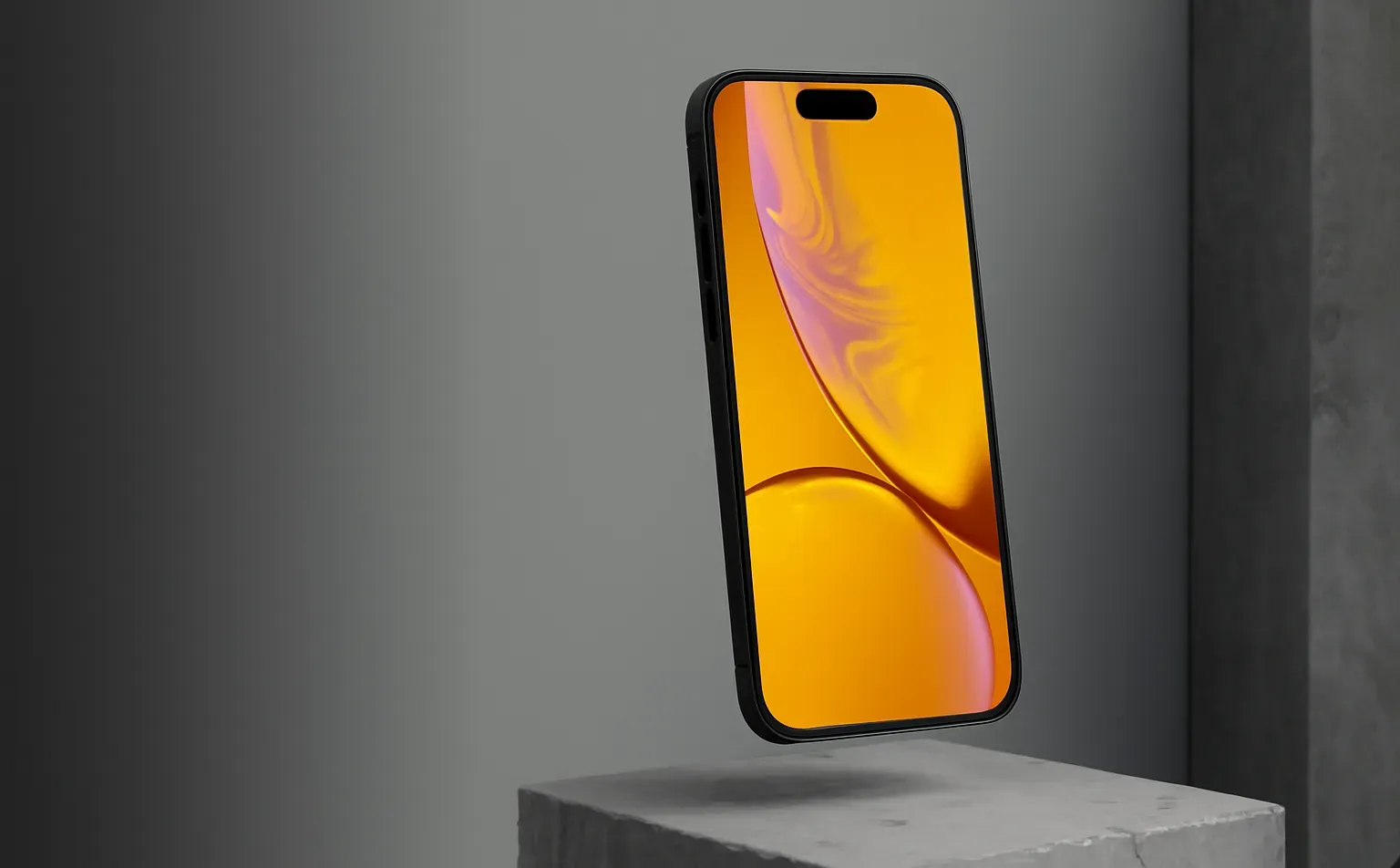
iPhone mockups are visual frames that present your UI, app screens, wallpapers, or digital products within a real-device scene. Instead of showing a plain screenshot, you place your design into iPhone mockup templates, such as someone holding their phone, working at a desk, or using the device outdoors.
iPhone Mockup best use-cases for 2026
1. App Store previews
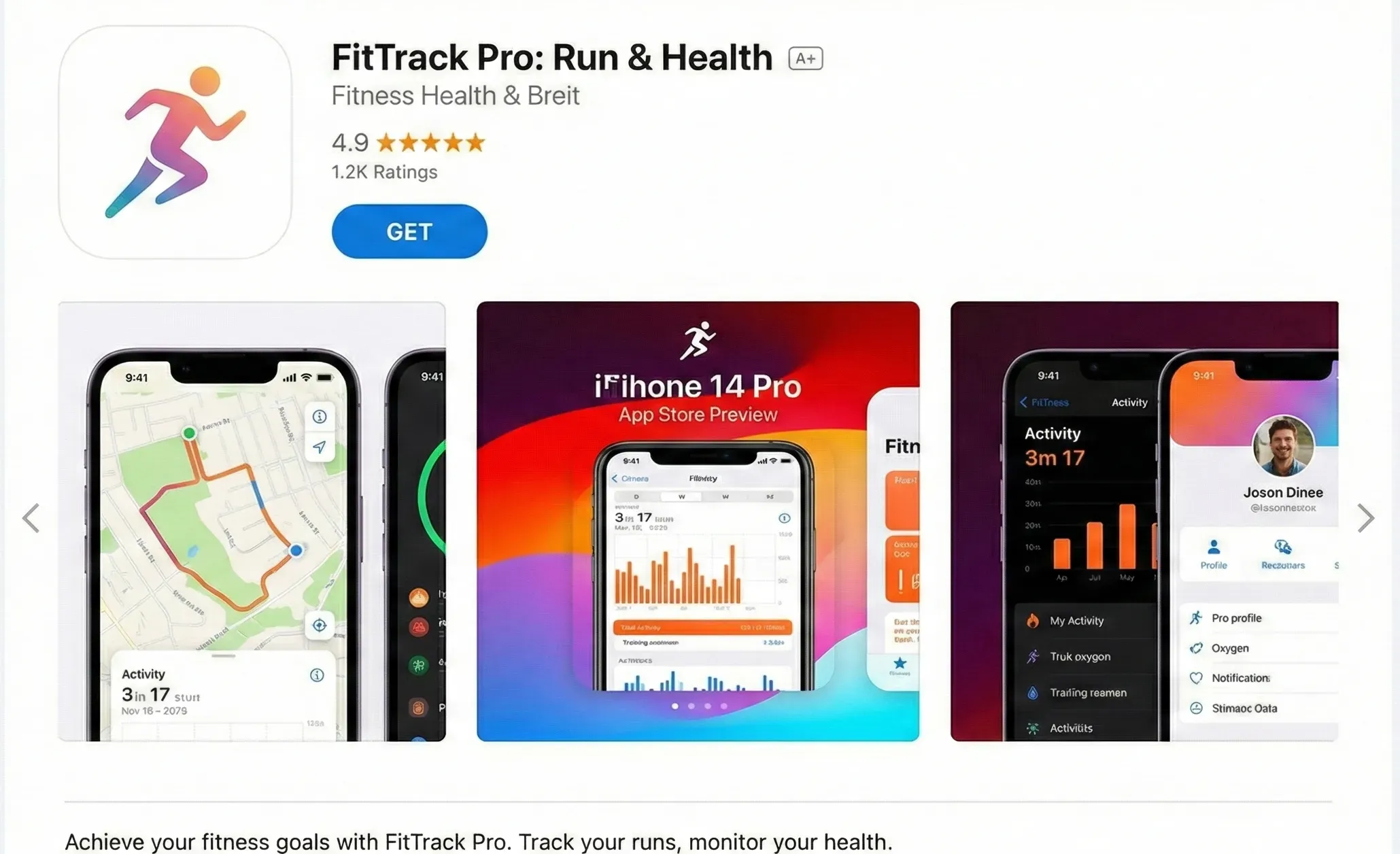
When your app screens sit inside clean iPhone mockups, your store pages look far more intentional and polished. People understand the interface at a glance, improving visibility and conversions because nothing feels out of place.
2. Pinterest pins for digital products
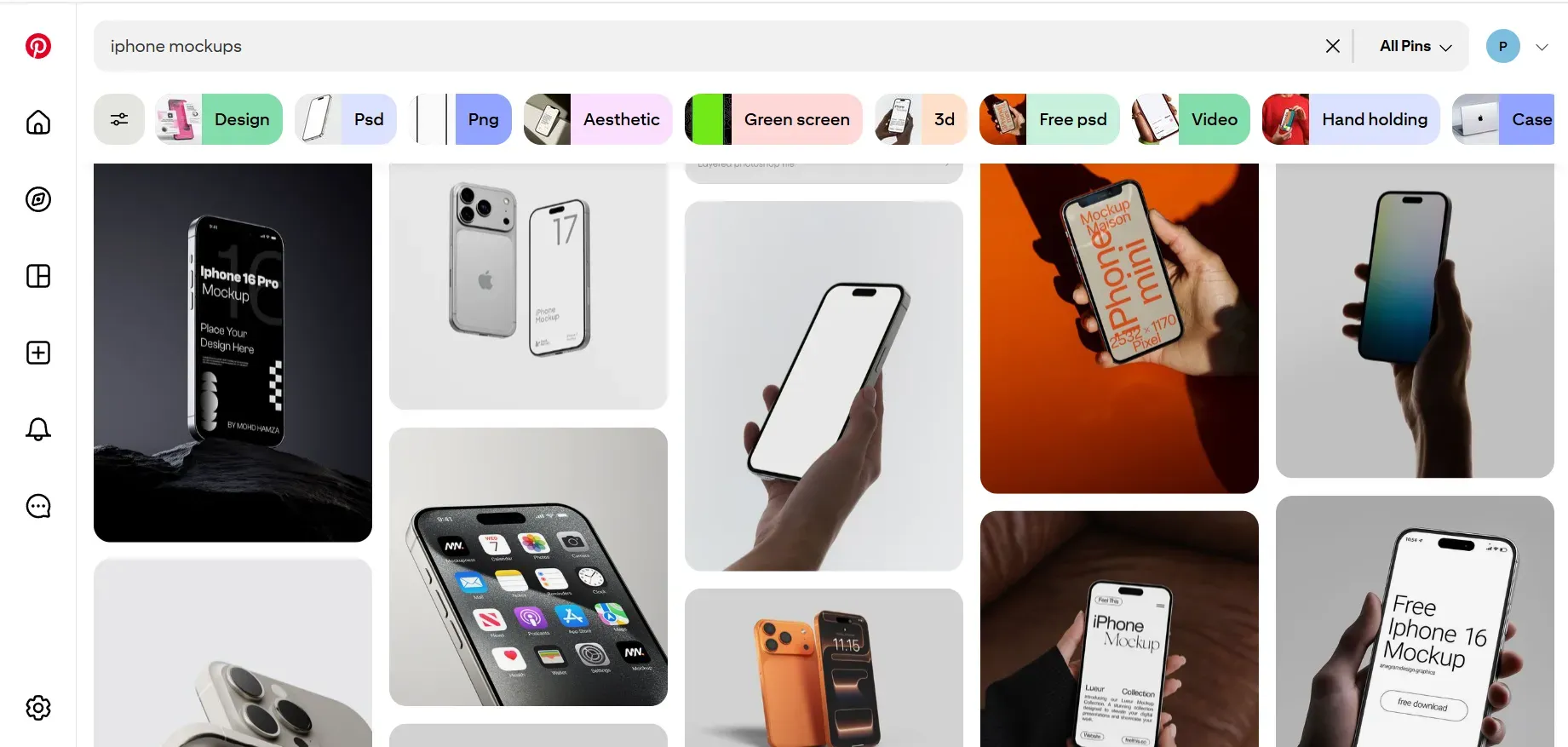
iPhone mockups do well on Pinterest. Suppose you’re promoting wallpapers or a design pack. Using them inside a warm, soft mockup makes the pin stand out and invites more downloads.
3. Portfolio presentation
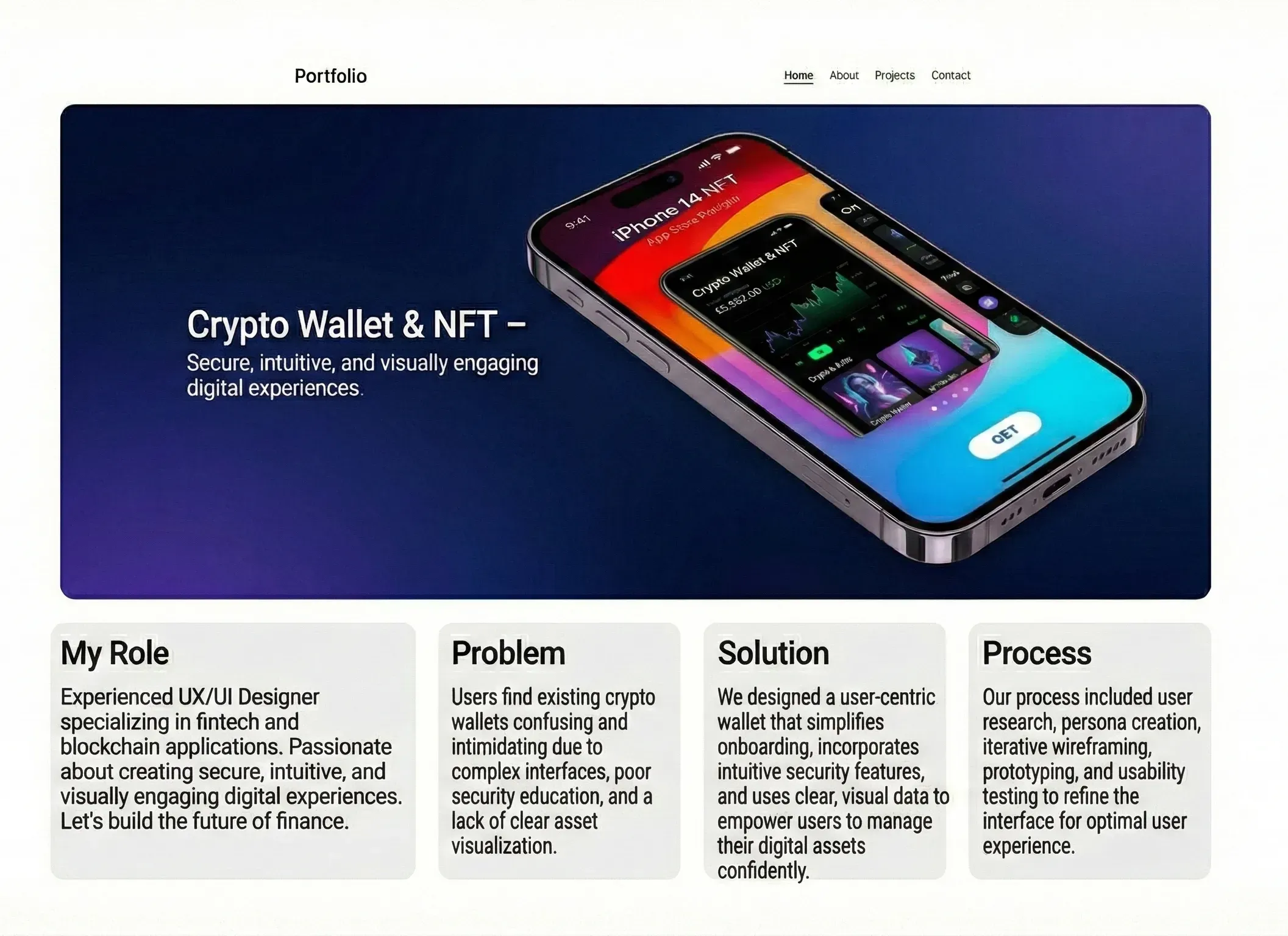
Adding iPhone mockups to your portfolio immediately lifts the whole page. Even simple layouts feel more mature when framed within a device, helping clients judge your work more accurately.
4. Social media advertising
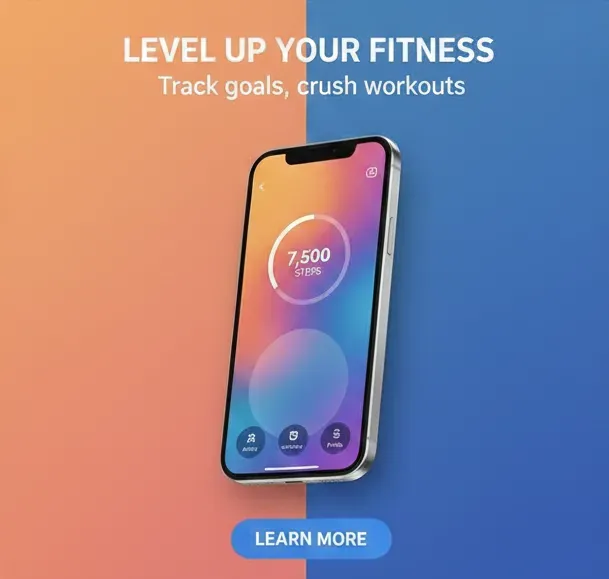
Ads with lifestyle iPhone mockups blend well with Instagram feeds without screaming that they’re ads. This leads to better engagement as people feel they’re seeing something natural rather than an overly polished promo.
5. Feature announcement graphics
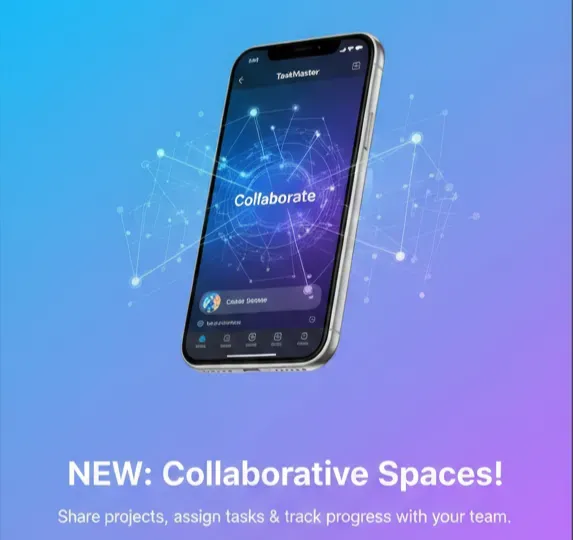
Using an iPhone mockup for feature reveals and app updates makes the message clearer and more trustworthy, as the viewer can see a real device rather than a random screenshot.
6. Startup pitch decks
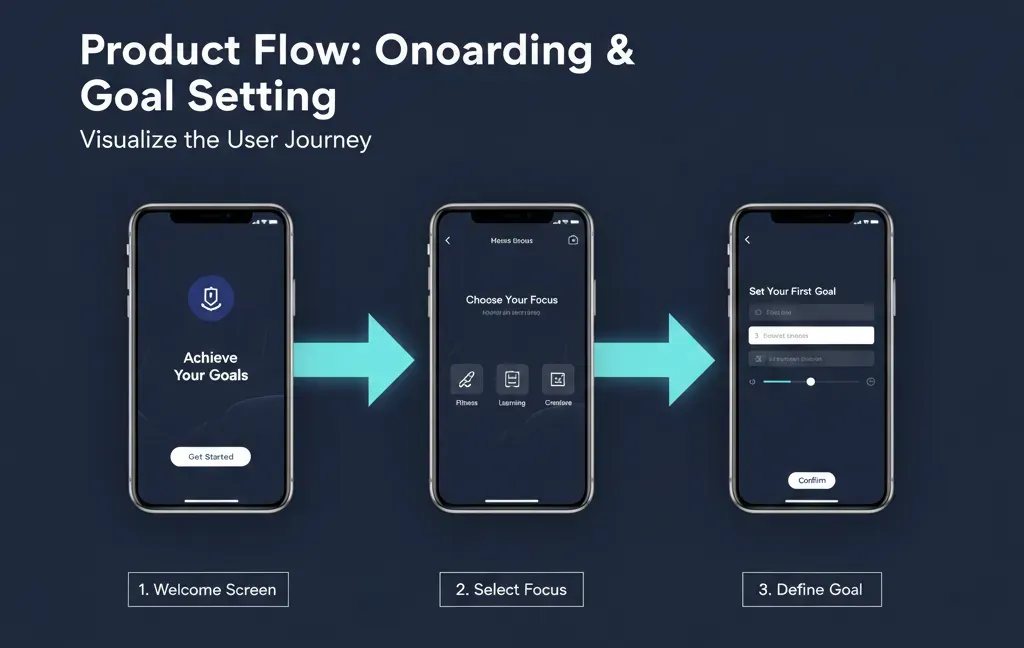
A mockup helps you show the actual product flow without clogging your presentation with text. This gives investors a snapshot of what you’re building and saves time for everyone involved.
Expert tips to make your iPhone Mockups hyper-realistic
Making your iPhone mockups look as real as possible isn’t that simple; small details matter more than most people believe:
Choose the right template: Match the template to your app. Productivity Apps look stronger in clean studio layouts, while social and lifestyle apps benefit from warm, human-centric settings.
Pick backgrounds that support your story: Pastel scenes create a calm aesthetic, city scenes add movement and energy, and desk settings scream office hours. The background is key to how your design is perceived.
Add human elements strategically: Hands, accessories, and subtle ambient objects help soften the composition. These touches allow the viewer to imagine the scenario more clearly and strengthen the narrative.
Use high-quality screens: Upload high-quality PNG screens to keep your mockup sharp. Low-resolution designs undermine realism and reduce the impact of your iPhone mockups, even when the template is strong.
Pay attention to screen placement: Make sure your screen sits naturally inside the device frame without tilting or stretching. When the alignment feels clean and centered, the whole mockup instantly looks more realistic and easier on the eyes.
Top Tools for iPhone Mockups
Modor
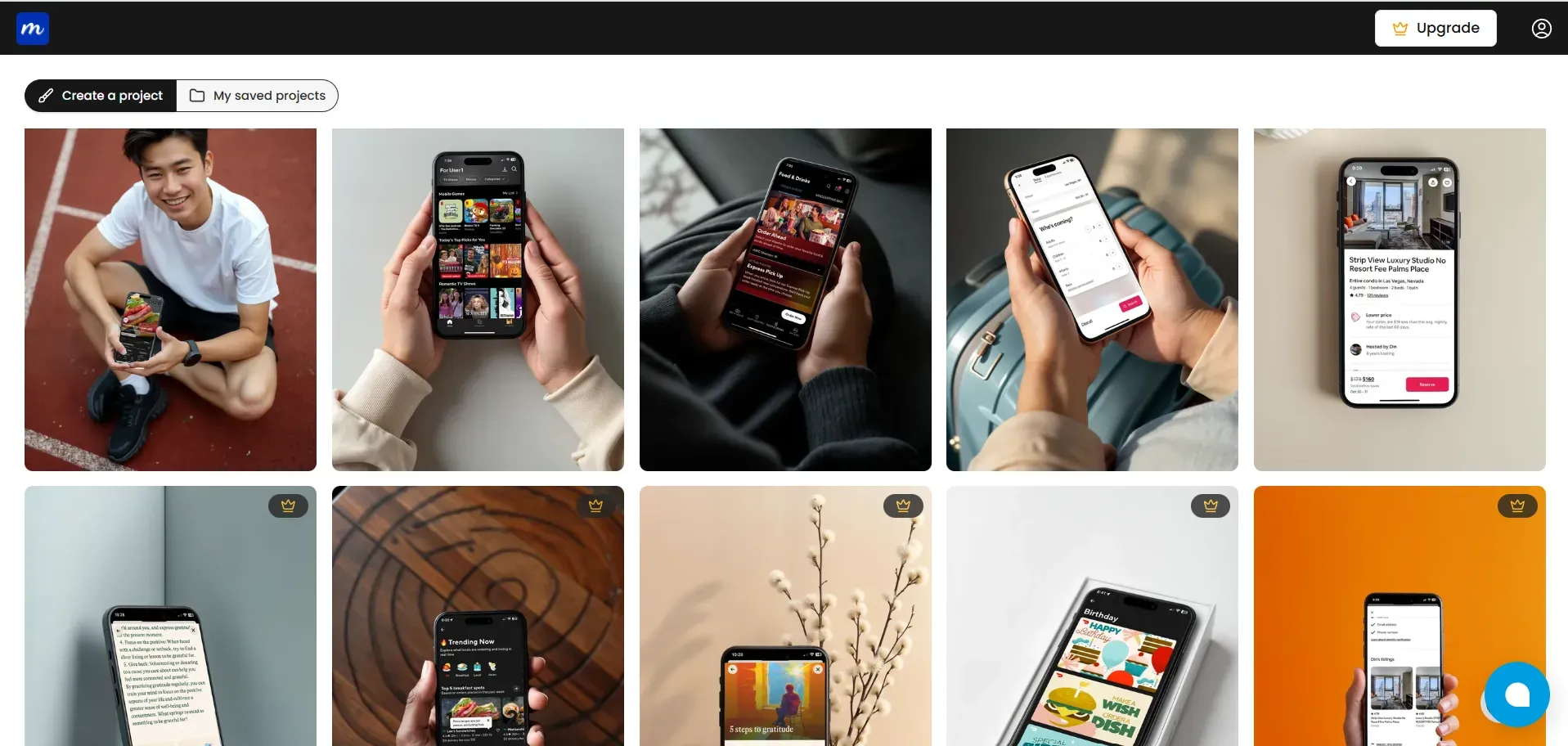
Modor makes it very simple to create high-quality iPhone mockups. Its AI automatically fits your screen, adjusts the lighting, and blends everything into the background so it looks natural.
You can choose from lifestyle scenes, pastel setups, handheld shots, desk layouts, or floating designs. It’s perfect for creators who want a quick iPhone mockup without sacrificing quality.
Mediamodifier
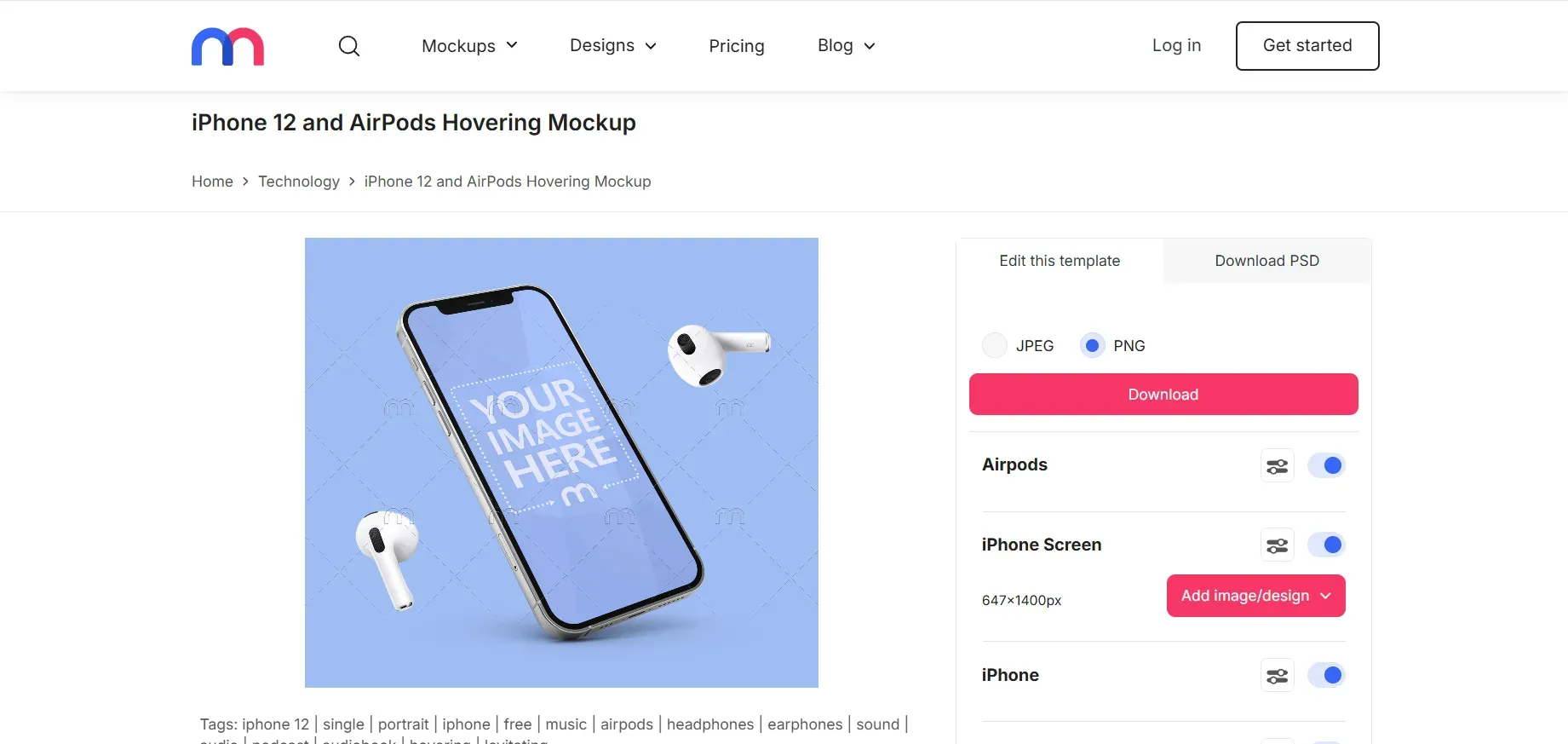
Mediamodifier features an extensive library of iPhone mockup templates built for product displays. Although the scenes are not as realistic as lifestyle mockups, they are great for quick flat lay compositions and basic presentations.
Mockuuups Studio
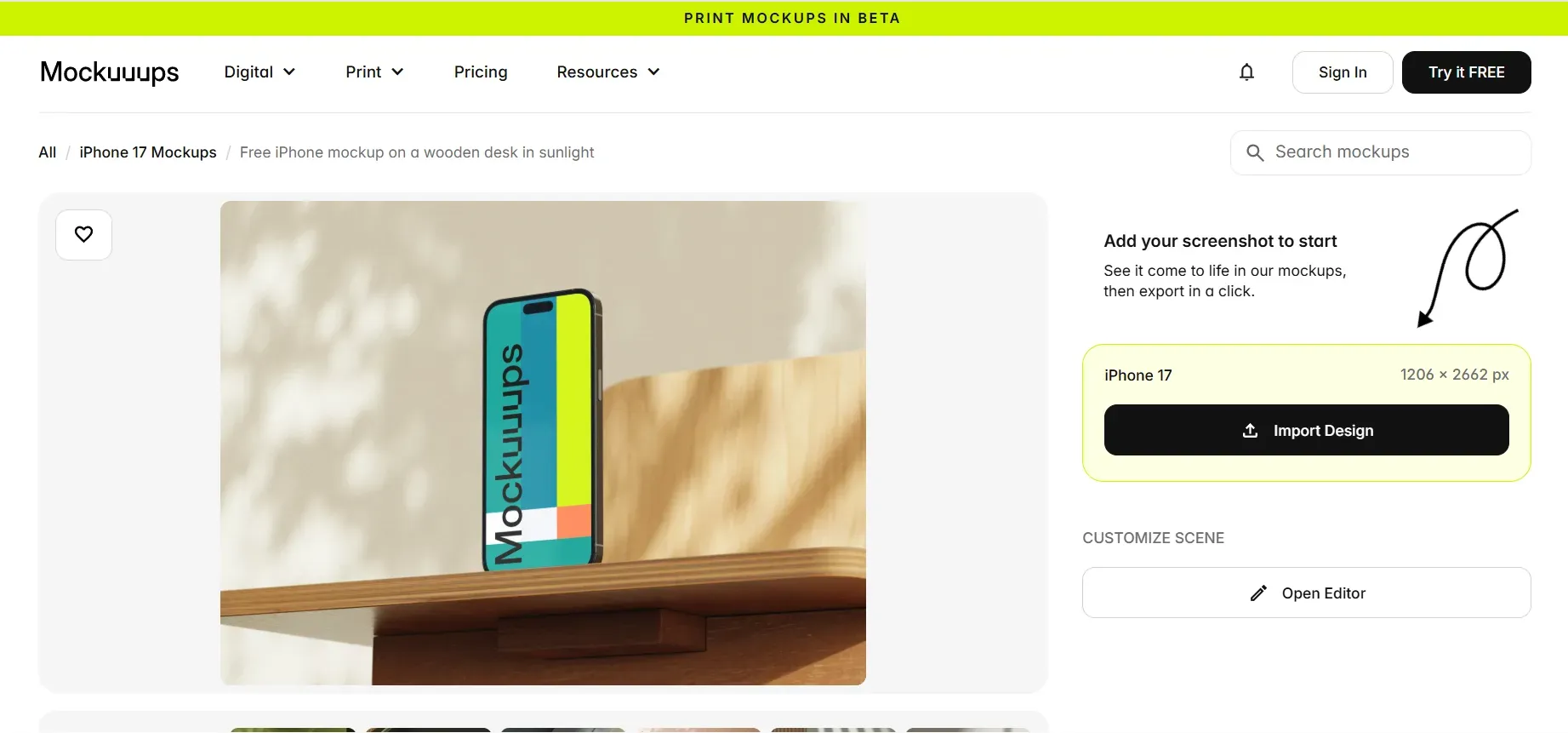
A favorite among designers, Mockuuups Studio integrates directly with Figma, which helps produce multiple iPhone mockups in bulk. Perfect for case studies, app flows, and large app showcase decks.
Figma
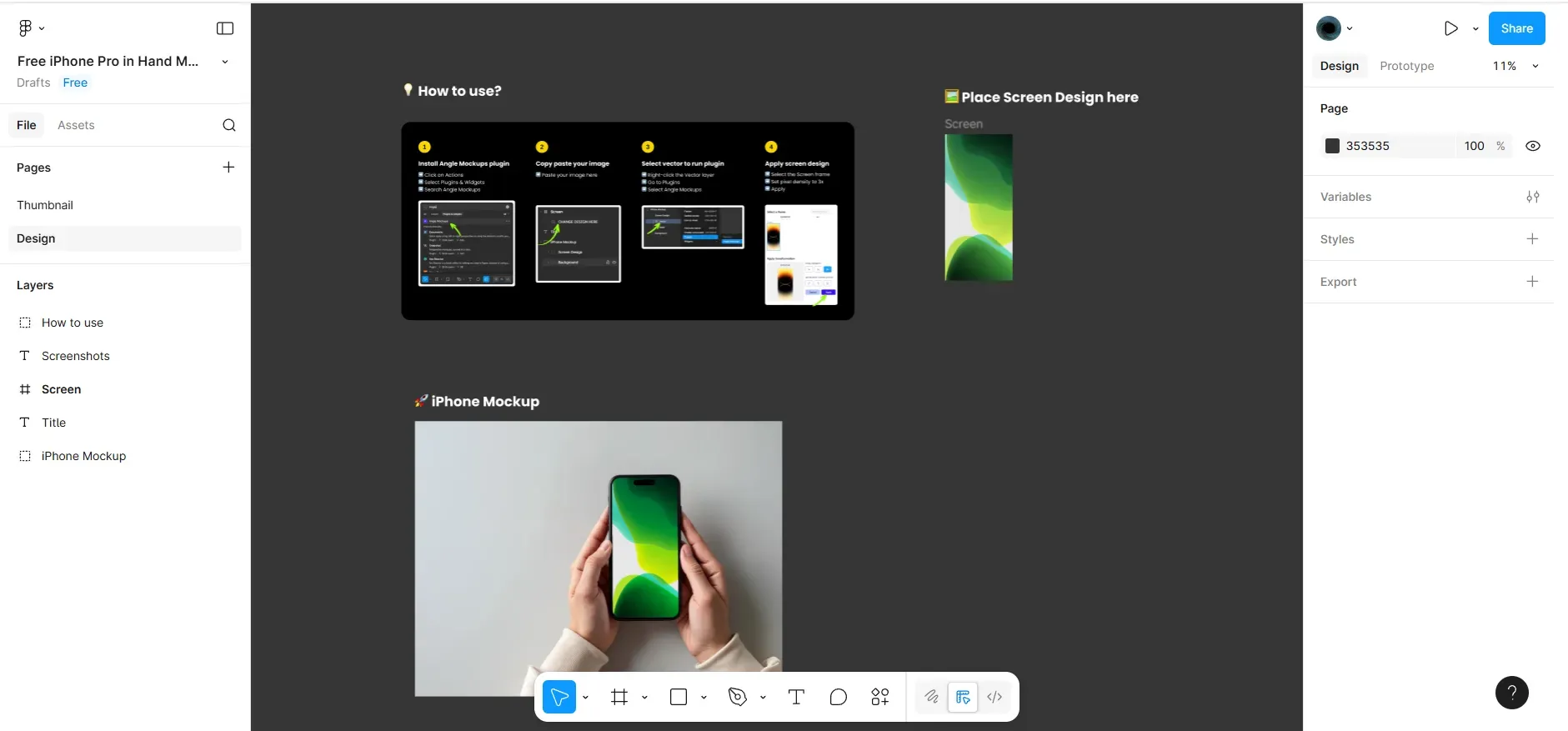
Figma offers high flexibility through plugins such as Angle, Vectary, Scenery, and Mockups. You can customize layers, adjust shadows, control perspective, and create personalized iPhone mockup templates that match your project.
Create iPhone Mockups with Modor: A Quick Tutorial
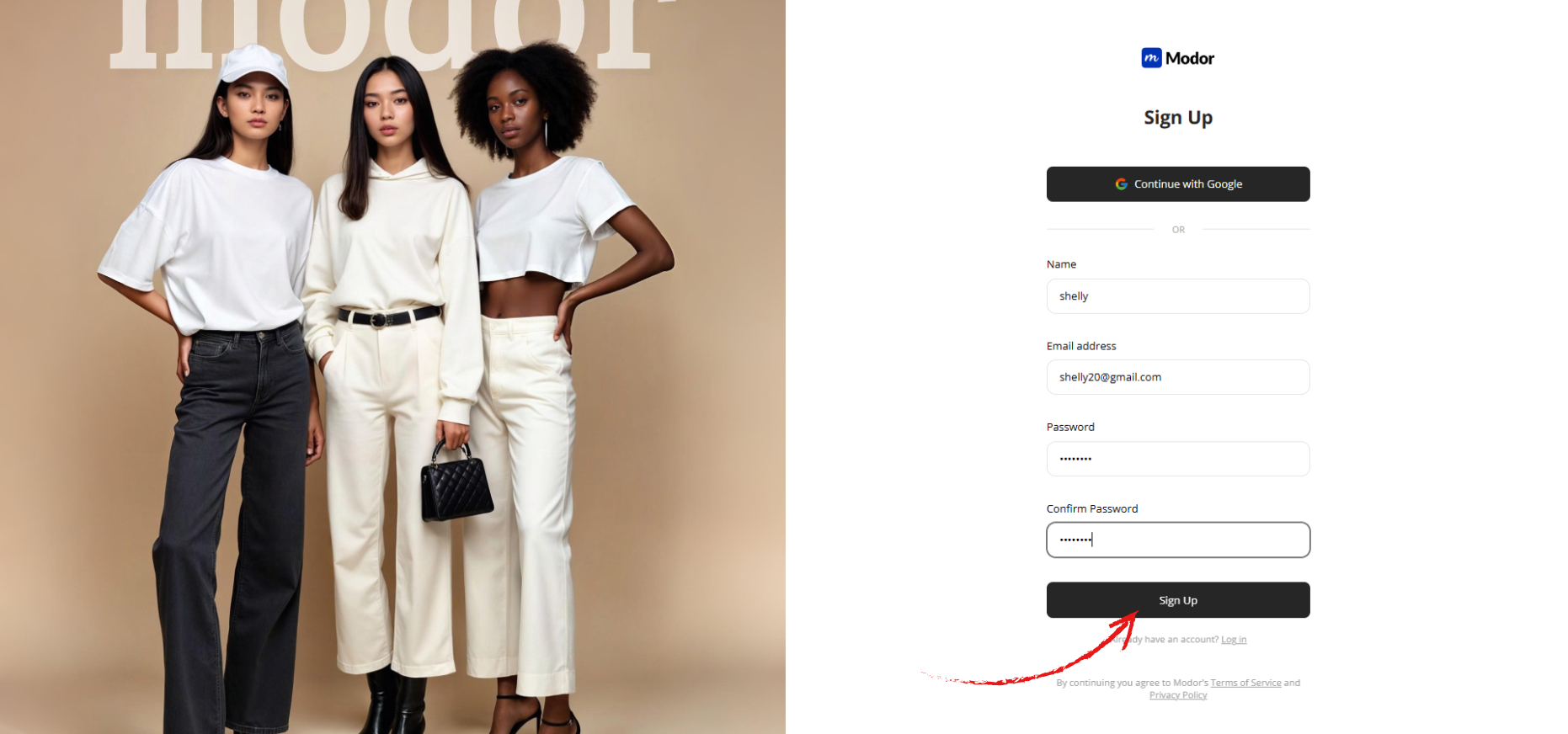
Step 1: To get started, sign up on Modor.io using Google or Email sign-up if you are an existing customer, then log in with your credentials.
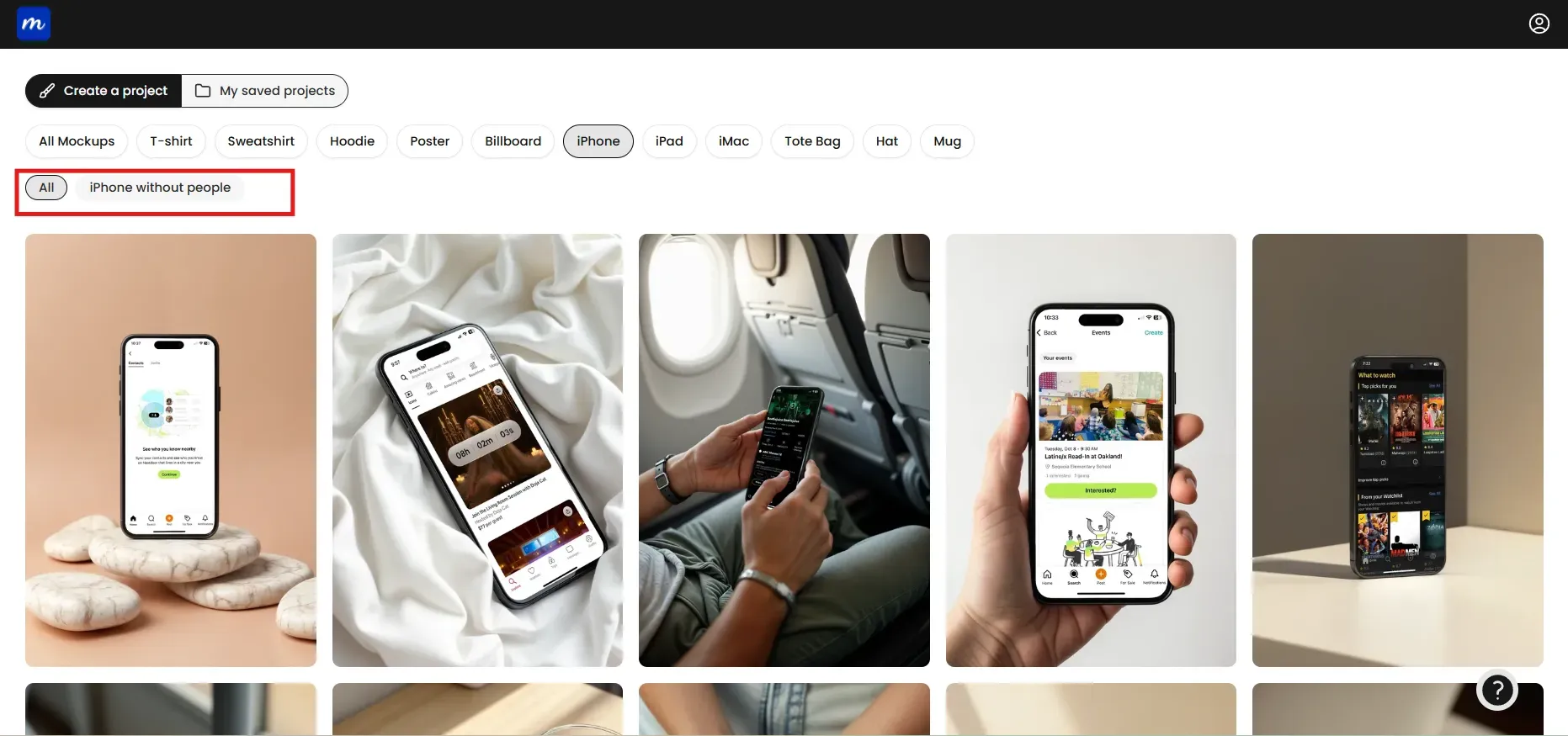
Step 2: Once inside the dashboard, select the iPhone category from the available categories. Apply filters to refine your selection.
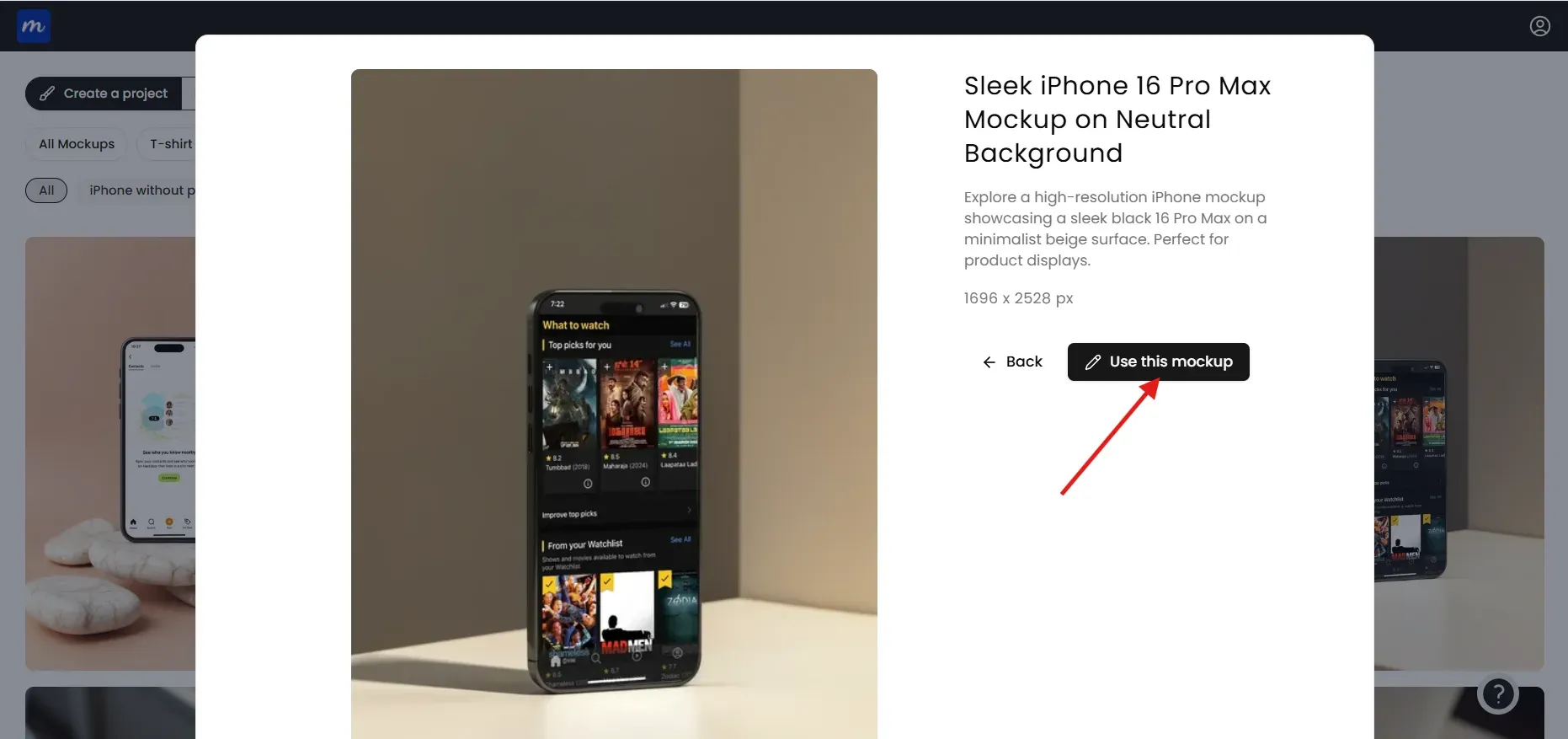
Step 3: After selecting a design, click on Use this mockup to open the editor.
Step 4: Click Edit Mockup to unlock the customization tools.
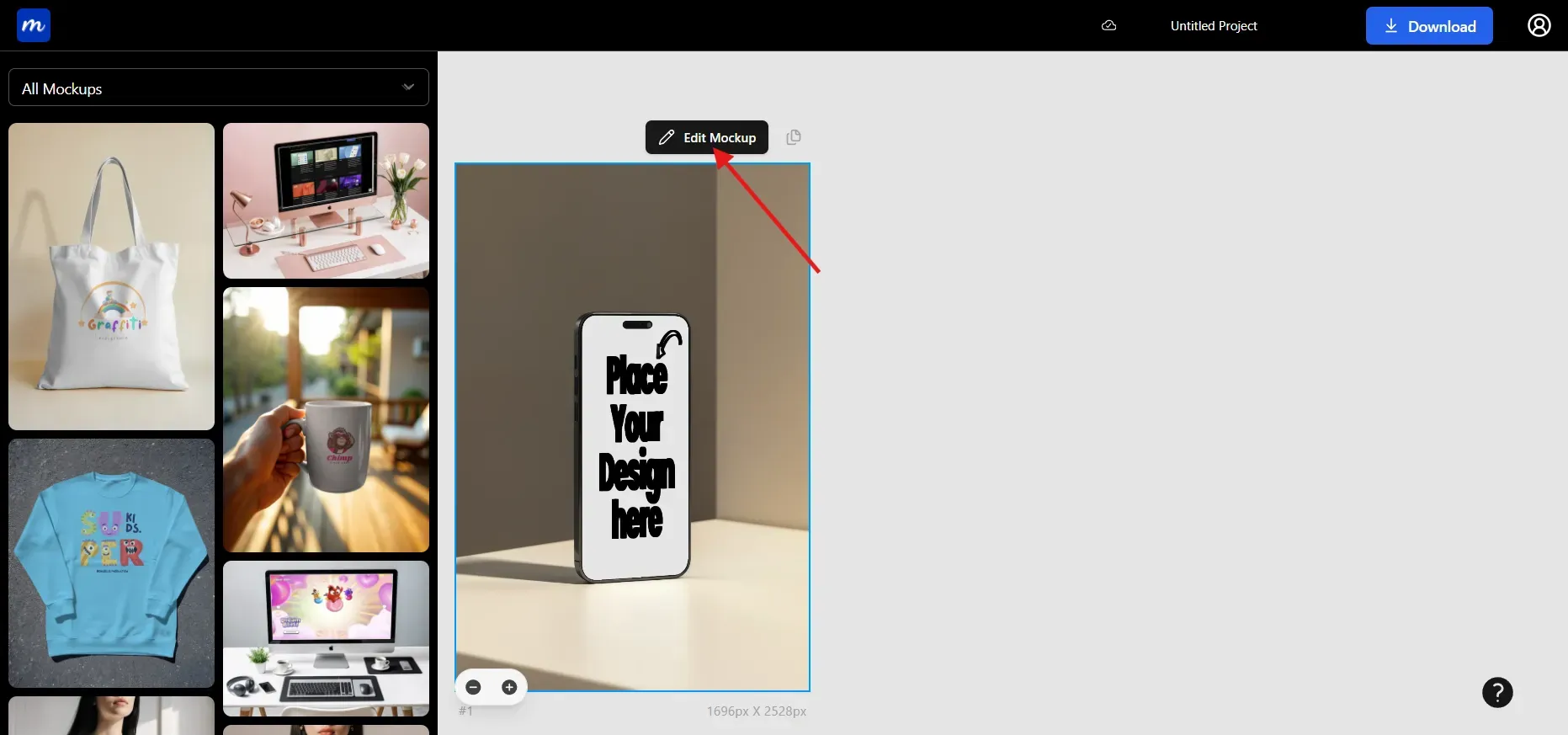
Step 5: Upload your screenshot in PNG format for sharper results, then scale and position the screen until it fits perfectly. Modor automatically syncs the lighting and blends the screen into the environment.
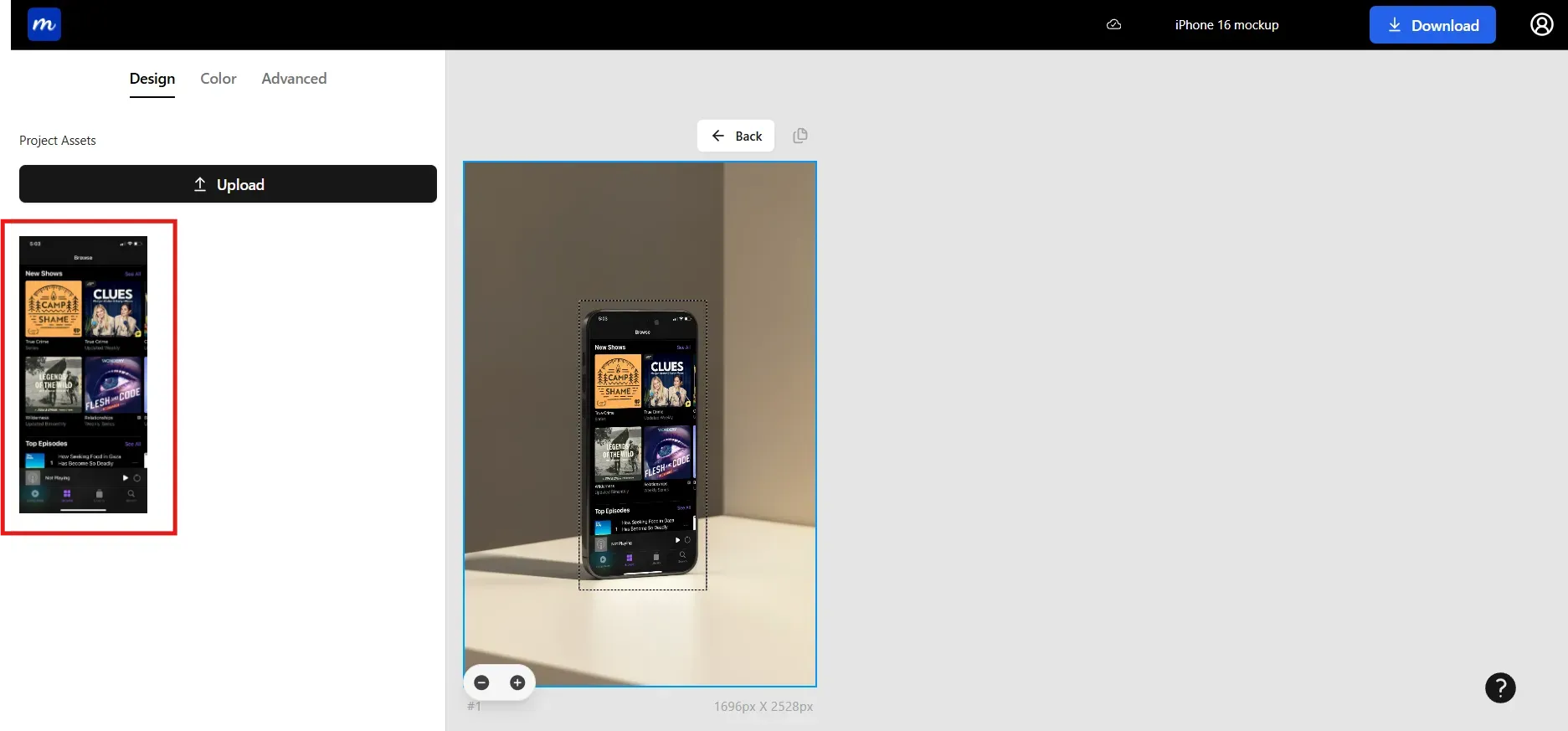
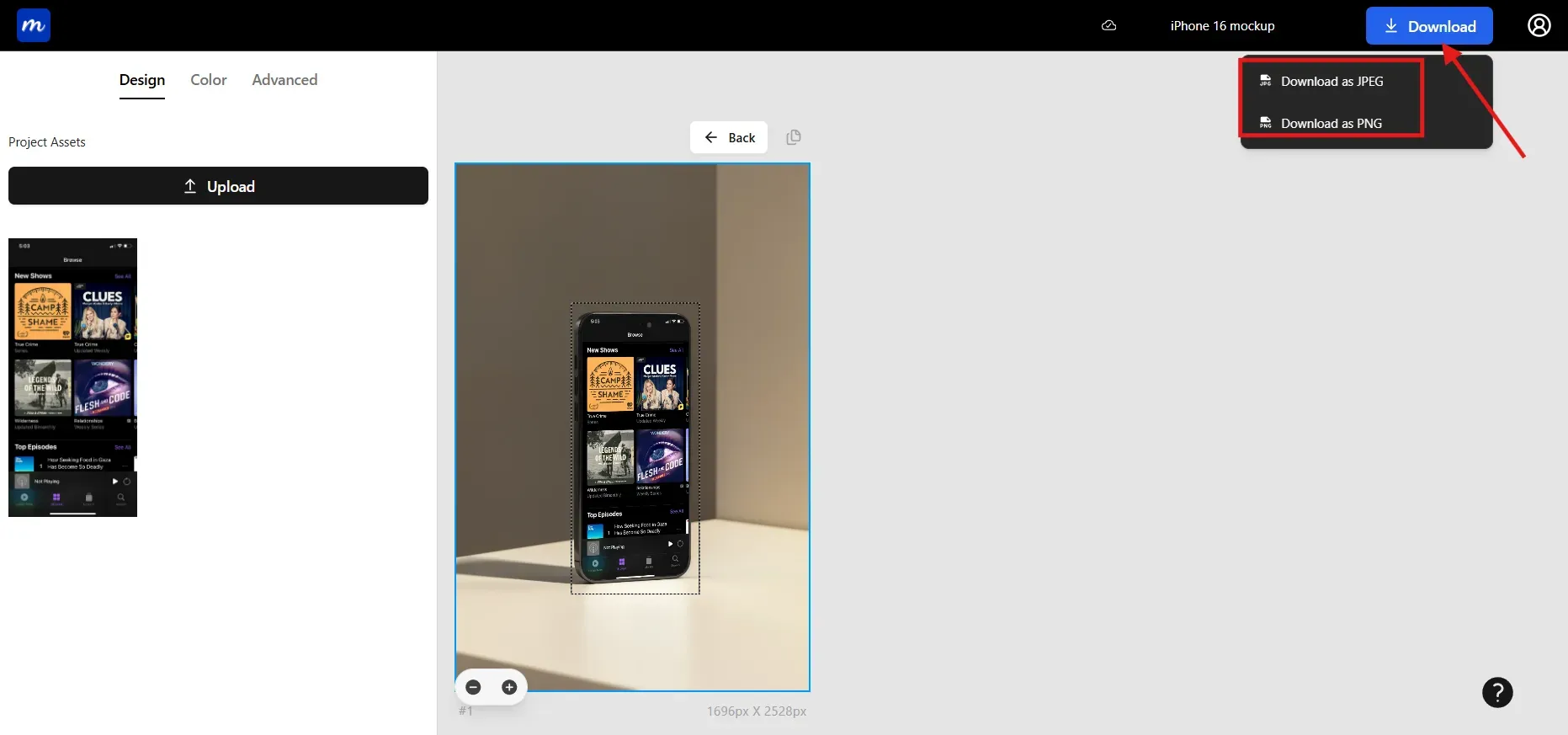
Step 6: For exports, choose PNG when preparing UI designs or portfolio work. Choose JPG for social media posts because it keeps file sizes smaller. If you want consistent branding, reuse the same scene style and generate multiple angles to create a complete mobile app showcase series.
Avoid common mistakes, such as uploading low-resolution screenshots or stretching your UI to fill the frame. Both issues degrade the quality of your iPhone mockups and reduce their impact.
Top iPhone Mockup Trends in 2025
1. Photorealistic Hand iPhone Mockups
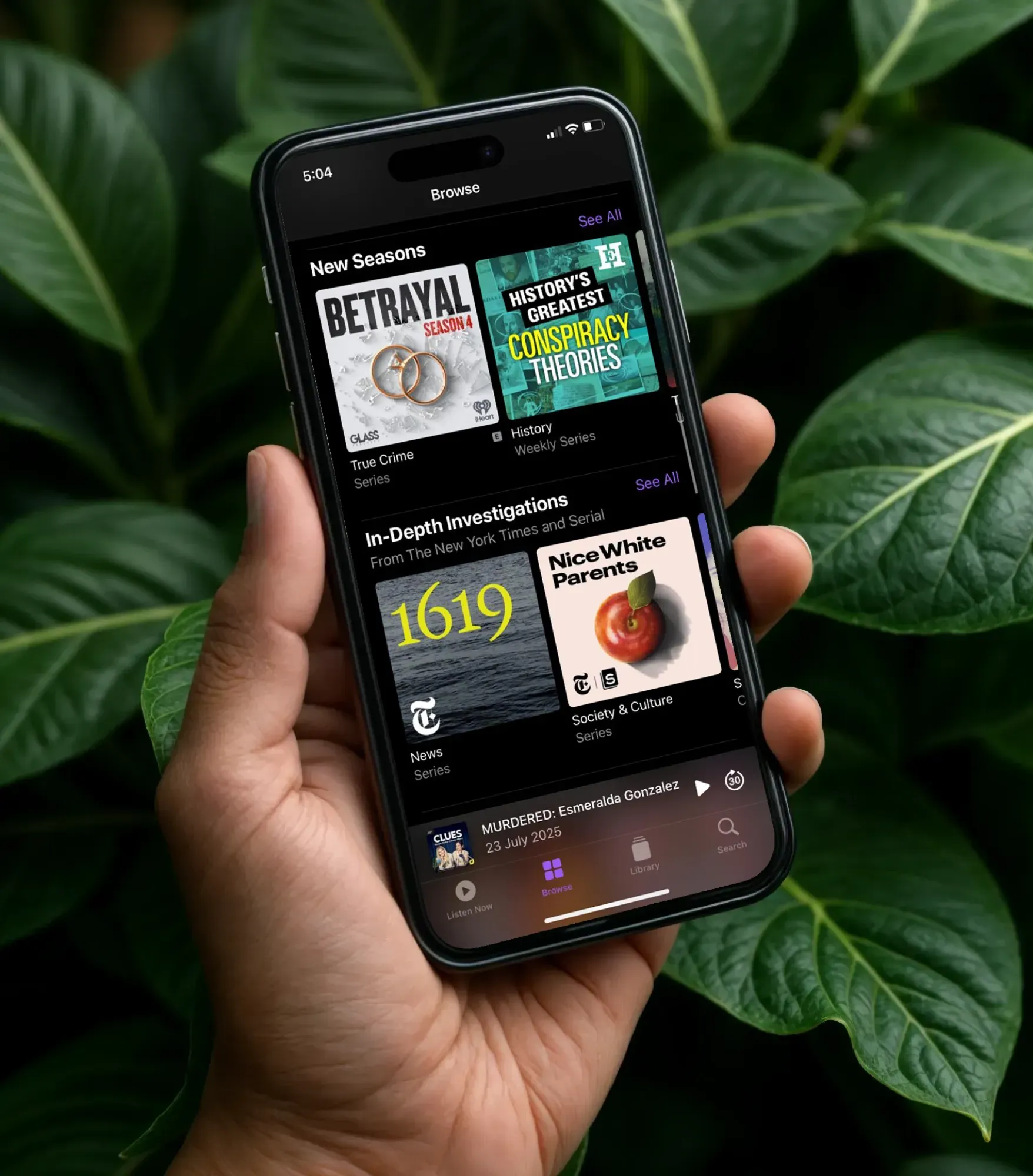
These mockups capture natural hand gestures, showing how real people hold and use their phones.
Use case: Great for mobile app showcases, social apps, and financial tools.
2. Minimalist and Clean iPhone Mockups
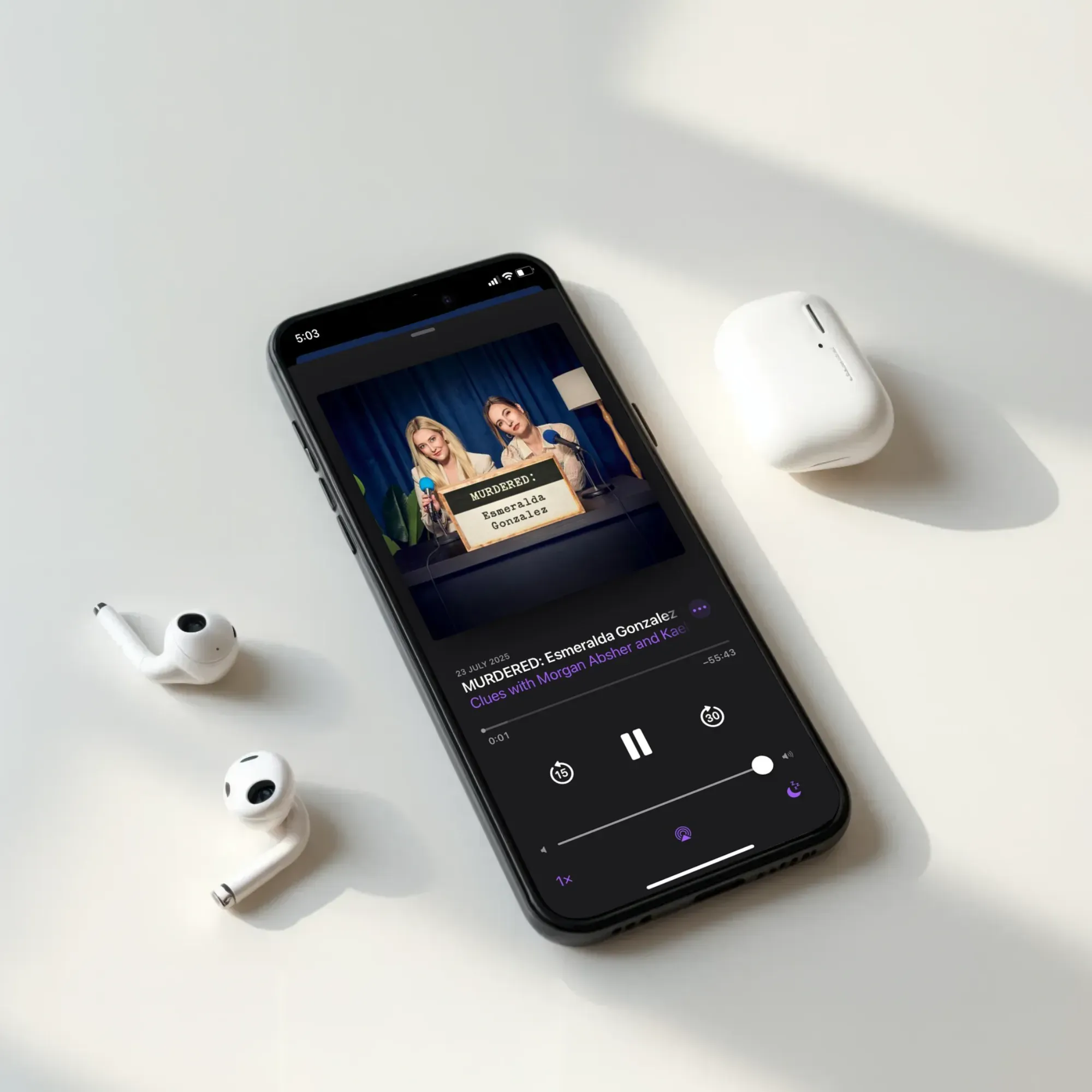
Studio backgrounds eliminate distractions and let viewers focus entirely on your design.
Use Case: These iPhone mockups are ideal for App Store graphics, productivity apps, UX case studies, and website hero images.
3. Lifestyle iPhone Mockups
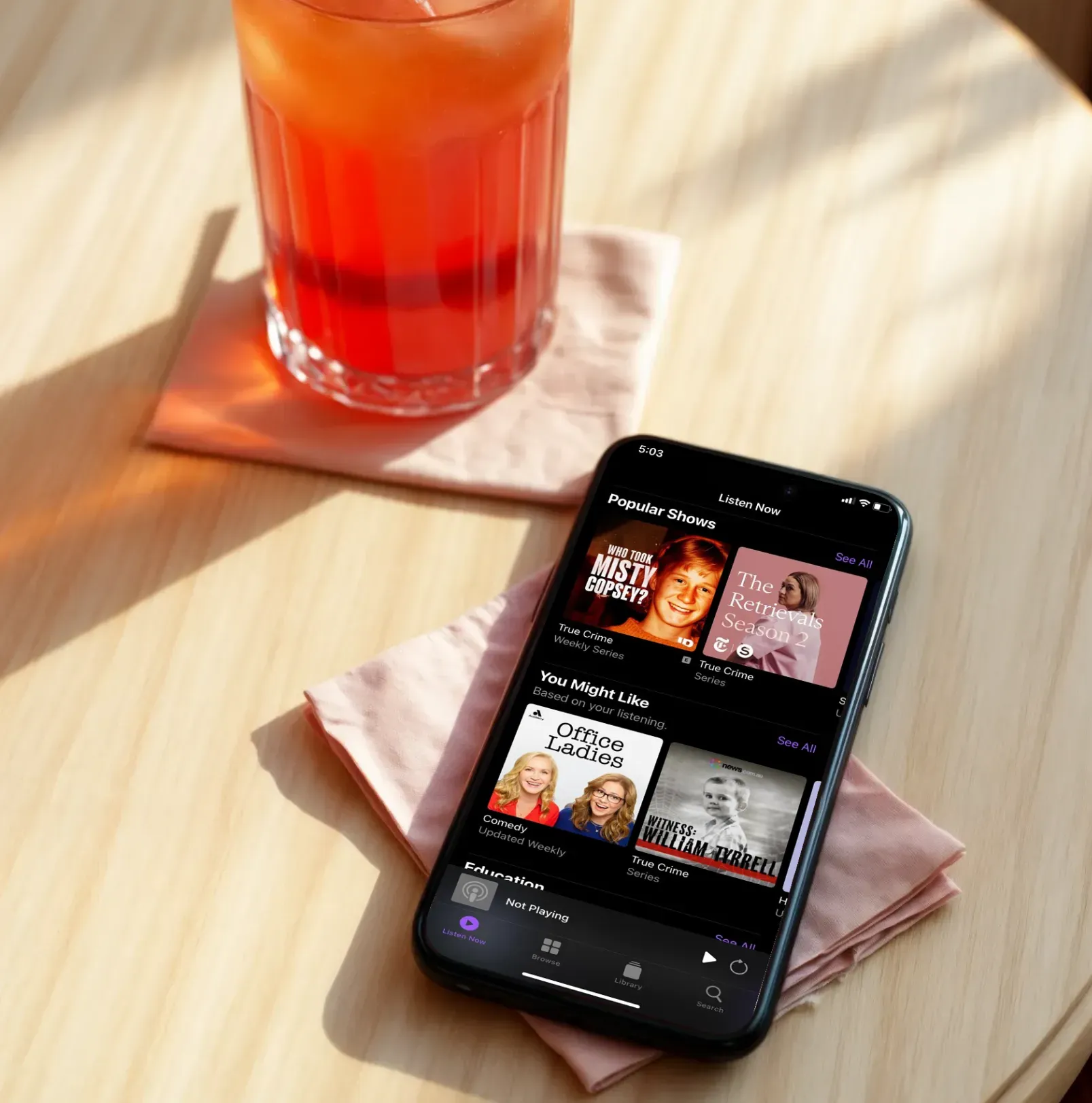
Lifestyle scenes feature the device in real-world settings, such as cafes, workspaces, or living rooms.
Use-case: perfect for travel apps, fitness brands, fashion platforms, Pinterest graphics, and social promotions.
4. 3D Animated iPhone Mockups
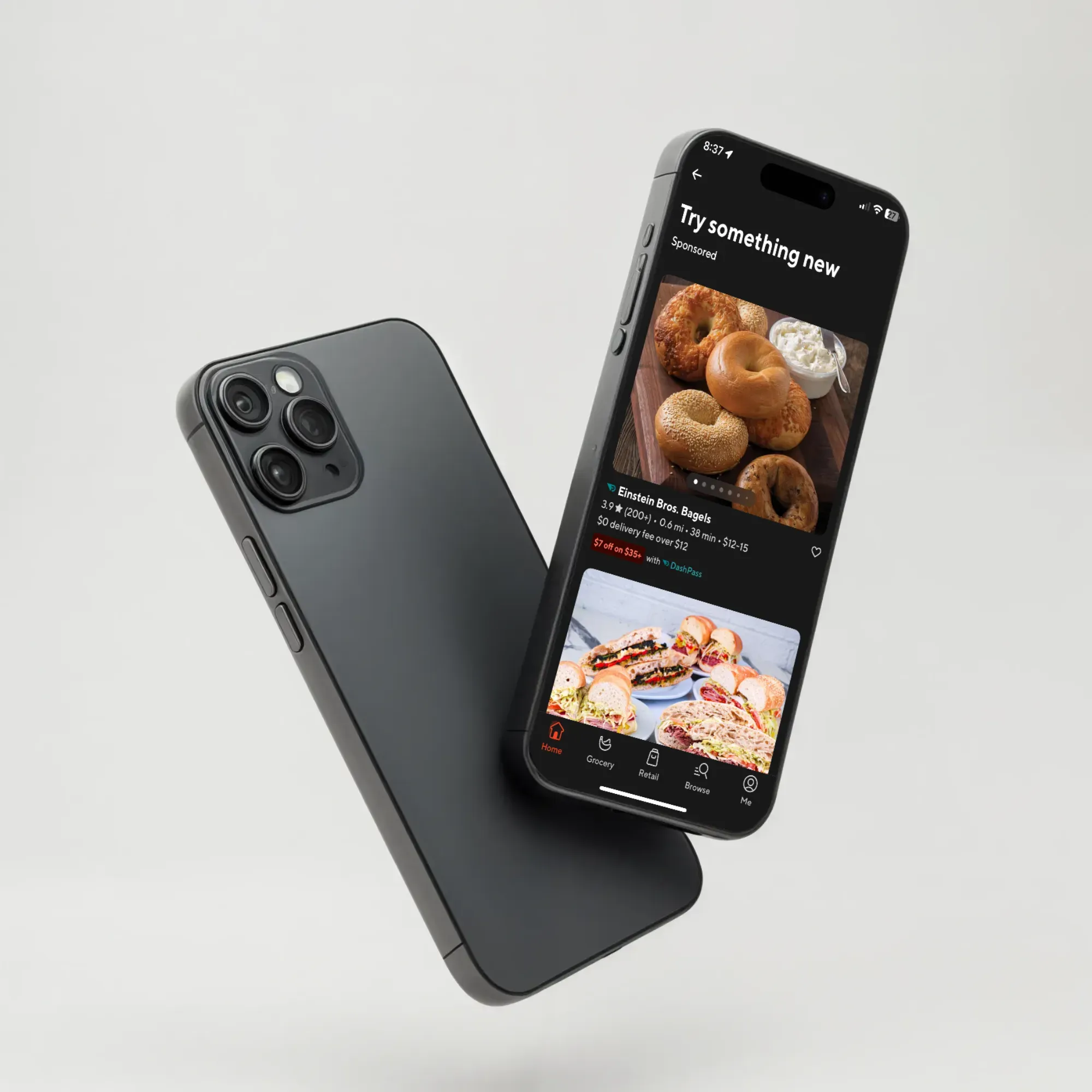
These mockups use floating devices and dynamic motion to create cinematic visuals.
Use case: They add energy to presentations, pitch decks, landing pages, and futuristic mobile app showcase demos.
Conclusion
Modor makes it easy for anyone to create professional iPhone mockups without technical skills. It streamlines the entire process and lets creators stay focused on visuals that truly engage their audience. Experiment with various styles, such as lifestyle mockups, studio shots, or soft pastel backgrounds, to see how your design fits with each scene.
Good visuals play a key role, so it helps to keep a few reliable mockups ready for new launches or portfolio updates. With time, you will get a sense of what works for your brand and why.
FAQs
1. How to create iPhone mockups?
You can create iPhone mockups by preparing your screen design and uploading it to Modor. After placing the screen correctly inside the device frame, export the final image as a PNG or JPG, depending on where you plan to use it. The tool handles alignment and lighting to give you a natural result.
2. Which iPhone model should I choose for modern mockups?
Choosing the latest iPhone models, such as the iPhone 15, iPhone 16, or iPhone 17, helps keep your visuals modern and relevant. Older models should only be used when you want a retro or compatibility-inspired look.
3. How to create iPhone mockups on Modor for free?
You can create mockups for free by selecting free templates (templates with the crown symbol need upgrade). Upload your screenshot, position it in the device frame, and export the preview. Upgrading to Pro unlocks additional features, premium scenes, and Brand asset management.
4. How do I maintain branding across multiple iPhone mockups?
Brand consistency comes from using the same device model, matching backgrounds, and keeping your color palette unified. Try to maintain similar effects, lighting tones, and device angles across all visuals. Export everything in the same resolution so the entire collection appears cohesive.
5. How to create a mockup phone in Photoshop?
You can make a phone mockup in Photoshop by opening a device frame and dropping your screen design into the smart object layer. After that, you just fit the screen to the phone shape and nudge the perspective until it feels right. Adding a little shadow or a soft highlight helps the mockup look more like a real photo. Export your final mockup for ads, portfolio, or presentation.
Related Blog