

30 Best Beanie Mockups To Upgrade Your Product Listings
Most beanie mockups fall short on small details like fabric texture, knit patterns, and lighting. Because of this, even a […]
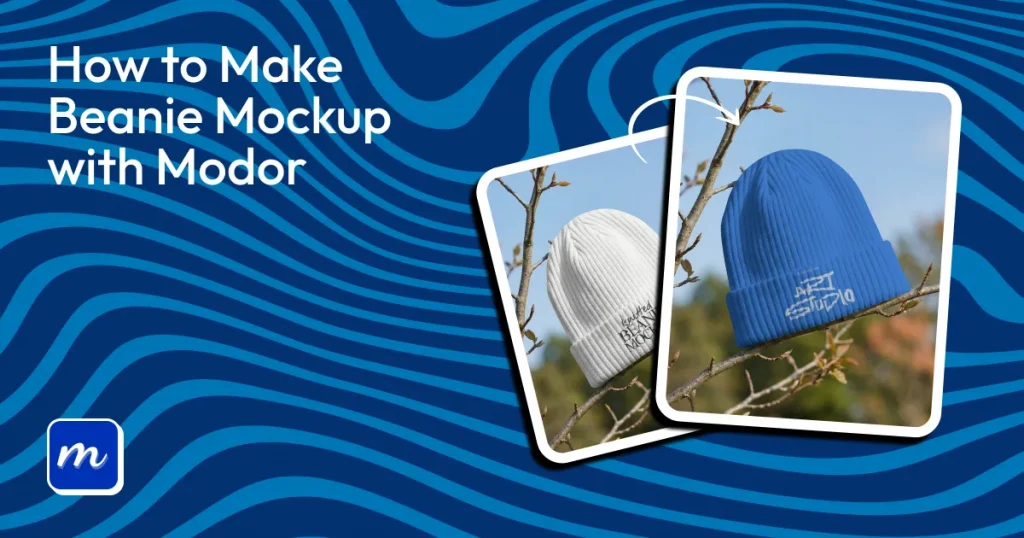
If you are wondering how to make beanie mockups, then sign up for an online mockup generator like Modor, select from a bunch of free beanie mockup templates, upload your design, edit it, and export.
With Modor, you can choose from thousands of beanie mockup templates, filter them by the model or material you want, upload your designs, customize them, and download the final mockup in high quality.
That being said, in this guide, you’ll learn how to create beanie mockups with Modor, tips to make them look realistic, and get pro tips to help them stand out.
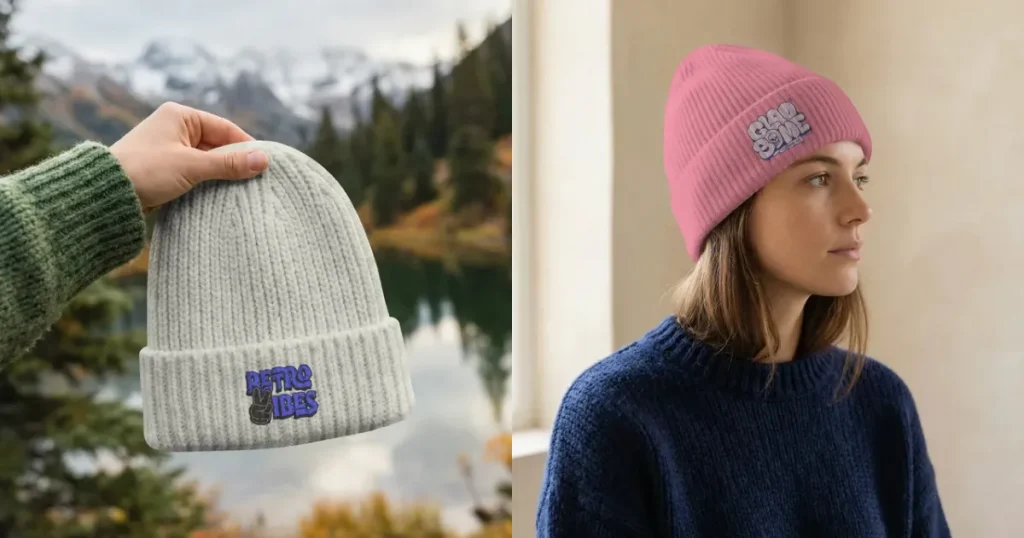
Before you learn how to make beanie mockups, it’s important to know where they are used and how they help showcase your designs effectively.
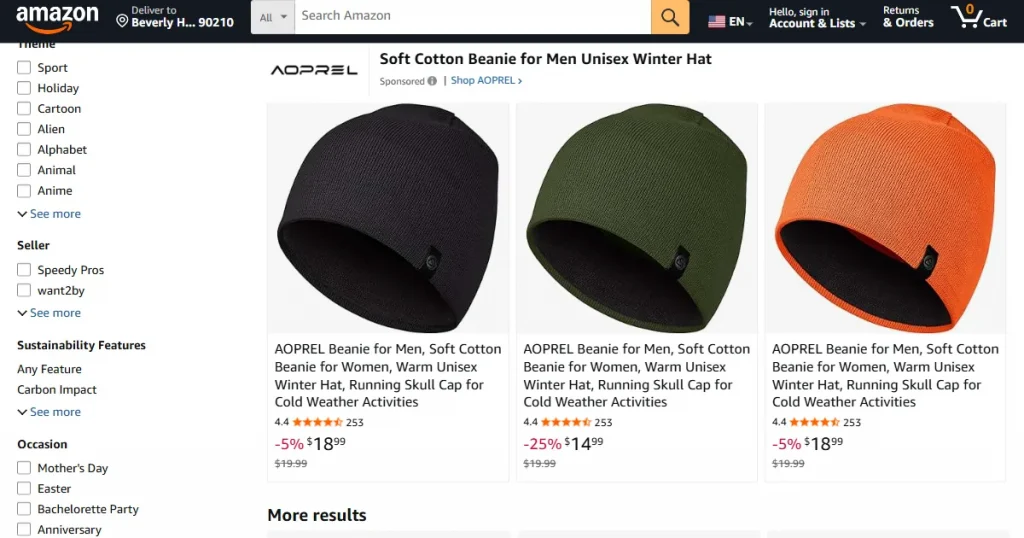
Beanie mockups help customers quickly understand how your product will look in real life. That’s why they are widely used in ecommerce listings.
It’s crucial to get them right on your ecommerce site or marketplace like Amazon and Etsy, as buyers often decide within seconds.
A pro tip would be to use lifestyle or model-based mockups to make your product feel more real. Create 3–4 variations from different angles to give a complete view. This builds trust and can improve conversions.
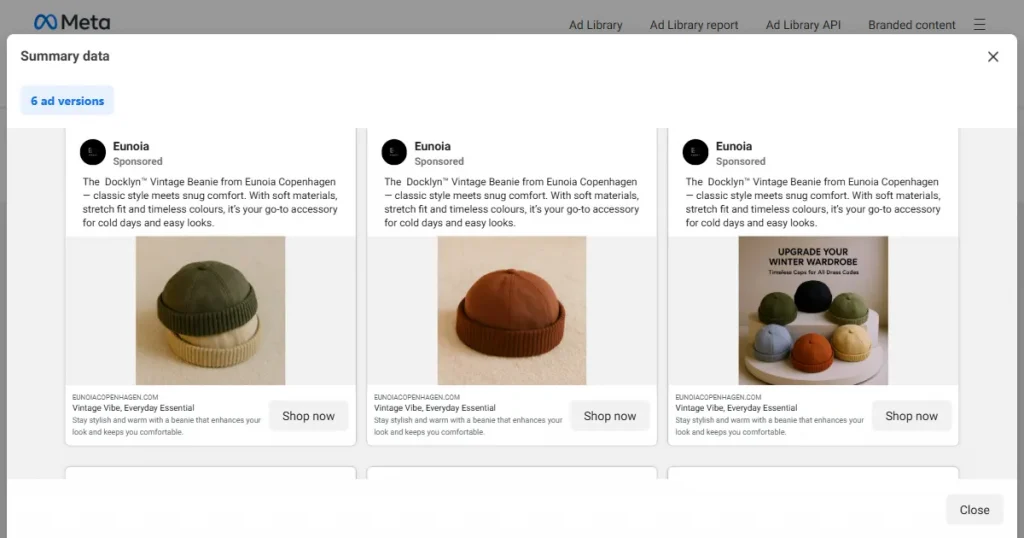
Beanie mockups also work well for social media ads, where the goal is to grab attention and drive clicks.
For social media visuals, your beanie mockup should feature bright, bold designs that stop users’ scrolling by catching their attention. Create multiple variations and A/B-test them to see which sticks better with customers.
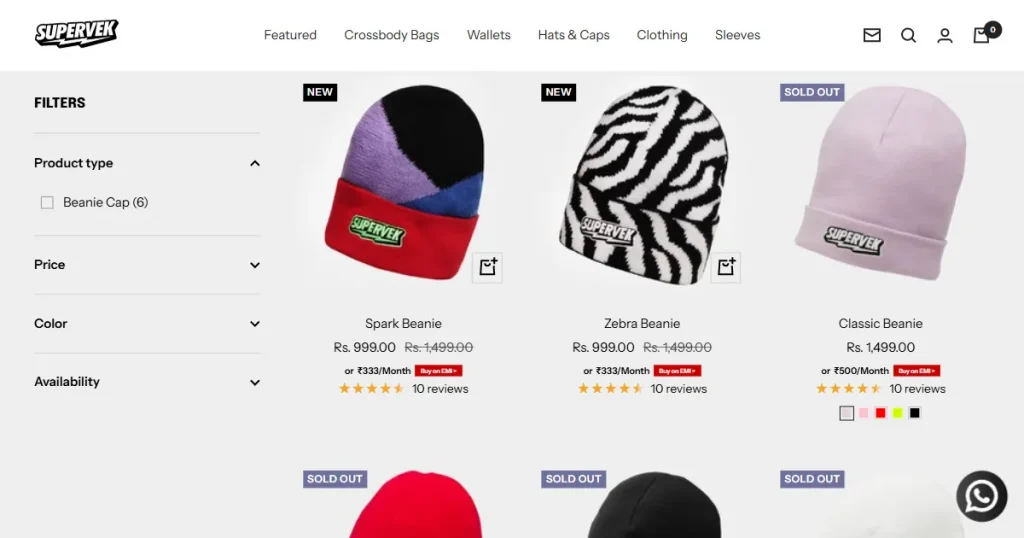
Lookbooks and landing pages reflect your brand identity. Beanie mockups, especially in lifestyle settings, help you tell that story.
They are also perfect for editorial-style layouts with beanies and complementary clothes, accessories, and lifestyle products. Quality mockups will enhance perceptions of your brand and products, making them look more premium and desirable.
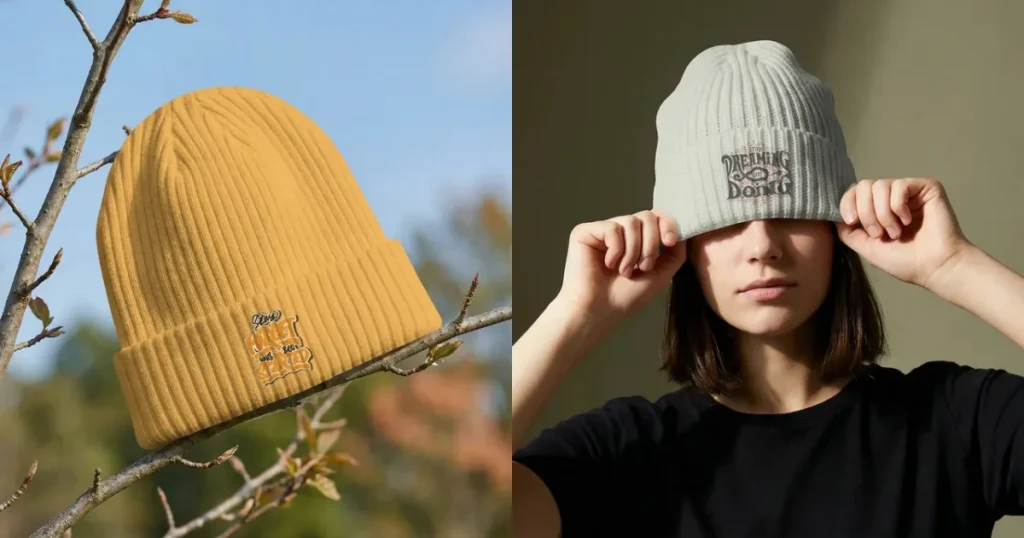
If you want to make beanie mockups that are indistinguishable from real images, then focus on these key elements.
The fabric defines how your beanie looks. Common styles include ribbed, cable, and waffle knit, and each gives a different feel.
These textures also determine how the design adapts to the fabric’s structure. Complex graphics may appear muddled on heavily textured surfaces, while simple bold designs shine.
It’s a good idea to test your design on different fabrics to see what works best.
Placement changes how your design is perceived. The crown of the beanie is where you place your designs to highlight them. Whereas side placements create a more subtle and sophisticated look. This is especially useful when working with a black beanie mockup, where small logos or dark-colored details may need careful positioning to remain visible.
Lighting, shadows, and depth transform the way your mockups look. They can turn a flat image into a professional, high-quality image. They make your product images look like real photographs, which builds customer trust in the product.
This becomes even more important with a black beanie mockup, as proper lighting and shadows help define the fabric texture and prevent the product from looking flat.
Modor handles these elements automatically. You can also fine-tune shadows and positioning to achieve a more realistic result with minimal effort.
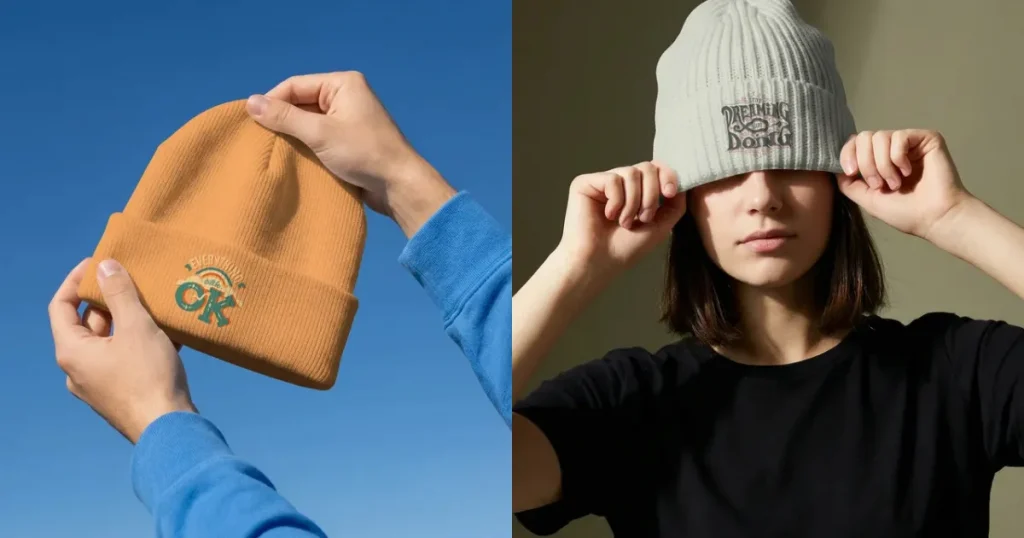
Before you learn how to make beanie mockups, let’s learn how to create beanie designs that actually sell.
Instead of creating general beanie designs, focus on specific hobbies, professions, or causes like gaming, coffee love, or dog mom.
Once you have decided on your niche, make sure you choose the right fonts and place your designs appropriately. Because a text that looks good on a flat surface might look distorted on a curved surface.
If your logo is placed poorly, it can look off and reduce the overall appeal. In many cases, customers will simply scroll past without giving your product a second look.
Beanies are mostly worn in winter to complement an outfit. If you want to play it safe, white and black beanie mockups are always bestsellers.
If you want to try something new, try monochromatic for a minimalist look, bold and neon for a vibrant look, and earth tones for a sophisticated look.
Let’s look at the step-by-step guide on how to make beanie mockups using Modor.
Step 1: Log in to Modor
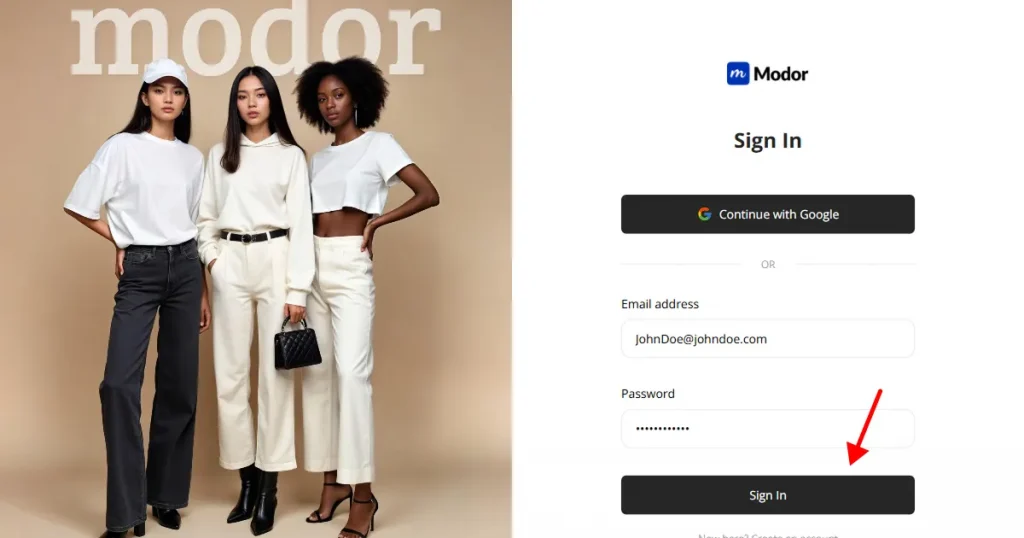
To make beanie mockups with Modor, start by creating an account with Modor using your credentials or the Gmail login method for a faster sign-up.
Step 2: Select the Beanie Category
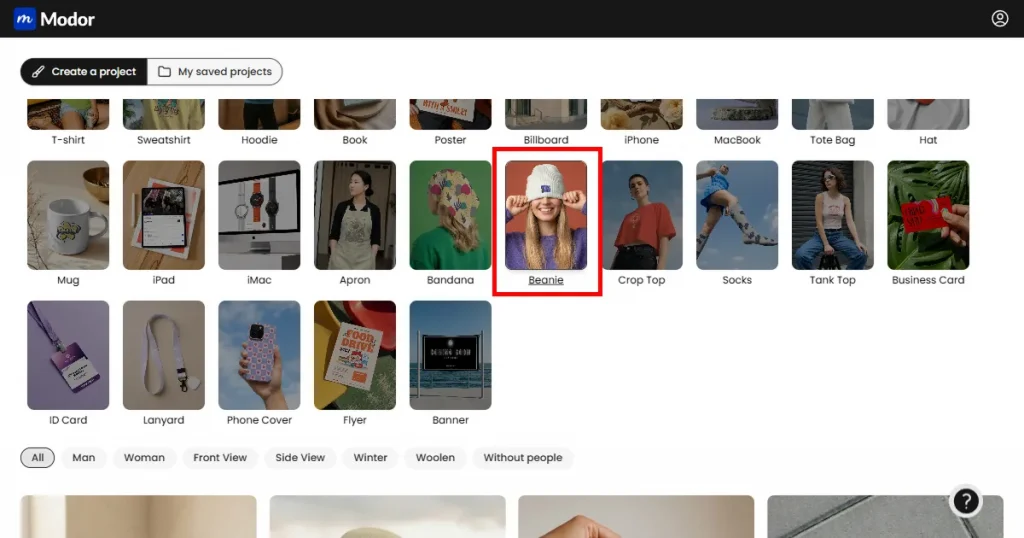
After logging in to the tool, you can choose from 20+ categories. Since we are creating beanie mockups, we need to locate and select the beanie mockup category.
Step 3: Choose the Right Template
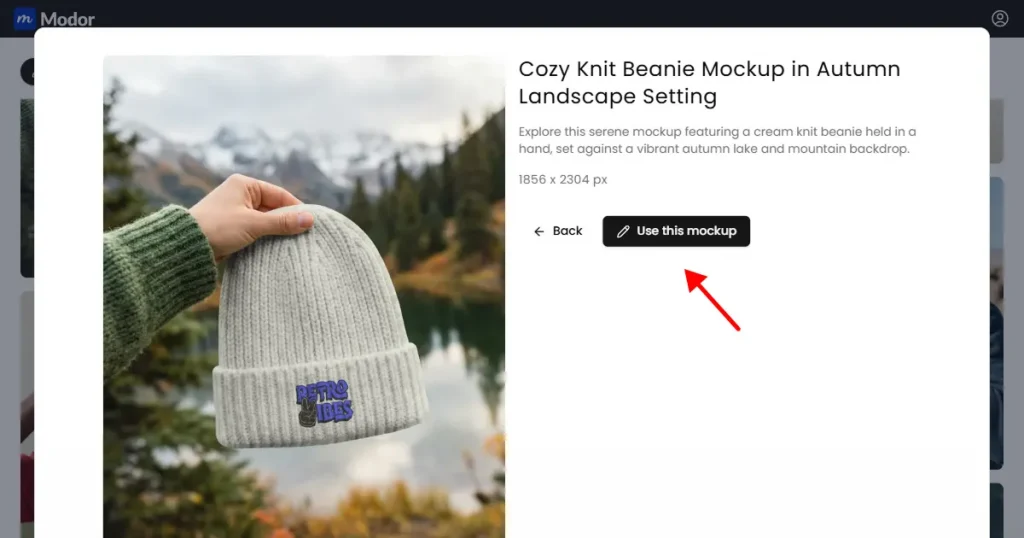
Once you select the beanie mockup category, you will have access to a bunch of free beanie mockup templates. So, choose a mockup template that aligns with your branding, then click Use this mockup.
Step 4: Upload Your Design
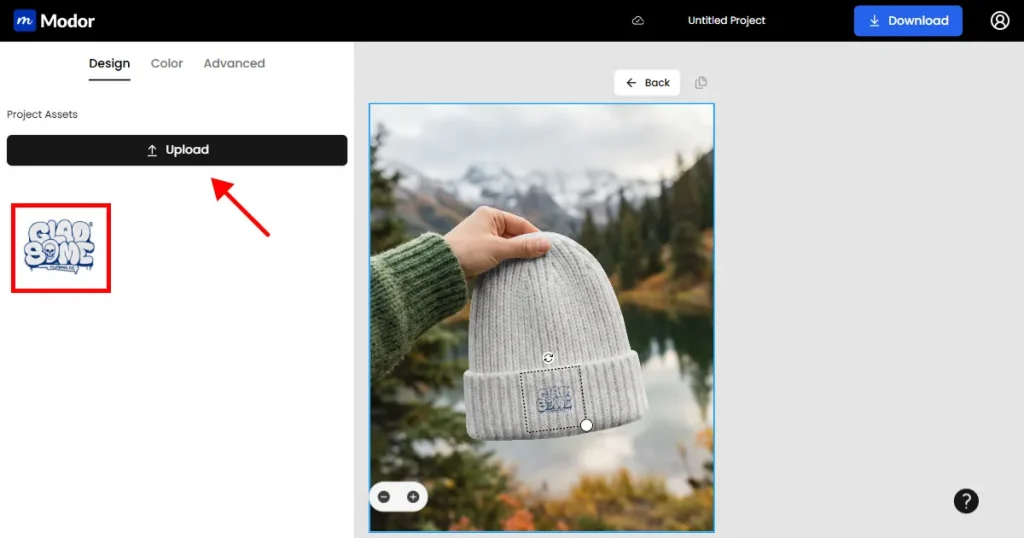
Once you click Use this mockup, you will be automatically taken into the project. Here, you can click Edit mockup to open the editing dashboard, where you can upload your designs or logos by clicking on the Upload button on the left-hand side of the dashboard.
Step 5: Change Color
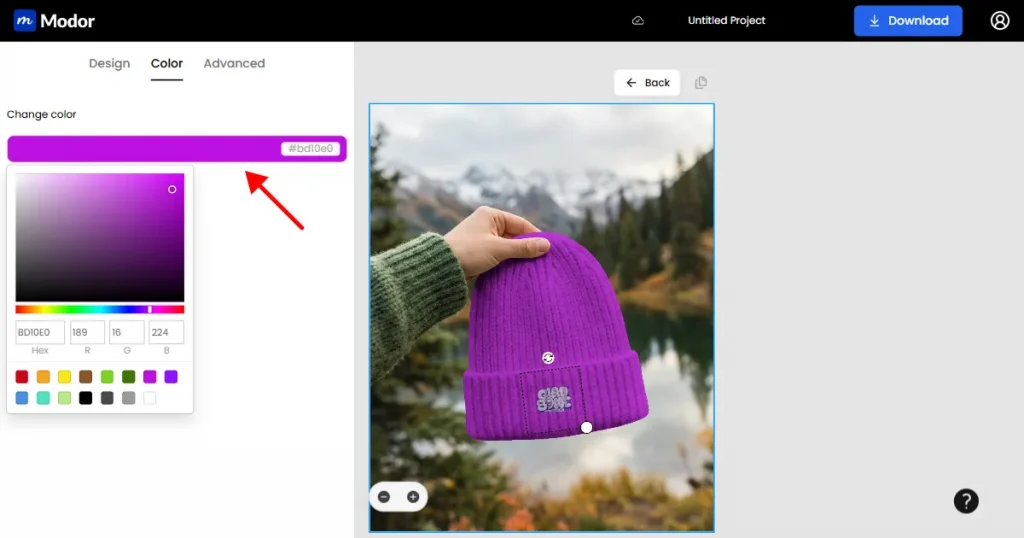
Next, if you don’t like the mockup’s natural white color or it doesn’t fit your design, you can change the mockup’s color using RGB values, hex code, or the color tool.
Step 6: Use Advanced Transform Tools
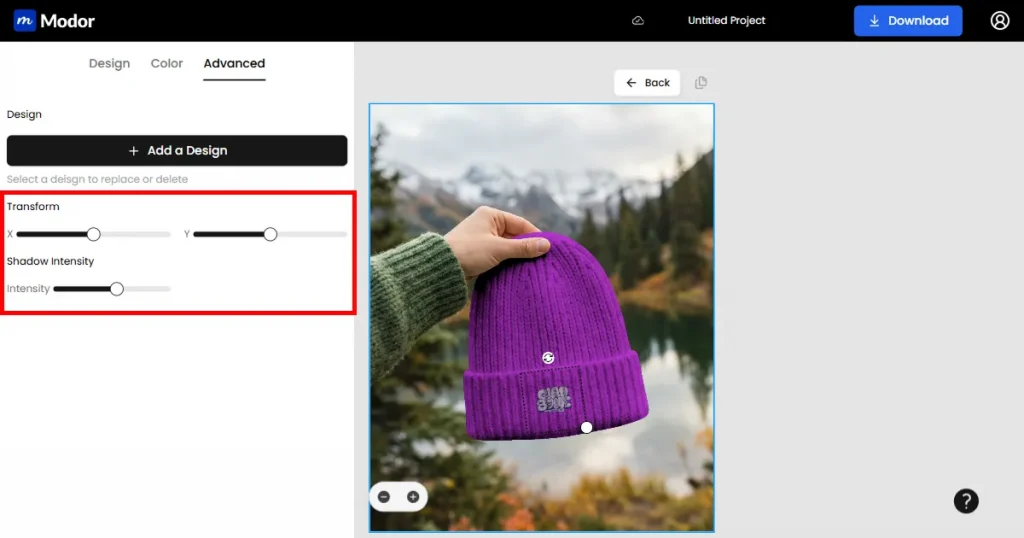
In addition to basic editing, you also have access to the Advanced customization tools. There are two advanced tools, the first one is the Transform tool, which allows you to reposition your design on the mockup to blend it smoothly.
The next one is the shadow intensity tool, which lets you add more depth and realism to the mockup by increasing the shadows’ intensity.
Step 7: Export
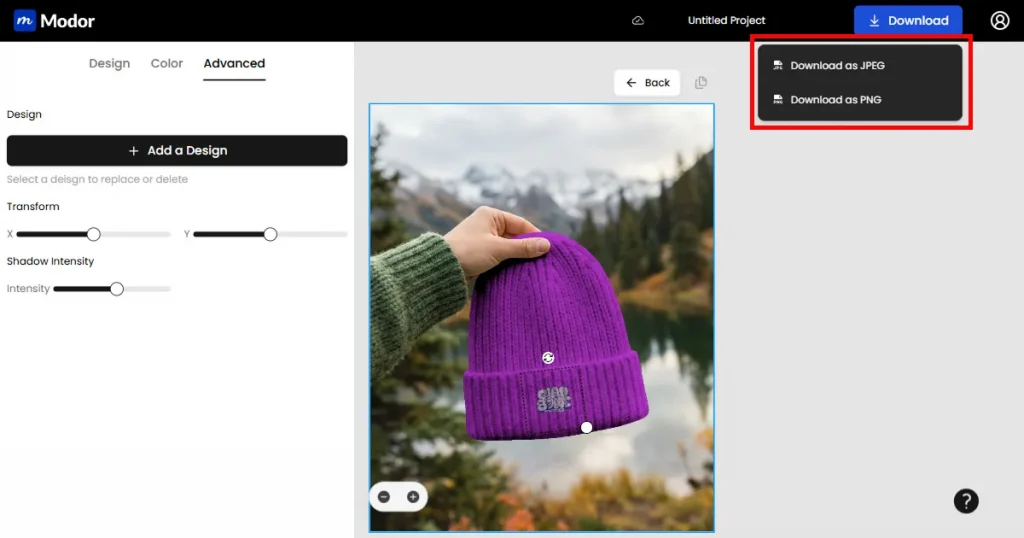
Finally, download the mockup in JPG or PNG and use it for your product listings or social media ads.
Now that you have learned how to make beanie mockups with Modor, here are a few tips to make your beanie mockups stand out.
If you are just starting out and learning how to make beanie mockups, it might feel overwhelming at first, but that’s where Modor comes in.
Modor’s powerful beanie mockup generator is designed to empower non-designers to create professional-looking mockups that look like those of designers.
Moreover, you don’t need to start from scratch. You get tons of templates, so there’s definitely one that meets your specific use case.
You can use Modor to make beanie mockups. First, create a design for your beanie mockups, upload them to Modor, adjust the placement, shadows, and colors, and export them at the highest quality possible.
To make beanie mockups for free, use the free templates from Modor. Follow the same steps described above to create the final mockup.
You can find free beanie mockup templates in Modor and use them to test your designs or for business purposes, as all templates from Modor come with a commercial license, even the free ones.
It is always better to start from a template if you are a beginner. You can use Modor, where you will find thousands of templates to choose from, and generate mockups in just a few minutes.
If you want to make a beanie mockup template for future use, you will need to use a Photoshop smart object, which will take a lot of time. So, instead, you can use Modor’s ready-made beanie mockup templates to make beanie mockups fast.
The right choice depends on your use case. Black beanie mockups work best for light-colored designs, while white beanie mockups highlight darker designs more clearly. Choose based on what makes your design stand out.