
Create Professional iMac Mockups with Modor in Minutes
Create Professional iMac Mockups with Modor in Minutes
Create professional iMac mockups in minutes with Modor. Learn mockup types, best tools, styling tips, and common mistakes to avoid
By Chanchal Pathak
|
Dec 30, 2025
|
9 min read
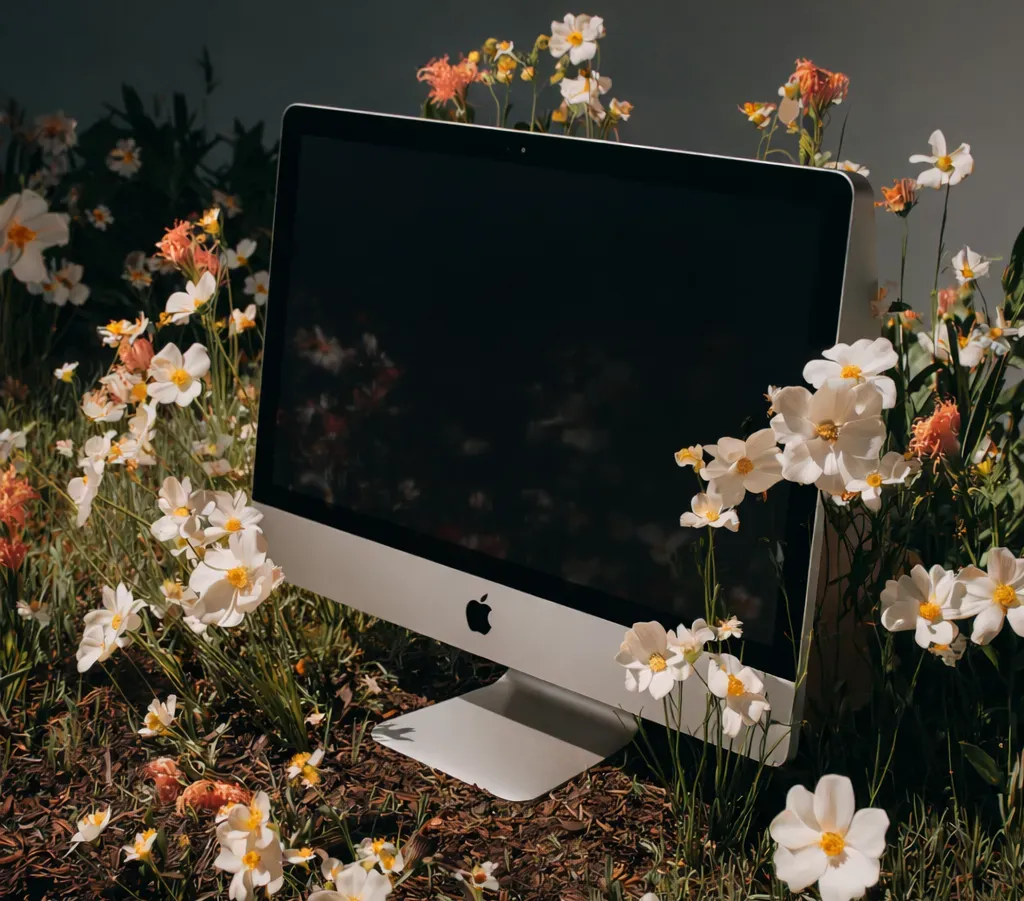
iMac mockups are now a core part of how digital products are presented. They help SaaS founders, UI designers, and marketers communicate ideas clearly by placing their iMac screens inside realistic iMac devices. A mockup of iMac creates a visual connection that plain screenshots cannot achieve.
These visuals improve message perception by nearly 65%, which makes them essential for marketing and product storytelling. Modor is a simple, fast mockup tool that helps anyone create iMac mockups in minutes. It’s a beginner-first mockup tool that needs no Photoshop or design experience to continue.
In this blog, we will cover how to create iMac mockups with Modor, along with the best tips, tools, and styles to explore.
Quick highlights
Know why iMac mockups are essential for UI presentation, product launches, and branding.
Know the best tools to use for creating professional iMac mockups.
Learn simple steps to create iMac mockups with Modor without design skills.
Discover tips to optimize your iMac mockups for social media.
Check out 2026’s best iMac mockup styles with practical use cases.
A Complete Breakdown of iMac Mockups and Their Types
What is an iMac Mockup
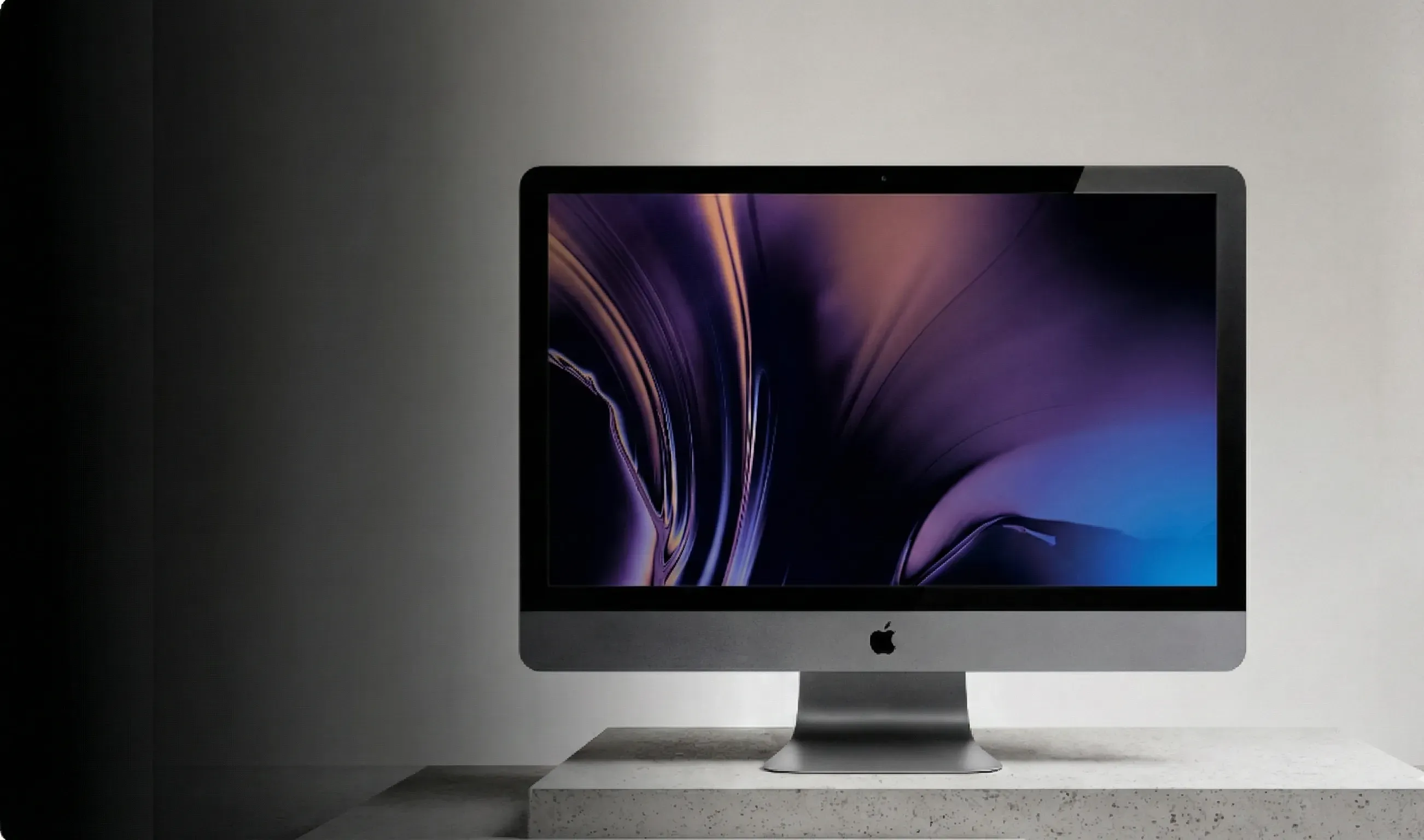
An iMac mockup places your iMac screen inside an iMac device to show how it would appear in a real-world setting. A mockup of iMac helps users understand layout, spacing, contrast, and usability. It is used widely in app launches, portfolios, marketing materials, and social media.
Types of iMac Mockups
2D iMac Mockups
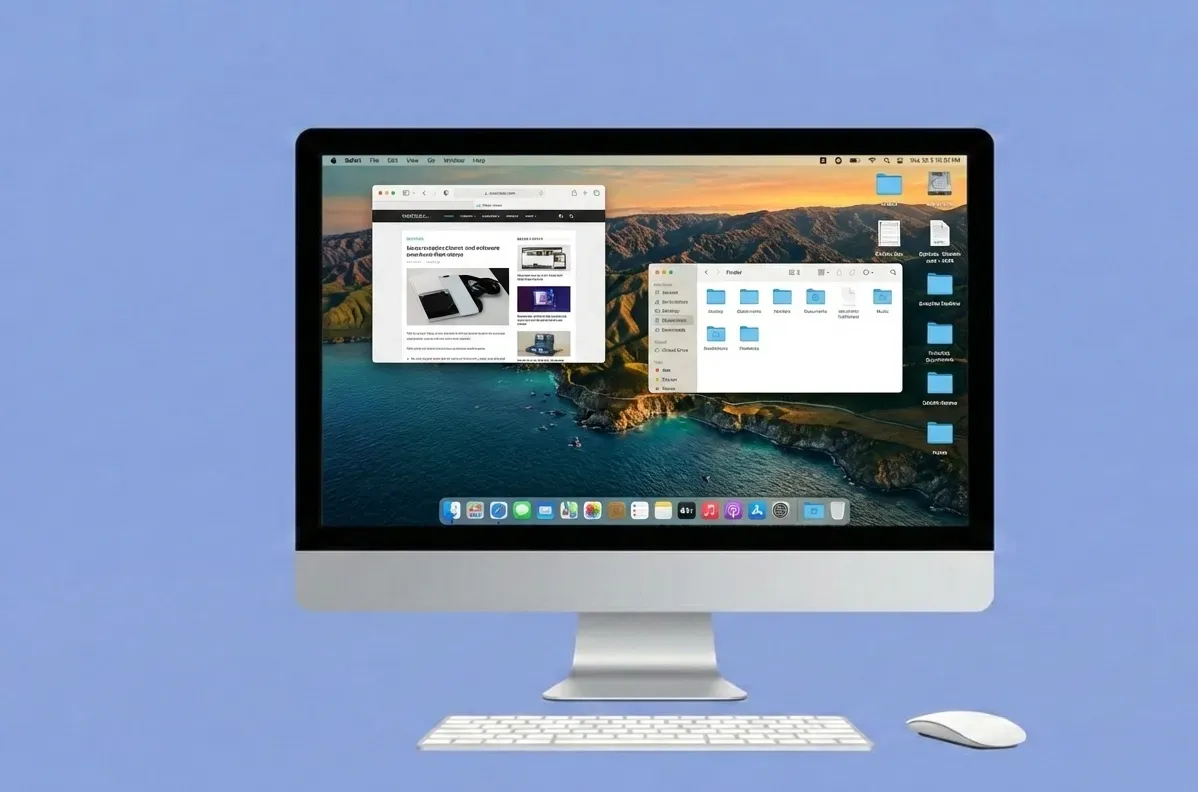
This iMac mockup style offers a flat and minimal look. 2D iMac mockups keep the attention on the UI and work well for simple layouts and clean product pages.
3D iMac Mockups
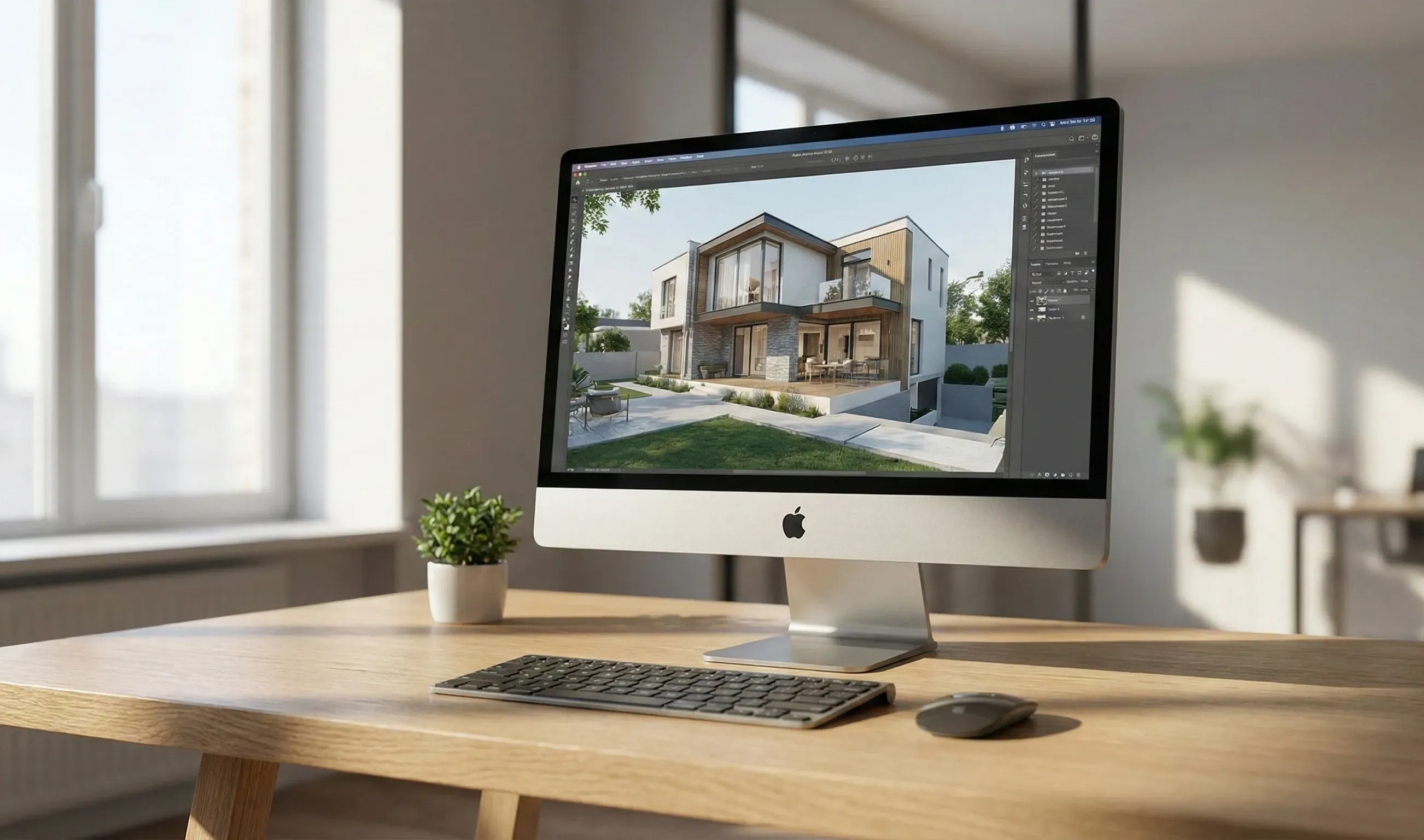
This iMac mockup style adds perspective, angles, and light depth. 3D iMac mockups create a dynamic appearance and make your iMac screen stand out in presentations and graphics.
Custom iMac Mockups
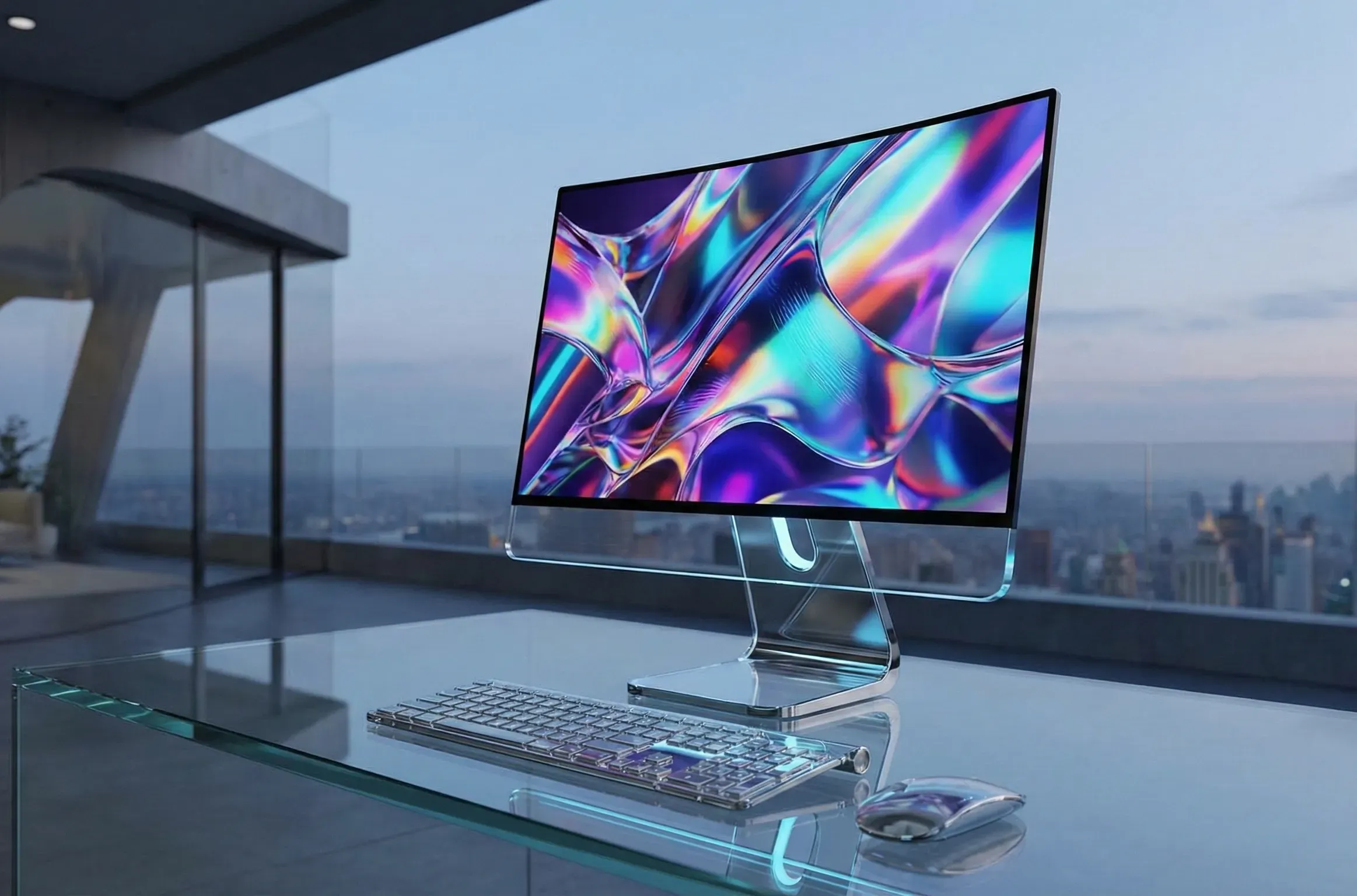
Custom scenes are crafted with branded environments, props, or colors. They help create unique visuals for launches and premium campaigns.
How Can I Create an iMac Mockup
Use a Design Software
Design software gives you complete control when creating iMac mockups. It allows edits on layers, shadows, lighting, and the iMac screen. Designers use these tools when they want complete creative control.
Create an iMac mockup in Adobe Premiere Pro
Adobe Premiere Pro is a professional video editing tool used for motion graphics, animated UI previews, and video-based mockups. It supports transitions and motion effects. The downside is that it is not ideal for simple still mockups and takes time to learn.
Follow the steps below to create an iMac mockup on Adobe Premiere Pro
Step 1: Open Adobe Premiere Pro and start a new project with a clean sequence.
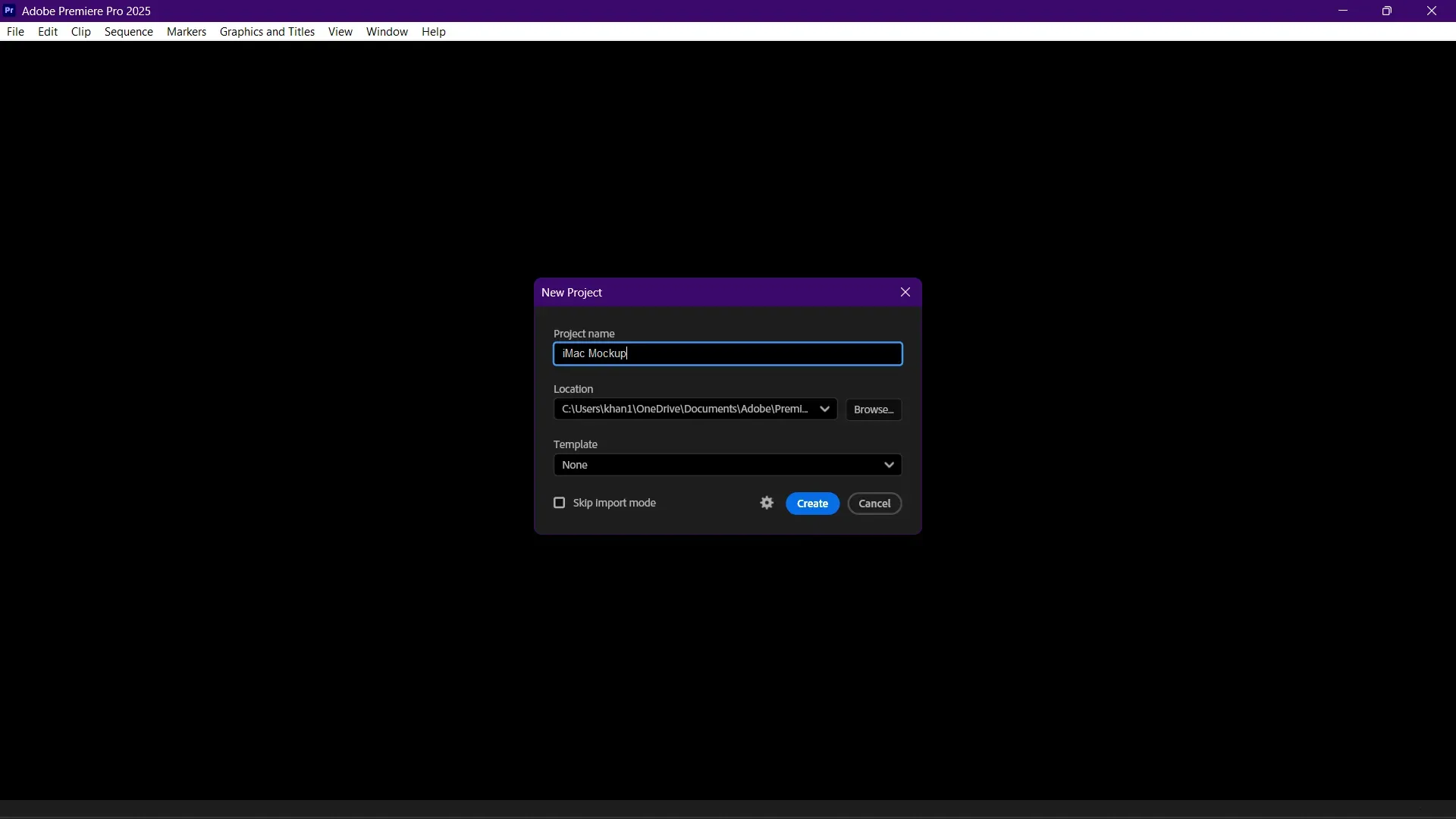
Step 2: Import your iMac screen, recording, or static image. Step 3: Import a PNG iMac mockup with a transparent display cutout.
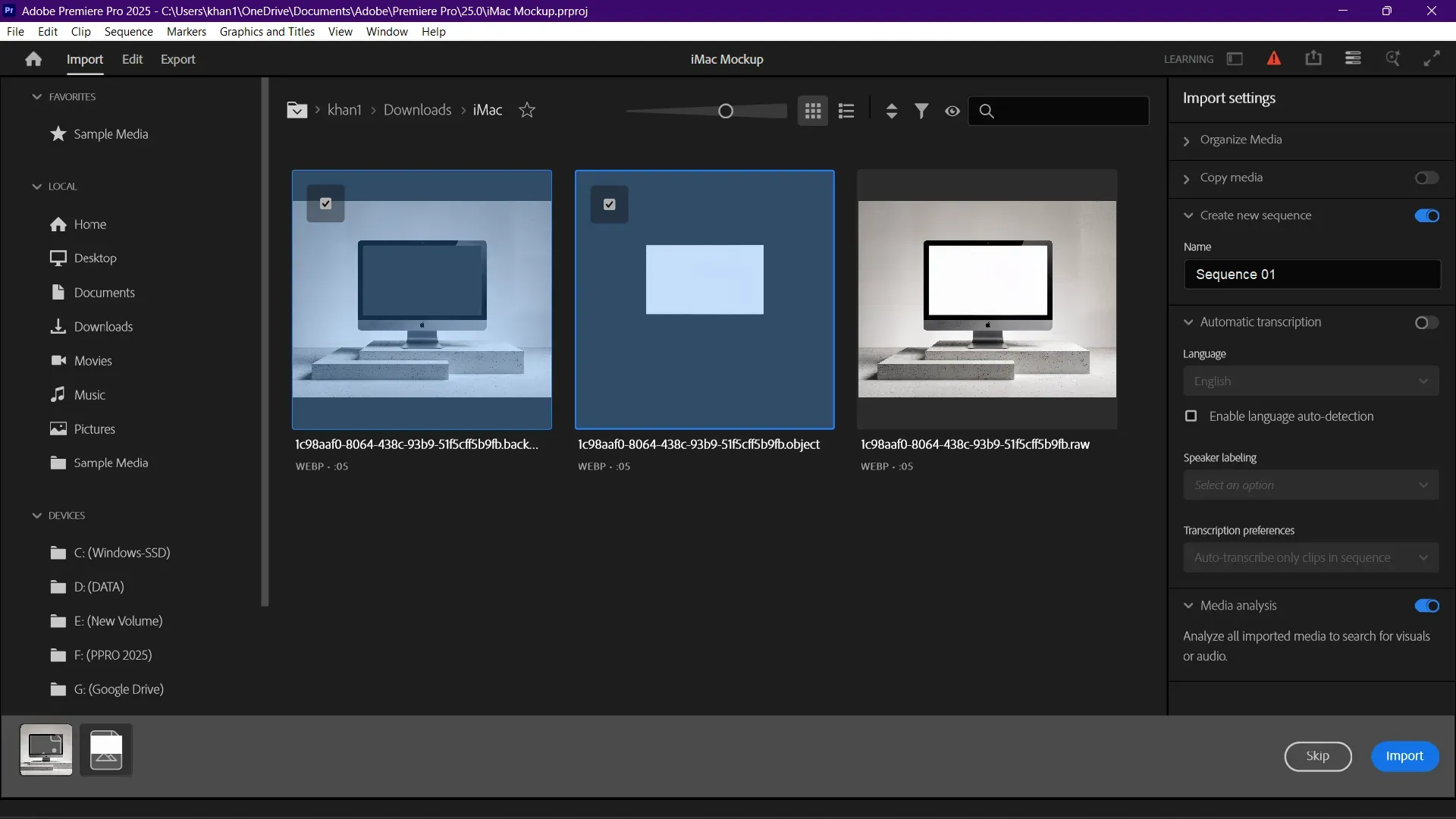
Step 4: Place the iMac screen on the timeline and place the mockup above it. Step 5: Use Motion controls to position and scale the iMac screen to match the iMac device.
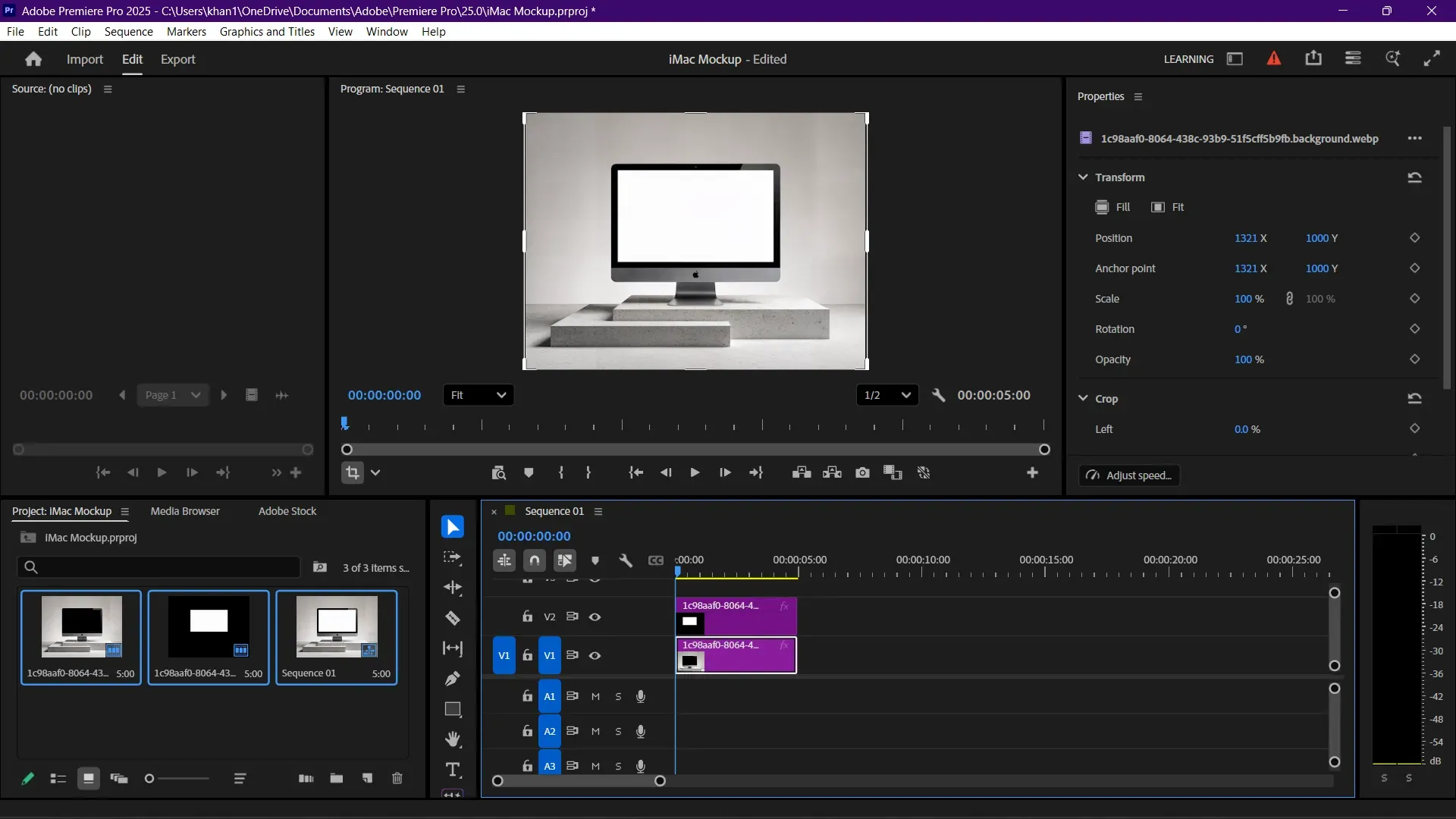
Step 6: Add soft shadows or gentle zoom to create movement. Step 7: Use Lumetri Color to balance the lighting and contrast. Step 8: Add transitions such as fade-in or slide. Step 9: Export as MP4 or as a PNG or JPG frame.
Use Online Mockup Generators
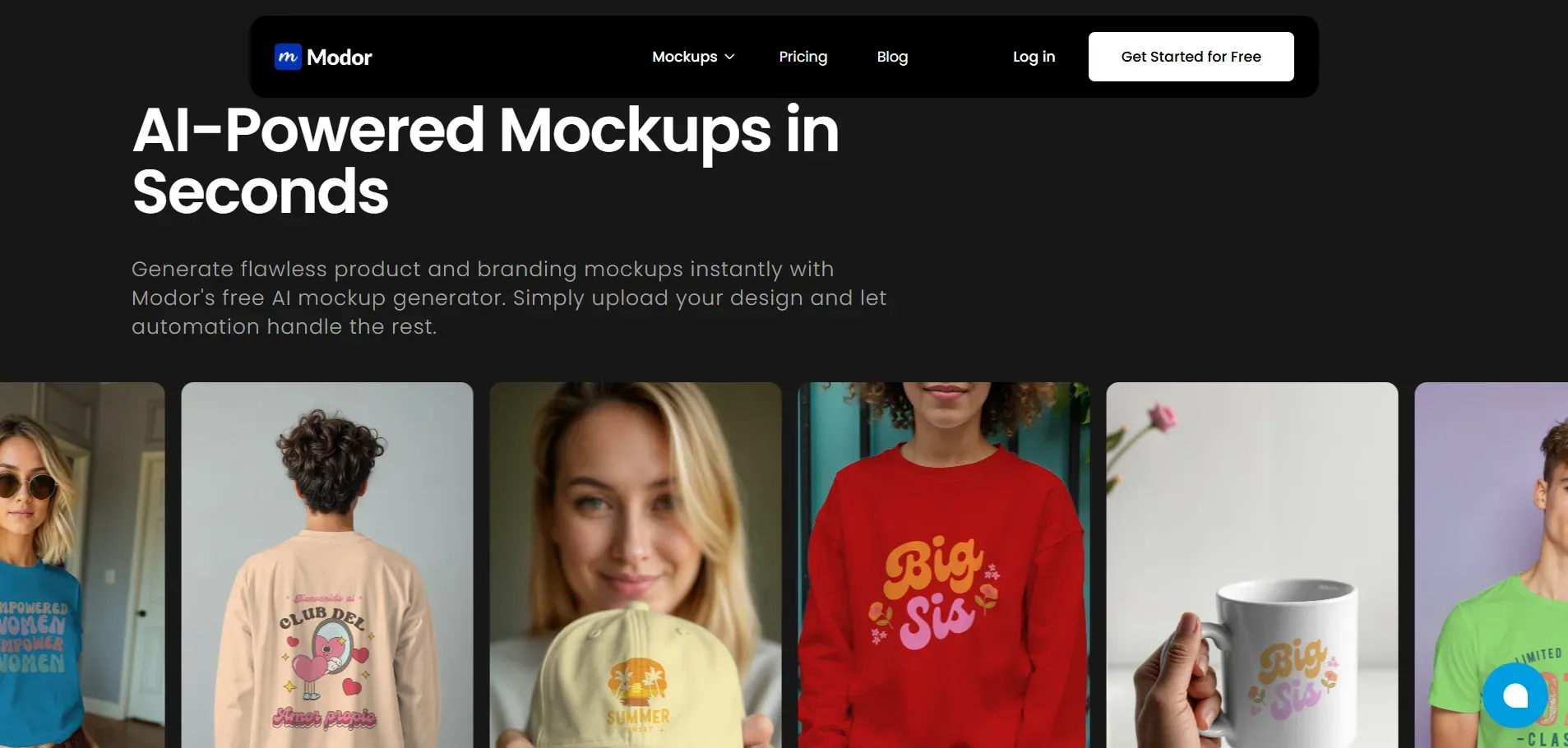
Online generators are the simplest way to create iMac mockups. These tools help founders, marketers, and designers work quickly with minimal effort. They work well when you need consistent and fast outputs from a mockup tool.
A Simple Step-by-Step Guide to iMac Mockups with Modor
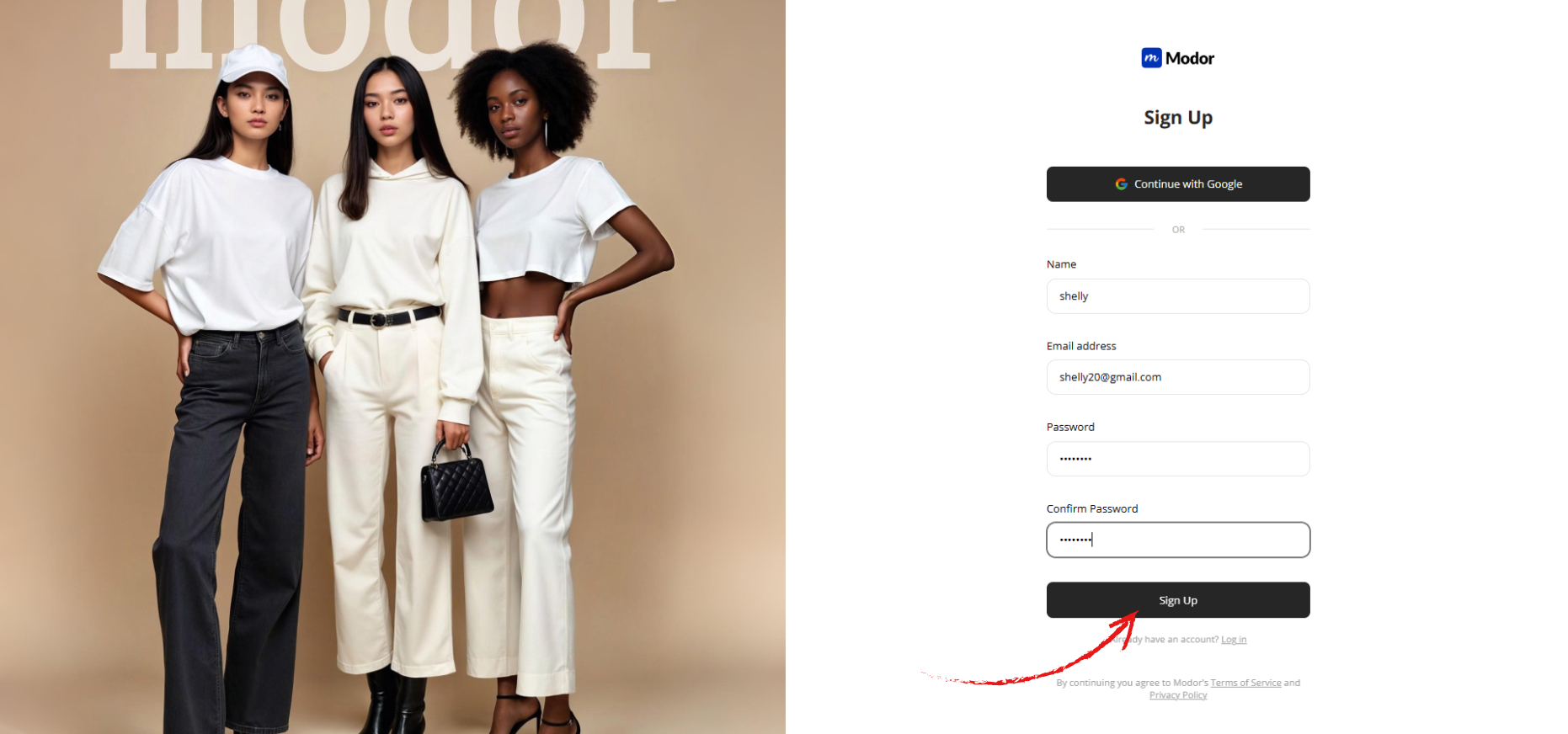
Step 1: Sign up with Google or email. If you already have an account, log in with your saved credentials.
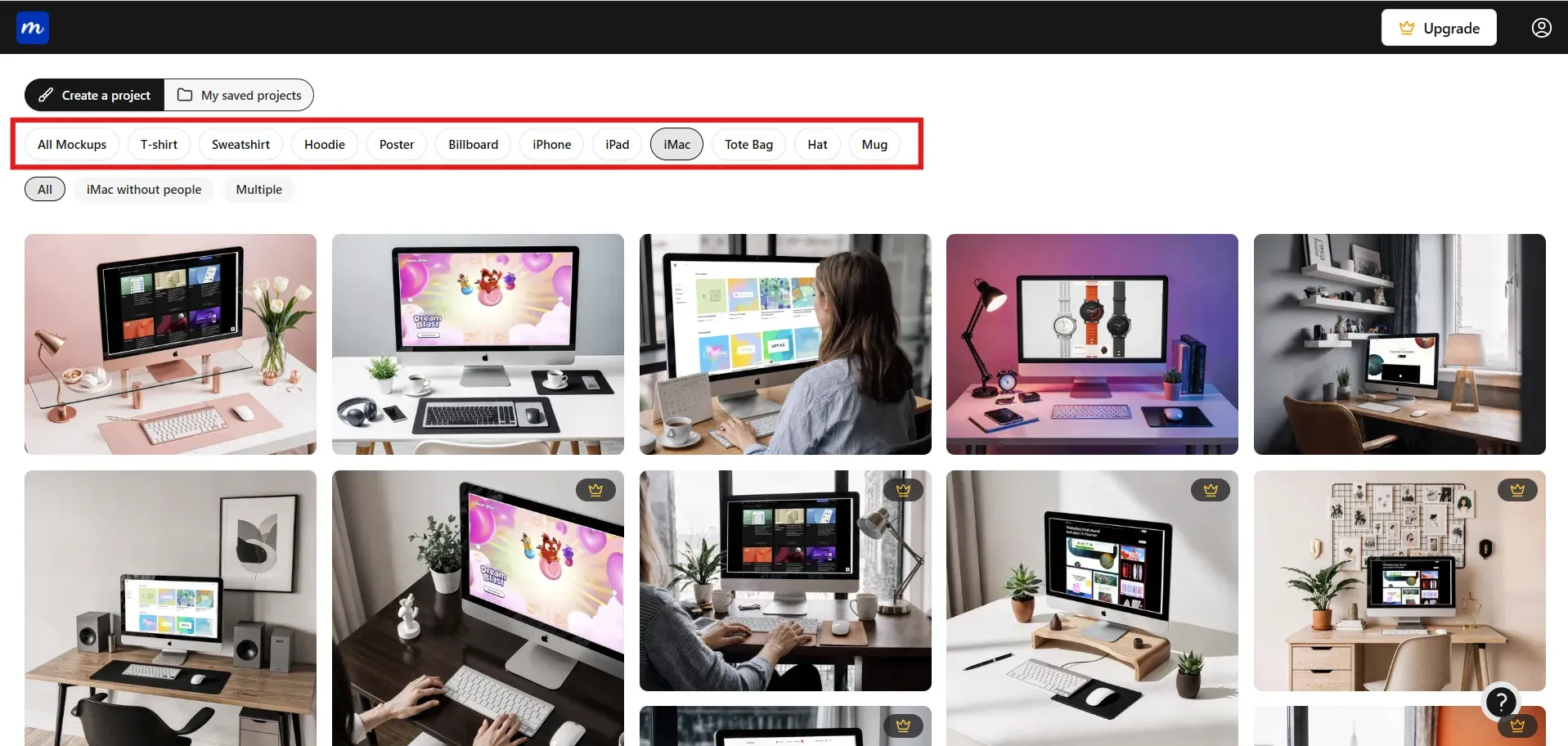
Step 2: Select the iMac category among other categories, such as t-shirt, hoodie, billboard, etc.
Step 3: Choose an iMac template that matches your brand style, and click on Use this Mockup to start editing the template.
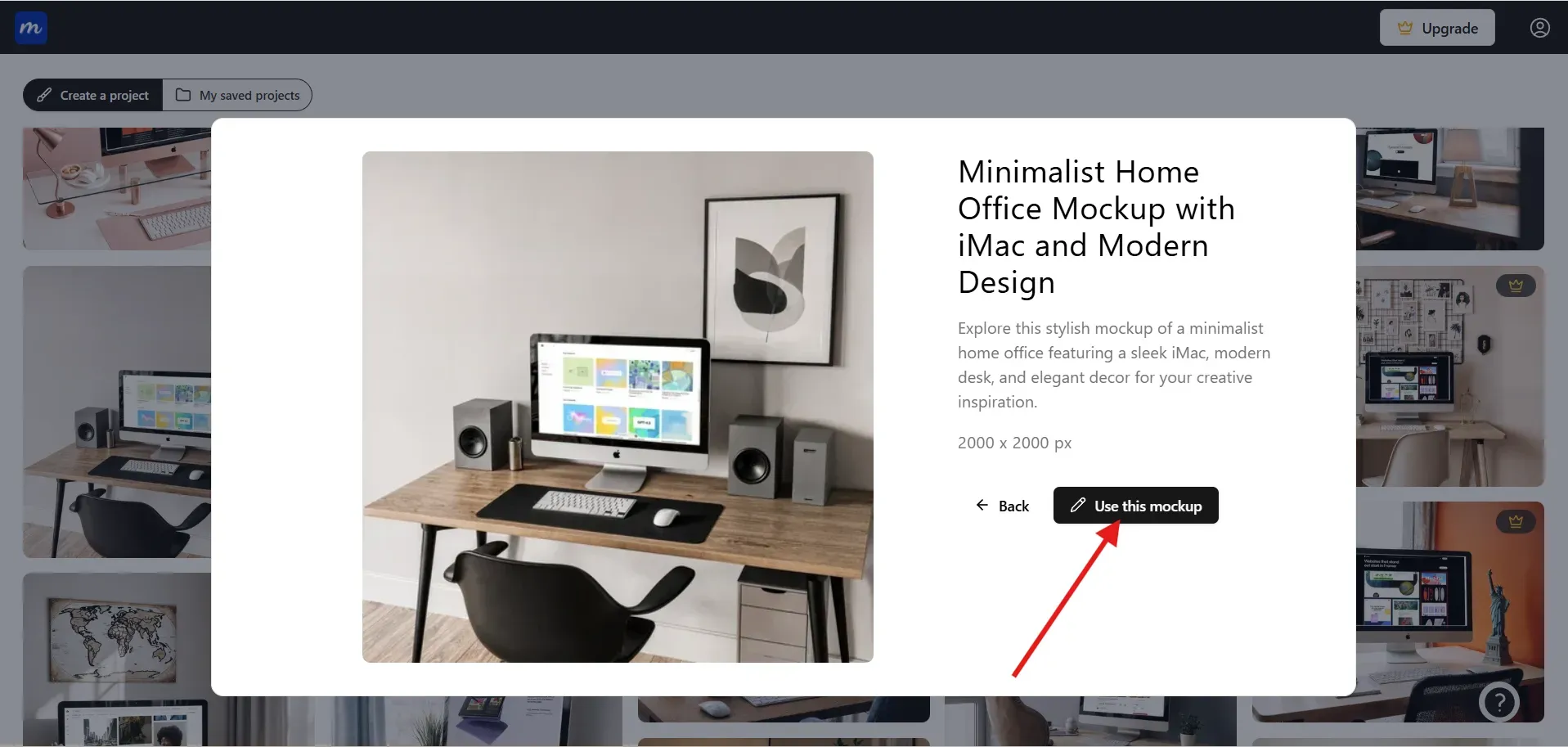
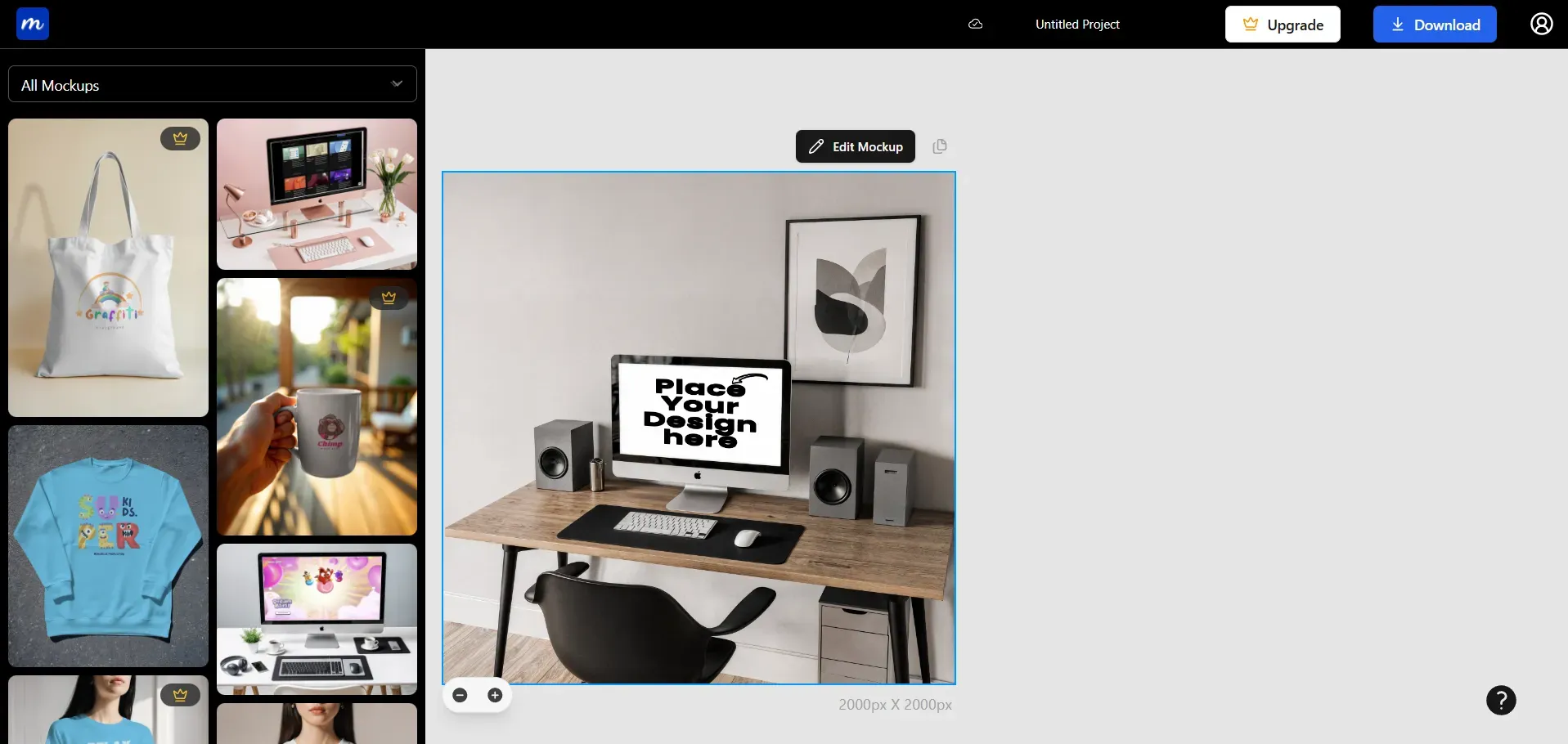
Step 4: Once inside the editor, click on Edit Mockup to unlock editing options.
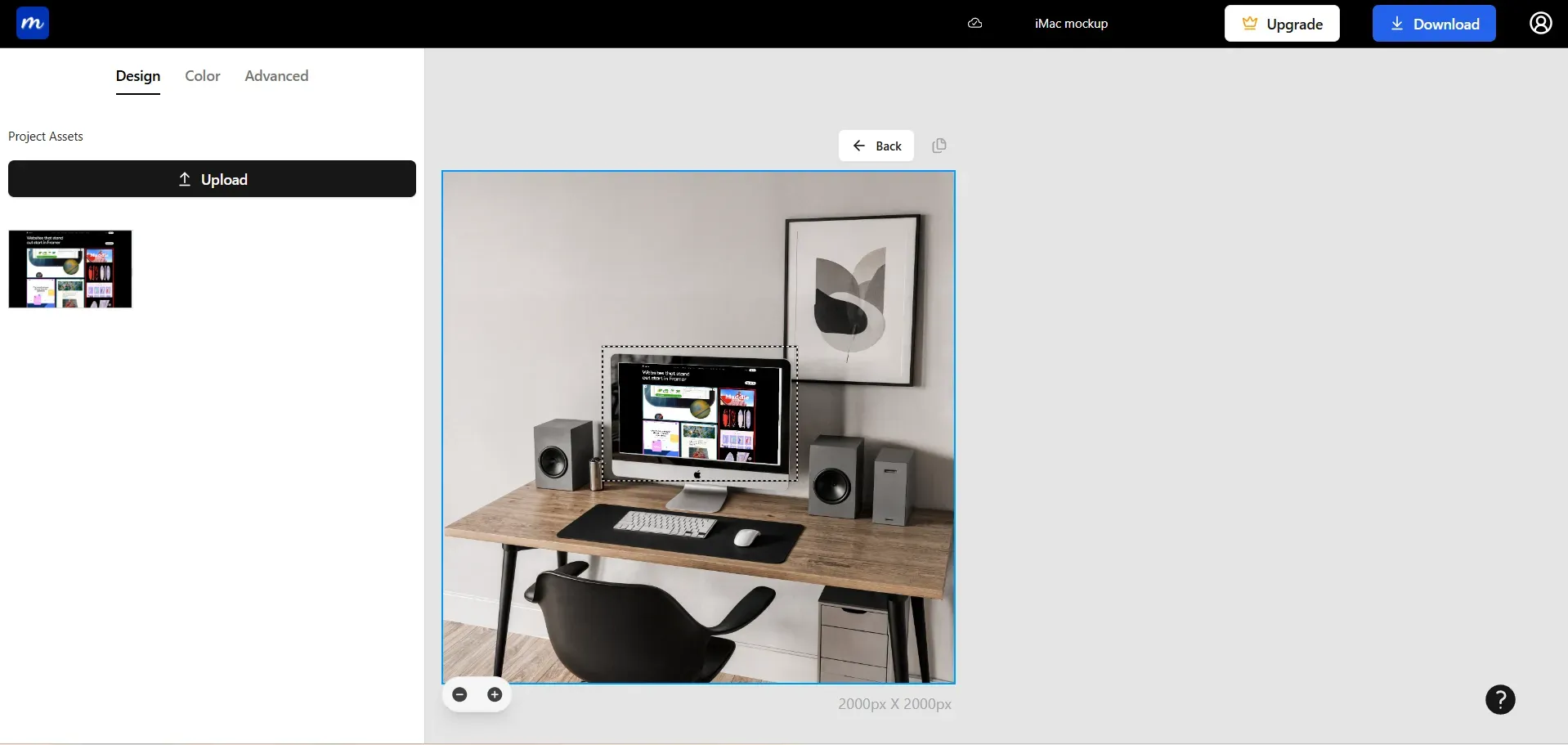
Step 5: Upload your iMac screen and place it on the design placeholder box on the iMac mockup.
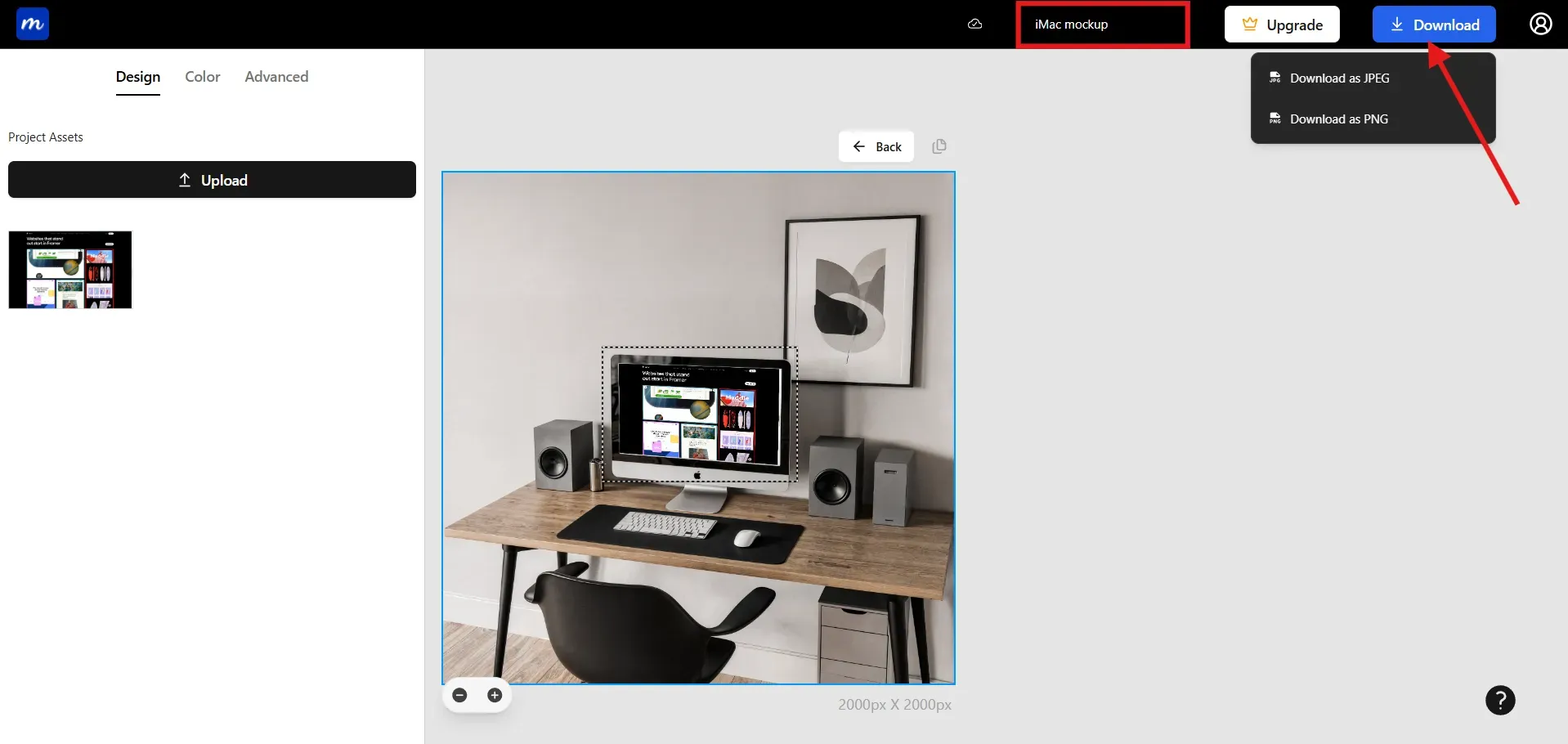
Step 6: Give a name to your project in case you go back to your project for more edits. Lastly, download your iMac mockup in JPG or PNG format.
Tip: Create multiple versions to compare different iMac mockup style variations during testing.
Other tools to consider
Canva
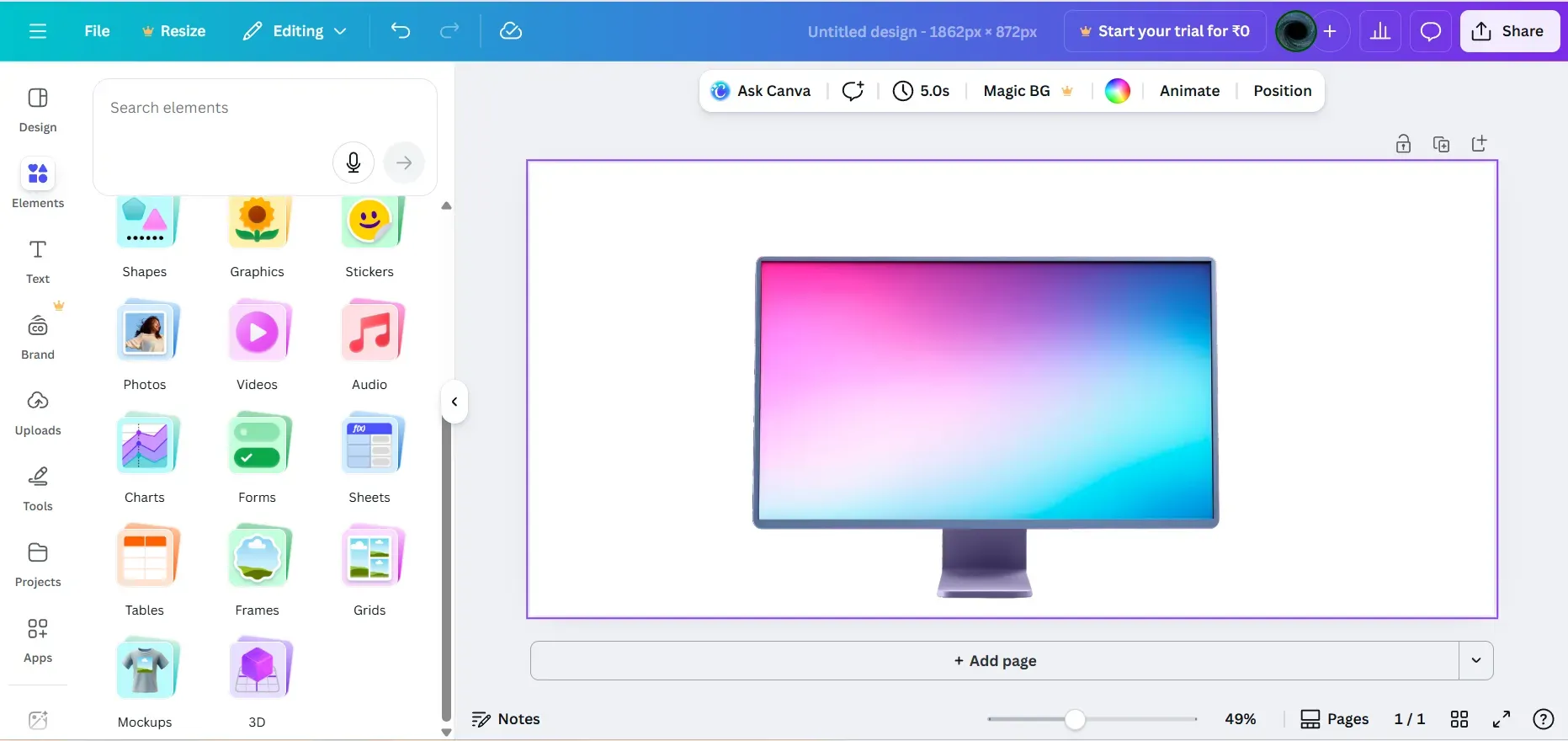
Canva is a reliable and simple mockup tool for beginners who want instant iMac mockups without learning complex design software. It offers easy drag-and-drop features and a vast library of mockups. The only downside is that the iMac templates look basic and lack depth compared to more advanced tools.
Mockuuups Studio
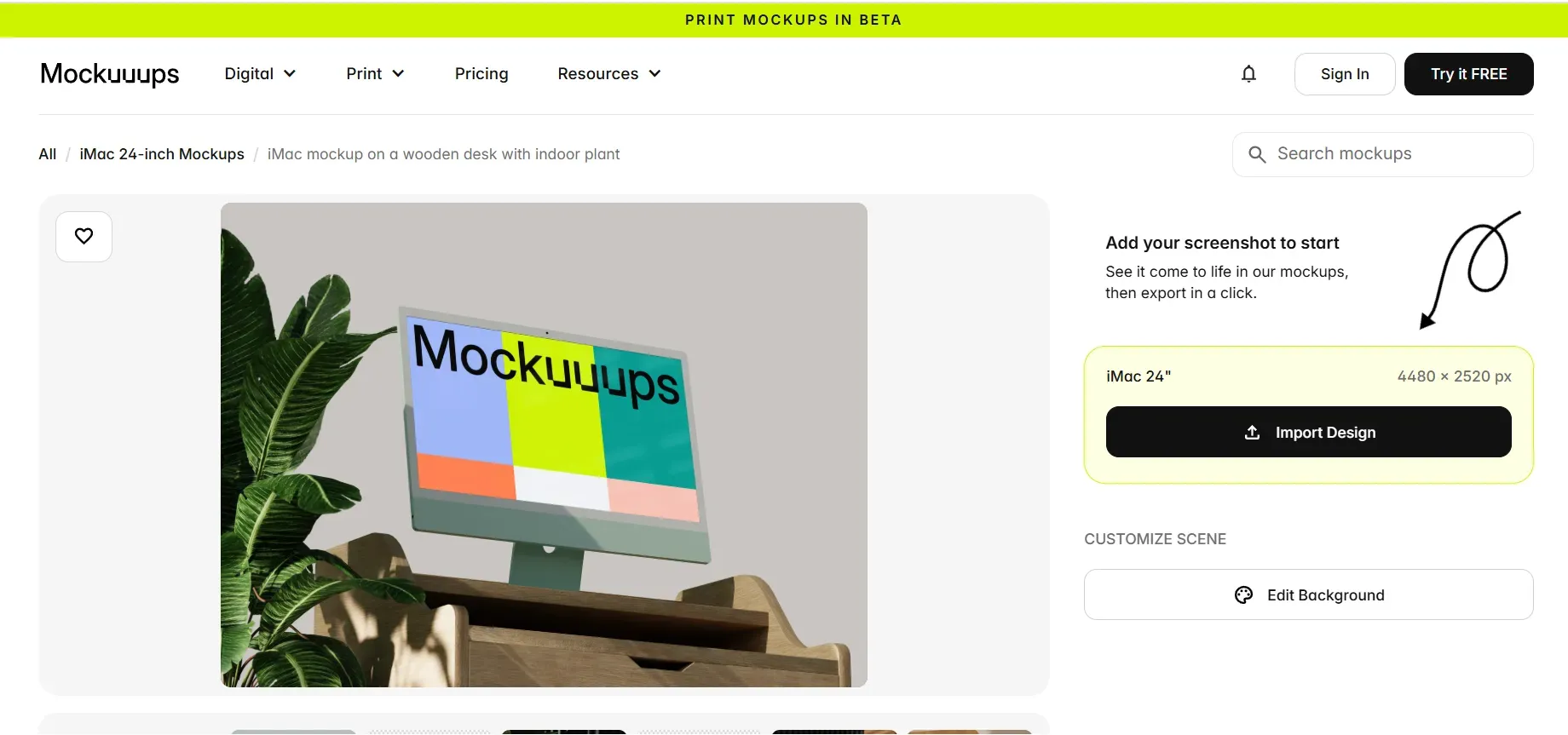
Mockuuups Studio provides an extensive range of iMac templates to help you create clean, clear visuals with minimal effort. It is helpful for quick previews and polished scenes. The downside is that customization is limited, and many templates may start to feel repetitive after frequent use.
Mediamodifier
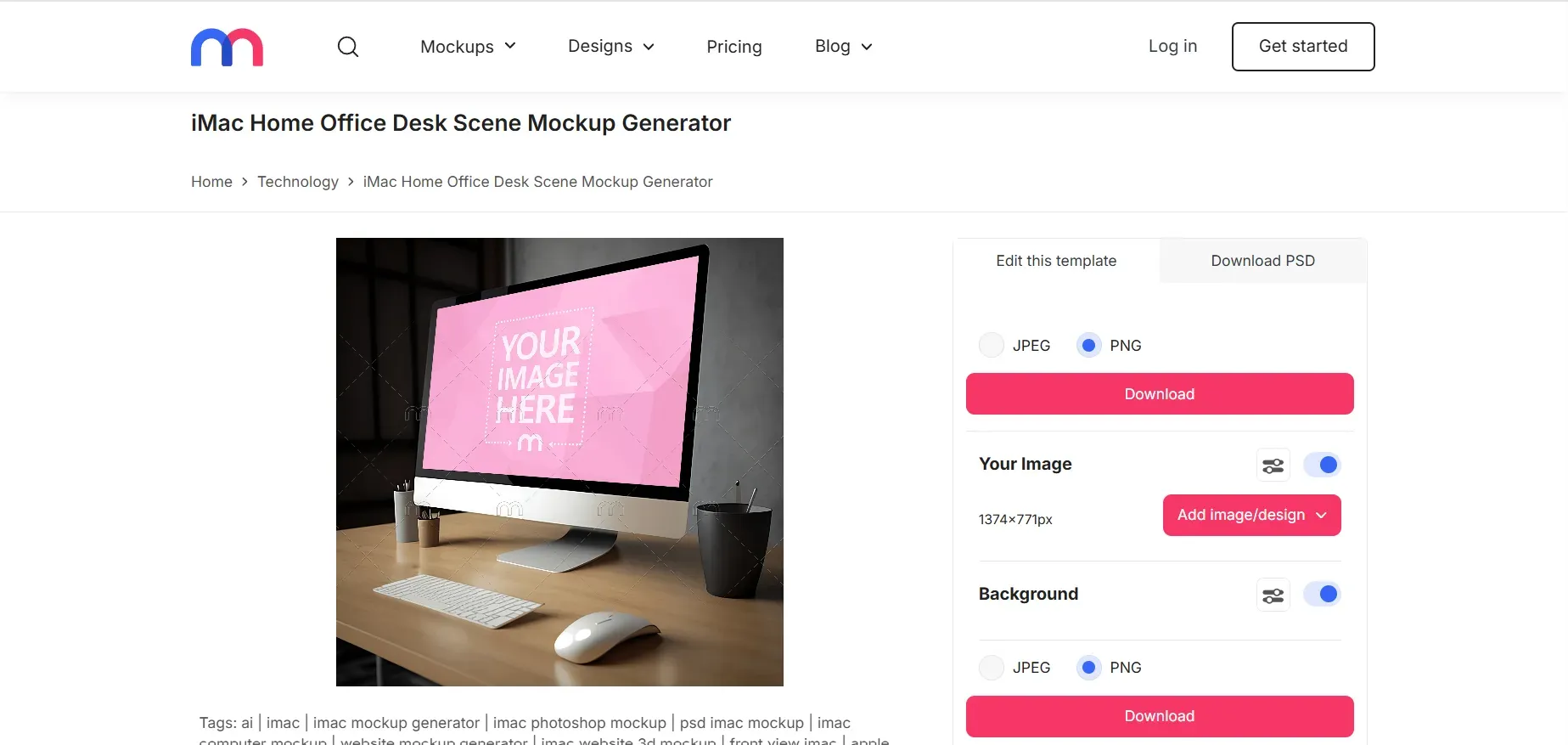
Mediamodifier allows you to create quick iMac mockups using preset formats made for social media, product pages, and portfolios. It loads fast and supports simple editing tasks. The downside is that some iMac templates look generic and may not offer the refined detail needed for premium designs.
Choosing the Right iMac Mockup for Your Project
Selecting the right iMac mockup helps you present your UI with clarity and purpose. It shapes how people understand your brand and how they connect with your product. Check out these points to choose the right iMac mockup for all your needs.
Audience fit: Know your audience and choose a layout that aligns with their expectations so the final mockup feels natural to them.
Message alignment: Match the mockup's tone with your message so the scene clearly supports your goal.
UI focus: Choose mockups that highlight your UI and avoid layouts that are too overcrowded with props.
Brand consistency: Check the lighting and background color to ensure the mockup goes well with your brand identity.
Context suitability: Ensure the environment aligns with your product's nature and reflects its intended use.
Clarity check: Ensure the mockup remains clear throughout so your UI remains readable and visually clean in the final output.
Avoid These Common Mistakes While Creating an iMac Mockup
Small mistakes can reduce the quality of your mockup and take attention away from your UI. Avoiding these issues helps you create a clean and realistic presentation. Check out the most common mistakes designers make while creating iMac mockups.
Low-quality UI: Avoid using compressed UI images as they reduce sharpness and clarity. A high-resolution screen always makes a better impression.
Distracting backgrounds: Don’t select templates with busy or overcrowded backgrounds that draw attention away from your design. A simple background keeps the UI as the primary focus.
Alignment issues: Ensure your interface is positioned accurately within the frame. Poor alignment makes the mockup look unrealistic and unprofessional.
Outdated frames: Do not use older iMac models, as trends now prefer thin bezels and modern shapes. Using the latest iMac models adds a premium and fresh look to the mockups.
Color inaccuracy: Make sure your iMac screen does not look tinted or washed out. Keep the iMac screen balanced to improve realism.
Strong reflections: Avoid reflections that block essential parts of your UI. Subtle variations work better and keep your design visible.
2026 Best iMac Mockups for Designers and Creators
Minimal and Clean iMac Mockups
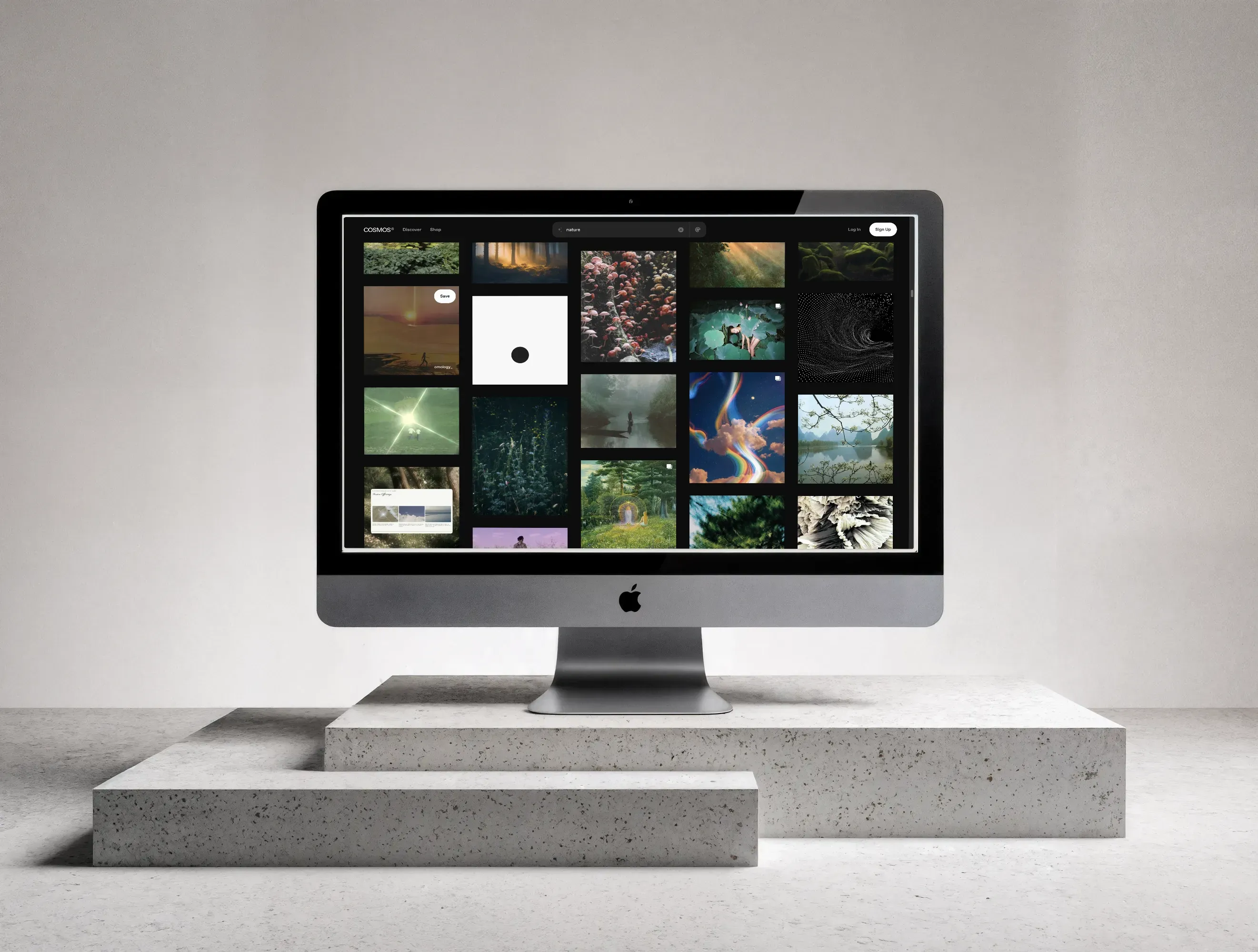
Minimal iMac mockups keep things simple. The screen sits in a quiet space with nothing pulling your eyes away from it. It feels neat and open, and the design gets all the attention it needs. Use case: Works well for SaaS platforms, dashboards, and hero sections.
Dark Workspace iMac Mockups
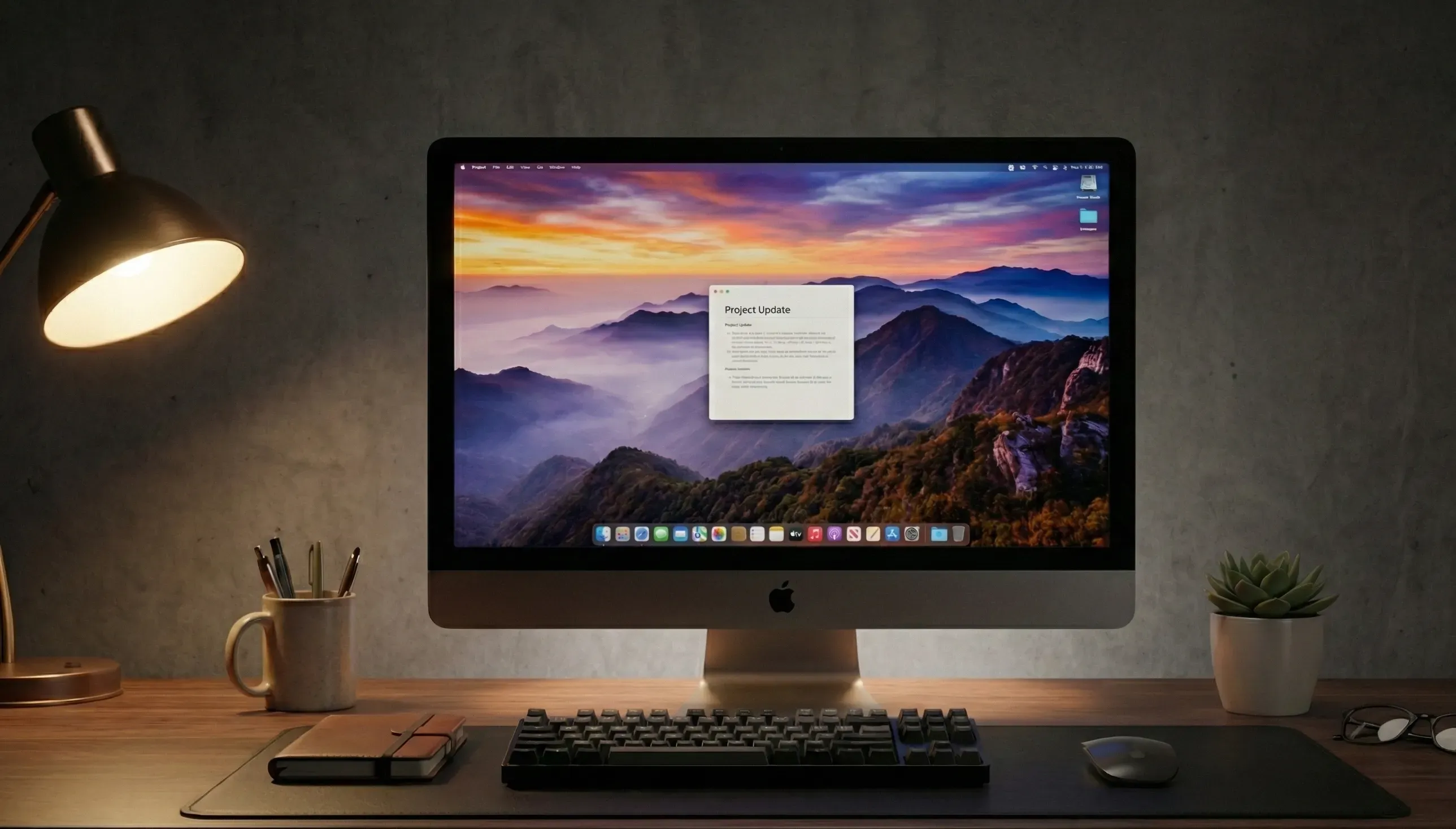
Dark workspace scenes draw the eye straight to the screen. The lights, shadows, and colors make the display stand out more than anything else around it. It feels focused and formal, which suits tech-related products. Use case: Best for coding tools, AI products, and technical apps.
Floating iMac Mockups
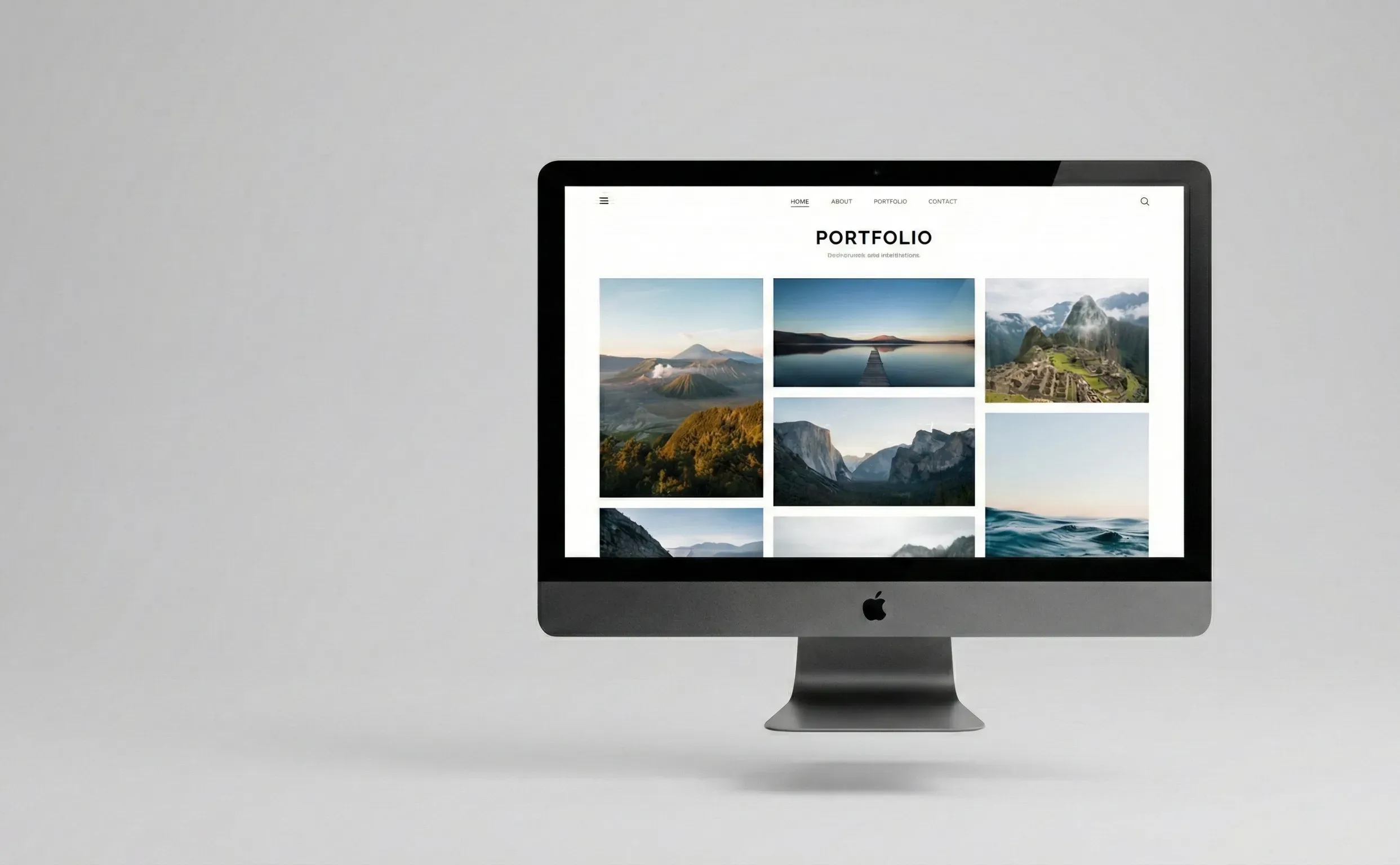
Floating iMac mockups place the iMac in a clean space with a soft shadow under it. The setup feels light and modern, giving the design a fresh look. The screen is the only thing that matters in the frame. Use case: Useful for modern websites and presentations.
Clay and Abstract 3D Mockups
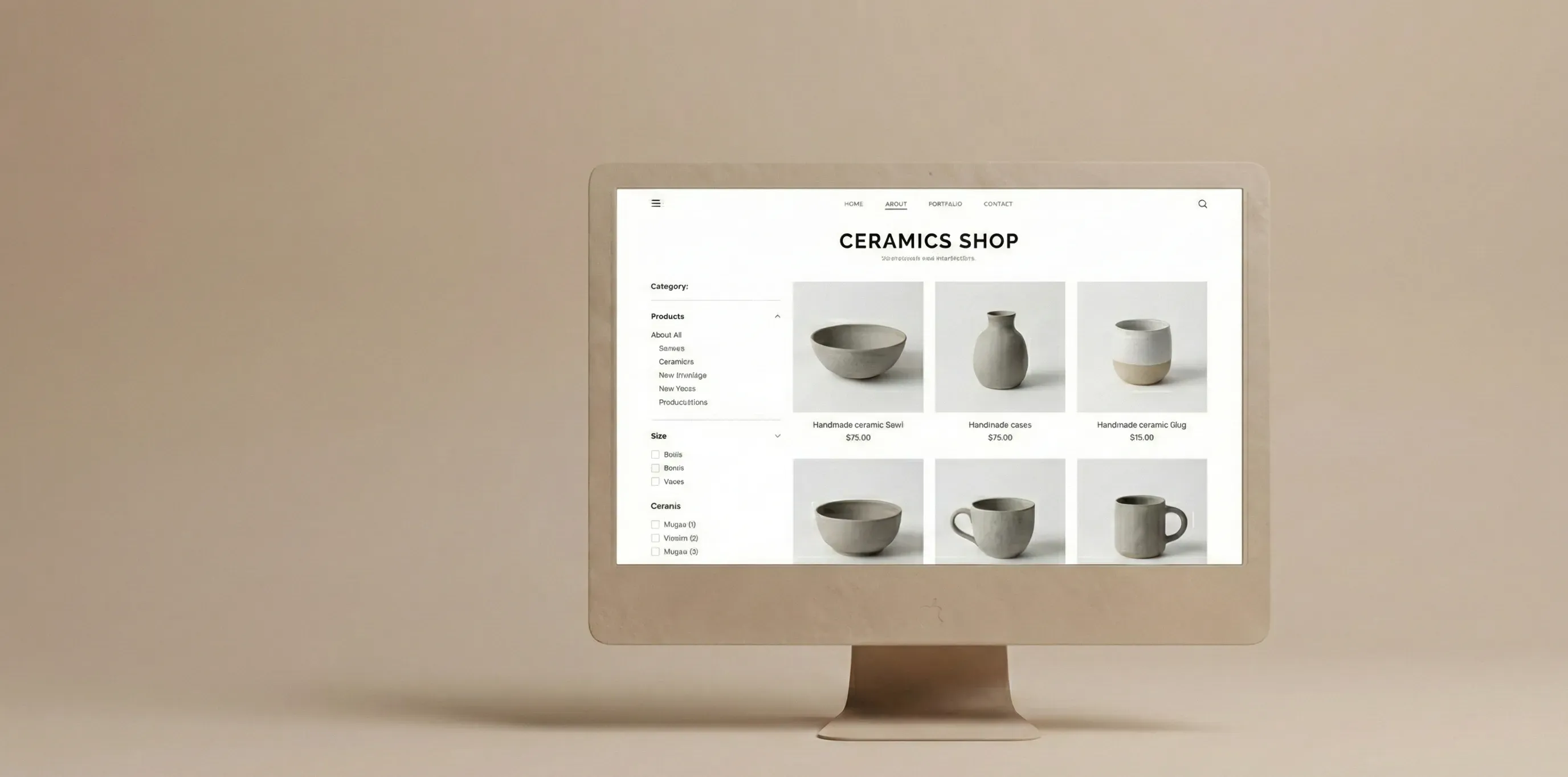
Clay and abstract styles remove real textures and replace them with smooth shapes and soft tones. The scene feels calm and artistic, which helps the interface stand out on its own. Use case: Ideal for portfolios and creative agencies.
Realistic Office iMac Mockups
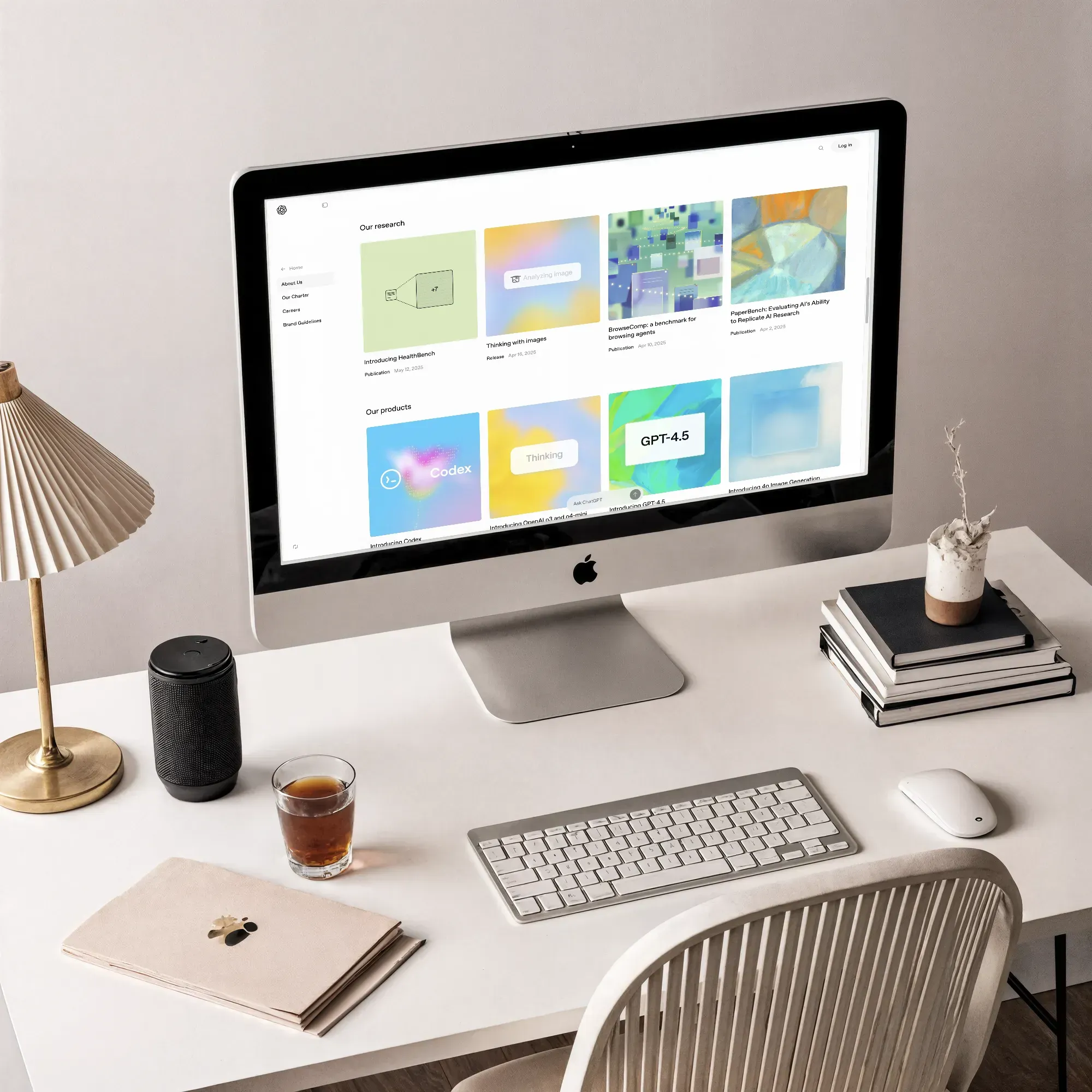
This style places the iMac in a regular desk setup. It looks like a real office environment, which helps people picture how the product fits into daily use. Use case: Works well for business apps, HR tools, and productivity platforms.
Conclusion
This blog covered the whole process of creating iMac mockups, from understanding mockup types to choosing the right style and avoiding common mistakes. You also saw how different tools work and how to prepare your designs for social media and presentations.
iMac mockups matter because they make your screens feel real and easier to understand. If you want a reliable and straightforward way to build them, Modor gives you a direct path. You can pick an iMac template, place your design, and finish your mockup in minutes, with a clean, consistent result.
FAQs
1. How to create iMac mockups?
You can create an iMac mockup in Modor by choosing an iMac template and placing your UI design inside the iMac device. After all editing and final touches, export your iMac mockup as PNG or JPG for commercial use.
2. How do iMac mockups help in UI and product presentation?
iMac mockups show your project UI in a real-world context. They make your ideas clear and help viewers understand your product faster.
3. Can I create an iMac mockup without design experience?
Yes. Absolutely, Modor is one such mockup tool that requires zero design experience. You just need internet and a device to use, that’s it.
4. Can I create iMac mockups using Adobe Photoshop?
Photoshop is an excellent choice for iMac mockups. You get complete control over editing and layout adjustments with advanced editing options and premium mockups. As Photoshop is a heavyweight design software, it requires more time and skill to use it effectively.
5. What are the best ways to improve the quality of my iMac mockups?
You can easily enhance your iMac mockups by using high-resolution UI screens, keeping backgrounds simple, and a mockup style that matches your brand. Make sure to test your iMac mockups on a mobile screen before publishing them.
Related Blog